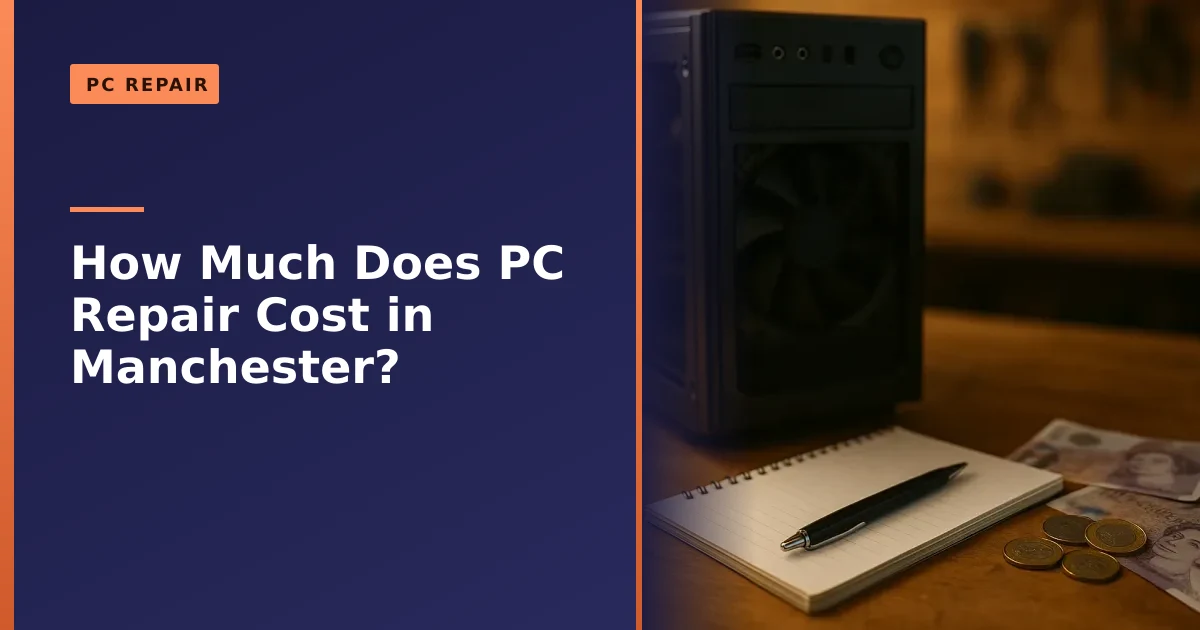
As a rough guide, most desktop and gaming PC repairs in Manchester land somewhere between about £40 and £150 for the work, with the price of any new part on top. Simple jobs sit at the lower end, bigger upgrades cost more, and you always get a clear, exact quote before we touch anything. No surprises.
Key takeaways
- A PC repair is priced as labour (the work) plus the cost of any part you need, and we always quote the full figure up front before we start.
- As a broad guide, everyday desktop jobs (fitting an SSD, adding RAM, a virus clean, a Windows reinstall) usually fall in the £40 to £120 range for labour, with parts on top where needed.
- Bigger jobs such as a power supply or graphics card swap, or a full custom build, cost more because the parts and the care involved are greater.
- No fix, no fee on the repair itself: if we cannot solve the fault you brought it in for, you do not pay the repair labour.
- Part prices in 2026 are unusually changeable, especially memory and storage, so the honest answer is that we price the exact part on the day and tell you before you commit.
- Free local collection and return across Manchester means you never pay to get a heavy tower to us and back.
Nobody likes getting the runaround on price. So this guide sets out, honestly, what a desktop or gaming PC repair costs in 2026, how the pricing works, and how to avoid paying for work you do not need. These are real world ranges, not a fixed menu, because every machine and every fault is a little different. The one promise that does not change is that you get an exact quote before any work begins. For the full picture of what we fix, have a look at our PC repair service in Manchester.
The honest short answer: how PC repair is priced
Every desktop repair breaks down into two simple parts:
- Labour. This is the time and skill to diagnose the fault and carry out the fix: testing, fitting, cloning your data across, setting things up and checking the machine works properly afterwards.
- Parts. If your PC needs a new component (an SSD, memory, a power supply, a graphics card, a fan or cooler), that part has a cost, and we buy quality parts rather than the cheapest thing going.
Some jobs are labour only. Removing a virus, reinstalling Windows, tidying up a slow machine or giving a dusty tower a full clean and fresh thermal paste all fall into that group, because nothing physical needs replacing. Other jobs, like an upgrade or a failed component, are labour plus the part. When we quote you, we tell you both figures so you can see exactly where your money goes.
One thing we never do is guess at a price and then quietly grow the bill. You get the total up front. If the job turns out bigger than first thought once it is open, we stop, ring you, and agree the new figure before carrying on. You are always in control of what you spend.
Why we quote up front instead of charging by the hour
Across the UK, computer repair labour rates run anywhere from roughly £40 to £100 an hour, and prices tend to be higher in London than in the north. The trouble with hourly billing is that you have no idea what the final number will be until the work is done, which is exactly when it is too late to say no.
We prefer a clear, agreed price for the job. Before we start, you know the figure. That way a tricky fault that takes us longer is our problem to manage, not a growing cost that lands on you. It is a fairer way to do it, and it fits the way we like to work: tell you the truth, quote it plainly, then get on with it.
No fix, no fee: what it does and does not mean
You will see "no fix, no fee" all over the repair trade, and it is a good principle when it is applied honestly. Here is how it works with us:
- If we cannot fix the fault you brought the machine in for, you do not pay the repair labour. Plain and simple.
- Diagnosis is where the real skill sits. Some shops charge a separate diagnostic fee (often somewhere between £20 and £50) to cover the time spent finding the fault, and many will deduct or waive that fee if you go ahead with the repair.
- If a fix is possible but you decide not to proceed, that is entirely your call, and any small diagnostic charge simply covers the time already spent working out what was wrong.
The reason the diagnosis matters so much is that on a desktop, several very different faults can look identical from the outside. A PC that will not display anything might have a dead graphics card, a failing power supply, loose memory or a flat motherboard battery. Working out which one it is, quickly and correctly, is what stops you paying for the wrong part. We go into that detective work in our guides on a PC that turns on but shows no display and a gaming PC that will not turn on at all.
What affects the price of a desktop repair
Two machines with what sounds like the same problem can cost very different amounts to put right. These are the things that move the number up or down:
- The fault itself. A quick memory reseat is not the same job as tracking down a random crash that only happens under load.
- Whether a part is needed, and which one. Labour might be modest, but the component decides a lot of the total. A budget SSD and a high end graphics card are worlds apart.
- How much data has to move. Cloning a nearly full 2TB drive to a new SSD takes far longer than copying a lightly used one, and time is part of the cost.
- Access and the state of the machine. A clean, roomy tower is quick to work in. One packed with cable clutter, or caked in years of dust, takes longer.
- Custom cooling. A closed loop air cooled build is straightforward. A custom water cooling loop adds real time and care, which is one reason we are cautious about it in our piece on the dangers of water cooling your PC.
- Part prices on the day. More on this below, but in 2026 memory and storage in particular have been unusually dear, so the exact figure for a part can shift week to week.
Here is a simple way to picture where a job sits:
Roughly how repairs scale
- Quick software or setup jobs → lower cost, labour only (virus clean, tune up, Windows setup)
- Straightforward part swaps → modest labour plus the part (SSD, RAM, fan, power supply)
- Bigger or fiddly jobs → more labour plus a pricier part (graphics card, cooler overhaul, multiple faults)
- Full custom build → a set build fee plus all the chosen components
Diagnostics: finding the fault before spending a penny on parts
Good diagnosis is the single best way to keep a repair bill sensible, because it stops you buying parts you never needed. On a desktop we can usually rule things in or out quickly by testing components, swapping in known good spares, checking temperatures and power, and reading what Windows and the machine itself are telling us.
That known good swap is the honest workshop's secret weapon. If we suspect the power supply, we fit a spare unit we know is healthy and see if the problem vanishes. If it does, we have proven the fault rather than guessed at it. That is exactly the approach we describe in our guide to the signs of a failing power supply. Proving the cause first means you only ever pay for the part that was actually broken.
Typical desktop and gaming PC repair costs in 2026
Below is an honest, plain English guide to what the common desktop jobs tend to cost. Please read these as ranges, not fixed prices. Where a part is involved, the labour figure is for the work and the part is on top, priced on the day. Your own quote may be a little higher or lower depending on your exact machine, and we always confirm it before we start.
| Job | What it involves | Rough labour guide | Part on top? |
|---|---|---|---|
| Diagnostics | Finding the fault, testing, honest verdict | Often £20 to £50, frequently waived or deducted if you go ahead | No |
| SSD fit and clone | Fit a new SSD, copy Windows and your data across, check it boots | Around £40 to £90 | Yes, the drive |
| RAM fit / upgrade | Fit new memory, confirm it is seen and stable | Around £25 to £50 | Yes, the memory |
| Power supply replacement | Diagnose, fit a correctly sized quality PSU, rewire, test under load | Around £30 to £70 | Yes, the PSU |
| Graphics card install | Fit the card, check power and clearance, install drivers, test | Around £30 to £70 | Yes, the card |
| Virus / malware removal | Clean the infection, secure the machine, check it is healthy | Around £40 to £120 by severity | Usually no |
| Windows reinstall / setup | Fresh Windows, drivers, updates, essentials, your data preserved where possible | Around £40 to £90 | Usually no |
| Fan or CPU cooler / AIO swap | Replace a noisy or failed fan or cooler, fresh thermal paste, retest temps | Around £30 to £80 | Yes, the cooler or fan |
| Full service and clean | Strip, dust out, fresh paste, tidy, health check | Around £40 to £80 | Sometimes paste / fans |
| Custom build assembly | Build, cable manage, install Windows, test and stress check | Commonly £80 to £200+ | All chosen parts |
Now let us walk through the main ones, because the numbers make far more sense with a bit of context.
Fitting an SSD and cloning your data
Swapping an old mechanical hard drive for a solid state drive is the single best value upgrade for most desktops, and it is the job we are asked for most often. The machine boots in seconds, programs snap open, and an ageing PC feels years younger. The work involves fitting the drive, cloning Windows and all your files across so nothing is lost, and checking it boots cleanly. The labour is usually modest; the drive itself is the main variable. We explain why this upgrade is so worthwhile in why you need to upgrade to an SSD today. If your data will not move because the old drive is dying, that becomes a data recovery job instead, which is priced differently.
Adding or replacing RAM
Fitting memory is one of the quickest jobs on the bench: seat the modules, confirm the machine sees them and that they run stable. The labour is small. The honest complication in 2026 is the memory itself, which has become dramatically more expensive than it was a year ago because so much production has been diverted to AI data centre demand. We cover how much you actually need in how much RAM you need for gaming, and if you are not sure whether more memory is even your bottleneck, our guide on whether you need extra memory will help. We will always tell you honestly if the spend is worth it for your setup.
Replacing a power supply
A failing power supply causes some of the most confusing faults out there: random shutdowns under load, no boot, or crashes that look for all the world like a broken graphics card. Once diagnosed, the fix is always to replace the unit, never to open or repair it, because a PSU holds a dangerous charge even unplugged. We fit a quality, correctly sized unit with sensible headroom for your components. The labour is straightforward; the cost of the unit depends on the wattage and quality your build needs.
Installing a graphics card
A GPU upgrade is a popular way to breathe new life into a gaming PC. The labour covers fitting the card, checking it has the power connectors and physical clearance it needs, installing clean drivers and testing under load. The classic trap here is fitting a hungry new card to an old or undersized power supply, which then causes crashes that get blamed on the card. We check the whole picture, not just the slot. Our graphics card upgrade guide walks through choosing the right card for your machine and budget.
Virus and malware removal
Virus and malware removal is labour only in most cases, so the price reflects how bad the infection is and how long it takes to clean out safely. A run of the mill adware or browser hijack clean is at the lower end. A deep, stubborn infection, or a machine that has been genuinely compromised, takes more time to clean, secure and verify, so it sits higher. Either way we get the machine healthy, check nothing nasty is left behind, and give you sensible advice on staying safe, along the lines of the NCSC top tips for staying secure online. You can read more on our virus removal service page.
Reinstalling Windows or setting up a fresh machine
Sometimes the cleanest fix for a slow, cluttered or misbehaving PC is a fresh start: a clean Windows install, up to date drivers, all the updates, and your essential programs and files put back in place. It is labour only, and the price reflects the care taken to preserve your data and set everything up properly rather than just wiping and walking away. Microsoft's own recovery options in Windows guide is a decent read if you want to understand the different routes. Before any reinstall we talk you through what happens to your files, a topic we cover in should I wipe my computer before repair.
Fans, CPU coolers and cleaning
A screaming fan, a PC that runs hot, or a tower thick with dust are all common and very fixable. Replacing a noisy fan or a failed CPU cooler, refreshing the thermal paste and giving the machine a proper clean brings temperatures and noise back under control. The labour is modest and any part (a fan or a cooler) is on top. If overheating is your issue, our guides on why a gaming PC overheats and how to clean and dust your PC are worth a read.
A word on 2026 part prices: why we cannot just print a fixed figure
If you are wondering why we keep saying "priced on the day", 2026 is the reason. Component prices, especially for memory and storage, have been more volatile than at any point in recent years. A large slice of the world's memory production has been redirected towards AI data centres, which has pushed the cost of RAM up sharply, and knocked on into SSD prices too. What a given part costs can genuinely change from one month to the next.
This is exactly why an honest shop quotes the part at the moment you agree the job, rather than pretending a price from a year ago still holds. When you ask us for a quote, we price the specific part your machine needs at that time, tell you the figure, and let you decide. If waiting or choosing a different capacity makes better sense for your budget, we will say so. You can learn more about how SSDs work and why they are worth it on the Wikipedia solid state drive page.
What a custom build costs to put together
A custom or gaming PC build is priced as a build fee plus all the components you choose. The build fee covers assembling the machine properly, careful cable management, installing and updating Windows, and testing and stress checking everything before it comes home to you. The components are where the bulk of the money goes, and they scale enormously depending on what you want the machine to do.
- Everyday and light gaming builds sit at the lower end for parts.
- Solid 1080p and 1440p gaming machines are the popular middle ground.
- High end 4K, streaming and creative workstations carry the priciest components.
The advantage of a proper build is that every part is chosen to work together, nothing is a weak link, and it is put together with care rather than rushed off a production line. If you are weighing a build against an off the shelf machine, our comparison of a custom PC versus a prebuilt lays out the trade offs, and there is plenty of useful planning advice in things to consider before building a new PC.
Repair or replace? When spending money on an old PC is worth it
Not every machine is worth repairing, and we will always tell you honestly when it is not. The rough rule we use is simple: if the cost of the fix is a small fraction of what the machine is worth to you, and the rest of the PC is sound, repairing is usually the smart choice. When the bill starts creeping towards the price of a better machine, or several things are failing at once on an old system, replacing may serve you better.
| Situation | Usually worth repairing? | Why |
|---|---|---|
| Fast, modern PC with one failed part | Yes | One part swap restores a capable machine for a fraction of a new one |
| Older PC that only needs an SSD or RAM | Usually | Cheap upgrades can transform an otherwise fine machine |
| Ageing PC with several faults at once | Maybe not | Costs stack up and you may be better off putting the money towards new |
| Very old machine, expensive part needed | Often not | The spend can approach the cost of a far better system |
The good news is that most desktops are worth saving, because a tower is built to be worked on. Parts are standard and swappable in a way they simply are not on a slim laptop. We go through this decision properly in repair or replace your desktop PC, and the honest verdict is part of every quote we give.
How to keep your PC repair bill down
You can genuinely influence what a repair costs. A few simple things help:
- Describe the symptoms clearly. When it happens, what you were doing, any noises, lights or error messages. The more we know, the faster we find the fault.
- Get the diagnosis before buying parts. Do not spend on a graphics card when the real fault is the power supply. Prove the cause first.
- Bundle sensible upgrades. If the machine is open for one job, fitting an SSD or extra memory at the same time saves a second lot of labour later.
- Keep it clean. A regular dust out reduces overheating faults, which are one of the most common reasons desktops end up on the bench. Our guide on cleaning and dusting your PC shows you how.
- Back up your data. A current backup means a failed drive is an inconvenience, not a disaster, and it keeps recovery costs off your bill.
If a slow machine rather than a broken one is the issue, you may not need a repair at all. Our guide to why your desktop PC is so slow covers the free and low cost fixes worth trying first.
Desktop repair costs versus laptop repair costs
Desktops are, on the whole, cheaper and easier to repair than laptops, and that is worth knowing. A tower is roomy, uses standard parts, and is designed to be opened and worked on. A laptop packs everything into a slim, tightly built shell where parts are smaller, more specialised and harder to reach, so the same sort of fault can cost more in labour and parts.
That is one of the quiet advantages of owning a desktop: when something goes wrong, it is usually simpler and cheaper to put right. If you want the equivalent figures for portable machines, we have a companion guide on how much it costs to fix a laptop, and a broader look at the two in laptop versus PC, which one should you get.
One thing we will never do: board level work
We think it is only fair to be clear about what we do not offer. Manchester PC does not carry out board level repairs or soldering. If a motherboard has genuinely failed, we replace the board as a part, or fit a whole component, or we give you honest advice on the best route forward. We never dress up a repair as something it is not, and we never charge you for work we cannot properly stand behind. Our approach is always the same: diagnose the fault, then replace or upgrade the part that is causing it.
Getting an exact price for your machine
Everything above is a guide to set your expectations. The only number that truly matters is the one for your PC, with your fault and your parts, at today's prices. That is the figure we give you before any work starts, so you can decide with full information and no pressure. If you would rather not proceed, that is completely fine. To get that exact quote, just tell us what the machine is doing and we will take it from there.
How Manchester PC can help
Whether your desktop or gaming PC needs a new SSD, more memory, a power supply, a graphics card, a virus clean, a Windows reinstall or a full custom build, we will diagnose it properly and give you an honest, exact quote before we lift a screwdriver. You only ever pay for the part that was genuinely faulty, and if we cannot fix the fault you brought it in for, you do not pay the repair labour. No board level work, no soldering, no hidden costs, and no pressure to spend a penny more than the job needs.
We offer free local collection and return right across Manchester and the surrounding areas, so you never have to lug a heavy tower anywhere. Call us on 0161 820 1992 for a friendly, no nonsense chat about what your PC is doing, or request a free tech support quote and we will tell you honestly what it needs and what it will cost.