Key takeaways
- Before assuming the worst, rule out the simple causes: a software glitch, a stuck setting, or a loose connection often fix with a restart or a driver update.
- Sticky or dead keys are usually caused by crumbs, dust or spills. Careful cleaning solves many cases without any new parts.
- Most laptop keyboards use a scissor mechanism sitting over a thin rubber and membrane layer, which is why one failed switch usually means a whole new keyboard rather than a single fix.
- On most laptops the keyboard is a single sealed unit, so a badly damaged one is replaced as a whole rather than key by key.
- A spilled drink is urgent: switch the laptop off immediately, unplug it, and get it looked at quickly to limit the damage.
- A full keyboard replacement in the UK typically costs around 30 to 200 pounds and takes an hour or two (Which?, November 2025), far less than a new laptop.
- A plug-in USB keyboard is a handy temporary workaround while you arrange a repair.
A laptop keyboard that has stopped working, or where a few keys stick or do nothing, is one of the most common faults we see, and the good news is that it is very often fixable. Sometimes it is a simple software or connection issue, sometimes a clean is all it needs, and when a key or the whole keyboard is genuinely damaged, a replacement is usually quick and affordable. This guide explains the common causes, what you can try yourself, and when it is time for a professional repair.
We replace and repair laptop keyboards for customers across Manchester regularly, so here is what you need to know to get yours typing properly again. We will walk through the easy checks first, then explain how a laptop keyboard is actually built (which makes everything else make sense), what cleaning can and cannot fix, what a replacement costs, and the brand by brand differences that decide whether your repair is a five minute job or a proper strip down.
First, rule out the simple causes
Before assuming a key or the keyboard is physically broken, it is worth ruling out the easy, free fixes, because keyboard problems are not always hardware. A surprising number of the keyboards people bring in are working perfectly well, and the real culprit is a setting, a driver, or a frozen session. Try these first:
- Restart the laptop. A simple glitch can make a keyboard unresponsive, and a full restart clears many of them. Use a proper shut down and power up rather than just closing the lid, because sleep and hibernate can carry the same glitch over.
- Check for a stuck key or setting. Features like Filter Keys or Sticky Keys, or a stuck function lock (the Fn key), can change how the keyboard behaves so that presses are ignored or the top row does the wrong thing. A single trapped or held down key can also block others from registering, so look along the rows for anything sitting lower than its neighbours.
- Update or reinstall the keyboard driver. In Device Manager you can update the keyboard driver, or uninstall it and restart to let Windows reinstall it, which fixes software related faults. Microsoft's guide to a keyboard that is not working walks through these checks.
- Check the language and layout. If letters are fine but symbols come out wrong (the at sign and the quotation marks swapping places is the classic), your keyboard is almost certainly set to a US layout instead of UK English. That is a settings change, not a fault, and nothing needs repairing.
- Test with an external keyboard. Plug in a USB keyboard. If that works perfectly, it confirms the problem is the built in keyboard rather than Windows, and it doubles as a temporary workaround.
If none of these helps, the fault is most likely physical, and the sections below cover what that means and what can be done. If the keyboard is fine but the laptop feels generally sluggish, that is a different issue, and our guide on why your laptop is running slow is a better place to start.
How a laptop keyboard actually works
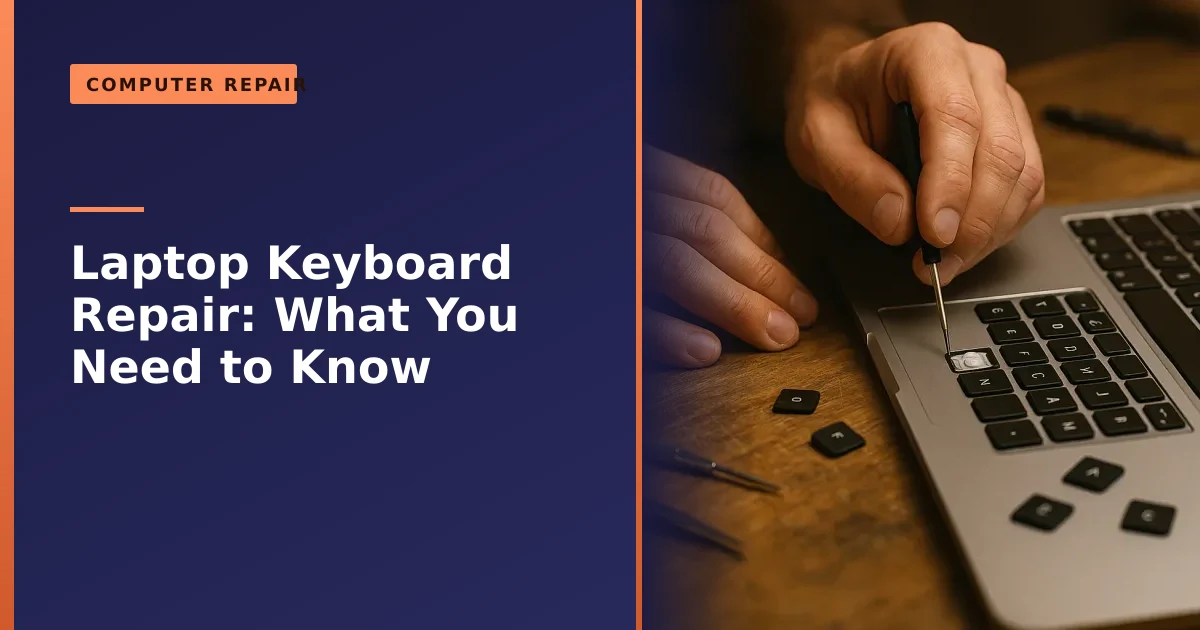
Understanding what is under your keys makes every later decision easier, so it is worth a quick look. When you press a key on a laptop, you are not pressing a chunky individual switch like the ones in a desktop mechanical keyboard. Instead, almost every modern laptop uses a scissor switch over a membrane, and the parts are tiny.
Each keycap sits on top of two small plastic pieces that interlock and pivot like a pair of scissors. That scissor mechanism keeps the cap level and guides it straight down, which is what lets laptop keys be so thin and still feel stable. Beneath the scissor sits a small rubber dome, and beneath that are thin flexible plastic sheets printed with conductive tracks, known as the membrane. When you press a key, the dome collapses, pushes the top membrane layer down onto the layer below, the tracks touch, the circuit completes, and your computer registers the letter. As the Wikipedia overview of keyboard technology explains, scissor switch designs are popular in laptops precisely because slim machines need a low profile keyboard, and the rubber dome and membrane combination keeps the whole thing cheap and quiet.
This matters for repair in two ways. First, the moving parts (the scissor and the cap) are delicate and easy to snap if you force them. Second, the membrane is a single continuous sheet running under the entire keyboard. You cannot cut out and replace one dead spot on a membrane, which is the real reason a laptop keyboard tends to be replaced as a whole unit rather than fixed key by key. Hold that thought, because it explains a lot of what follows.
Sticky, stuck or dead keys: usually dirt or spills
By far the most common cause of individual keys sticking, sticking down, or not registering is debris: crumbs, dust, hair and dried spills working their way under the keys over time. The good news is that this is often fixable with careful cleaning rather than new parts.
Sugary drinks are the worst offenders. Coffee with sugar, fizzy drinks, fruit juice and tea all leave a residue that turns into a hard, tacky film as it dries, and that film glues the scissor mechanism so the key either refuses to come back up or feels gritty when you press it. Greasy snacks add to the problem, because the oil attracts and holds dust. A key that has gone completely dead, on the other hand, is often a sign that debris or dried liquid is sitting on the membrane contact underneath and stopping the circuit from completing.
With the laptop switched off, you can tip it and use compressed air to blow debris from between the keys, then gently clean around sticky keys with a microfiber cloth or cotton swab lightly dampened with isopropyl alcohol. iFixit's guide to fixing sticky keys shows the technique and recommends isopropyl alcohol of 90 percent or higher, because it lifts grime and then evaporates quickly without leaving moisture behind. Take care, because laptop keycaps and their tiny hinge mechanisms are delicate and easy to break if forced. If cleaning does not restore a key, or several keys are affected, the problem may be deeper in the keyboard, which is where repair comes in.
How to clean your laptop keyboard safely, step by step
Cleaning is the one repair most people can safely attempt at home, so it is worth doing properly. Rushing it, or using the wrong liquid, is how a minor sticky key becomes a bigger job. Here is the careful version:
- Power down fully and unplug. Shut the laptop down completely, not to sleep, and disconnect the charger. If your model has a removable battery, take it out.
- Shake the loose stuff out first. Hold the laptop upside down at an angle over a bin or a sheet of paper and tap gently. You will be surprised how many crumbs fall out before you have done anything else.
- Use compressed air in short bursts. Work along the rows from one side to the other so you push debris out rather than further in. Keep the can upright and use brief bursts so you do not spray cold propellant onto the electronics.
- Wipe with a barely damp cloth. Put a little isopropyl alcohol on a microfiber cloth or cotton swab, never directly on the keyboard. The swab should be damp, not wet. Wipe the tops of the keys and around the sticky ones.
- For a single stubborn key, lift the cap carefully. Using a soft plastic tool you can gently prise a keycap off to clean the scissor and dome underneath, then clip it back on. Be very gentle, especially with larger keys like the space bar and Enter, which have extra stabiliser bars that are fiddly to refit and easy to break.
- Let it dry, then test. Give the alcohol a few minutes to evaporate before you power back on.
What to avoid matters just as much. Do not pour or spray any liquid directly onto the keyboard. Avoid household cleaners, glass cleaner and baby wipes on the contacts, as some leave a residue or contain water that can sit under the keys. Do not use a vacuum cleaner nozzle, which can generate static. And do not pull keycaps off in a hurry to clean them all at once unless you are confident you can refit them, because the small clips snap easily. If you are not comfortable lifting caps, stop at the compressed air and wipe stage and let a technician do the rest.
Repeating keys, ghost typing and wrong characters
Not every fault is a dead key. Some of the most frustrating problems are the opposite, where keys do too much. If a key repeats a letter on its own, types when you have not touched it, or registers a press as the wrong character, the cause is usually one of a few things.
A key that repeats or types by itself is often a sign of debris or dried liquid holding a contact partly closed, so the keyboard thinks the key is being held down. Cleaning that key sometimes clears it. If letters come out as numbers (typing on the right side of the keyboard producing digits), a Number Lock layer is switched on, which is a key combination away from being fixed and not a fault at all. If pressing one key produces a different letter entirely, or a cluster of nearby keys behave oddly together, that can point to a damaged membrane track or a partly failed ribbon cable, both of which usually mean a replacement keyboard. As always, the quickest way to tell software from hardware is to plug in an external keyboard. If the external one behaves perfectly, the fault is in the built in keyboard.
Why a laptop keyboard is usually replaced as a whole
This surprises people: unlike a desktop keyboard, where you might swap a single switch, most laptop keyboards are a single sealed unit built into the chassis. The keys sit on the scissor, dome and membrane layers we looked at earlier, and that membrane is not designed to be repaired track by track. So while a popped off keycap can sometimes be clipped back on, a keyboard with liquid damage, multiple dead keys or a failed membrane is normally replaced as a complete unit.
The keyboard also connects to the motherboard by a delicate ribbon cable, and a loose or damaged cable can cause partial or total failure on its own, which is something a technician will check before condemning the whole keyboard. Replacing a laptop keyboard means sourcing the correct part for your exact model (another reason to know your laptop model number) and, on many machines, a fair amount of disassembly to reach it. It is a routine repair for us, but the whole unit nature is why it is a job rather than a quick key swap.
There is one more wrinkle worth knowing. On a lot of slim modern laptops the keyboard is riveted or glued into the upper case, so what you are really replacing is the whole top section that the keyboard is built into, sometimes called the palm rest or top case assembly. That is more involved than swapping a bare keyboard, which is part of why some models cost more to repair than others. Brand and model make a real difference here, as the next section explains.
Are some laptop keyboards easier to fix than others?
Yes, and it can swing the cost and the sensible course of action quite a bit. Manufacturers take very different approaches to how serviceable their keyboards are.
Business focused machines, in particular Lenovo's ThinkPad range, are often designed so the keyboard can be removed and swapped relatively easily, sometimes by releasing a couple of screws and a clip and lifting the keyboard out from the top. Repair guides commonly rate a ThinkPad keyboard swap as one of the easier laptop jobs. At the other end, many thin and light consumer laptops have the keyboard built into the top case, so reaching it means most of a strip down. If you have a Lenovo, our Lenovo laptop repair page covers what we can do, and we also handle the other big brands through our HP, Dell, Acer and Asus repair services.
This is also why it pays to get advice rather than guess. Two laptops with the identical fault, a single dead row, can be a quick keyboard swap on one model and a much larger top case job on another. Knowing which yours is before you commit to anything saves both money and frustration, and it is exactly the sort of thing we will tell you honestly when you ask for a quote.
MacBook keyboards: the butterfly and scissor story
MacBooks deserve their own section, because Apple's keyboards have had a famously bumpy decade and the repair picture is different from a typical Windows laptop. If you have a MacBook, our MacBook repair service is the place to start, but here is the background that explains why.
From 2015 Apple introduced an ultra thin design called the butterfly keyboard, which replaced the scissor mechanism with a flatter butterfly shaped hinge to make the machines slimmer. The problem was that the butterfly mechanism was extremely sensitive to tiny particles. A single crumb or speck of dust could leave a key stuck, unresponsive, or repeating letters, and because the mechanism was so flat there was very little anyone could do to clean it. The complaints were widespread enough that Apple ran a free keyboard service programme for affected models and later settled a class action in the United States over the design.
Apple moved back to a more reliable scissor mechanism, branded the Magic Keyboard, starting with the 16 inch MacBook Pro in late 2019 and rolling it out across the MacBook Air and 13 inch Pro through 2020. The practical takeaways for you are simple. First, the free butterfly service programme has now ended, so out of warranty butterfly repairs are a paid job. Second, on most MacBooks the keyboard is part of the top case, so a keyboard replacement is a larger repair than on many Windows laptops, which is reflected in the cost. Third, Apple's own advice on cleaning a MacBook keyboard is the safest first step for a sticky key before anyone considers opening the machine. If you are weighing up whether a repair is worth it on an older MacBook, our repair versus replace guide will help.
Spilled a drink on the keyboard? Act fast
Liquid is the most serious keyboard threat, because it does not just affect the keys, it can seep through the membrane to the motherboard below and cause far worse damage. If you spill a drink on your laptop, speed matters enormously, and the first few minutes count for more than anything a repair shop can do later:
- Switch it off immediately by holding the power button, and unplug the charger. Do not wait for it to shut down normally. If the battery is removable, take it out.
- Turn it upside down like an open tent or a V shape and rest it on a towel, so liquid drains out and away from the motherboard rather than soaking further in.
- Wipe away what you can from the outside with a lint free cloth, gently, without pushing liquid into the gaps.
- Do not switch it back on to test it, as powering a wet machine can cause a short circuit and permanent damage. This is the single most common way a recoverable spill becomes a write off.
- Do not use rice. The old rice trick does little for a laptop and can leave starchy dust and grains inside the machine. Air drying upside down in a warm, well ventilated room is better, but it is not a substitute for a proper internal clean.
- Get it to a professional quickly. The sooner it is opened, cleaned and dried properly, the better the chance of saving both the keyboard and the laptop.
Why the rush? Sugary and acidic drinks start to corrode the tiny contacts and tracks inside within hours to days, and corrosion is what turns a simple dry out into a far more serious and costly repair. Plain water is more forgiving than coffee, cola or wine, but none of them are safe to leave. Getting the machine opened and the residue cleaned off before corrosion sets in is the difference between a clean and dry, a new keyboard, or a much bigger bill.
Liquid damage is one of the most time sensitive faults there is. Even if the worst happens, your files can usually be saved through our data recovery service, and a prompt clean up often saves the machine itself. Our laptop care guide covers keeping drinks at a safe distance in the first place.
What a keyboard repair costs and how long it takes
Cost is usually the first question, and the honest answer is that it depends on the model, because of all the differences in how keyboards are built that we have covered. As a useful benchmark, the consumer group Which? surveyed independent repairers in November 2025 and found that supplying and replacing a laptop keyboard typically costs between 30 and 200 pounds and takes around one to two hours of work. The wide range reflects exactly what you would expect: a simple bare keyboard swap sits at the lower end, while a model where the keyboard is built into the top case, or a higher specification or gaming laptop, sits higher.
| Situation | Typical course of action | Rough cost and effort |
|---|---|---|
| One or two sticky keys from crumbs or a light spill | Careful cleaning, often no new parts | Low cost, often quick |
| A single popped off keycap, clips intact | Clip the cap back on | Quick, minimal cost |
| Multiple dead keys, failed membrane or cable | Replace the keyboard unit | Around 30 to 200 pounds, 1 to 2 hours (Which?, Nov 2025) |
| Keyboard built into the top case (many slim and Apple models) | Replace the top case assembly | Higher, more disassembly |
| Liquid that has reached the motherboard | Strip, clean and dry, then assess | Varies with corrosion damage |
The figures above are averages and can be higher in London and the South East or for premium machines, so treat them as a guide rather than a quote. Whatever the model, a keyboard repair is almost always far cheaper than a replacement laptop, which is the comparison that really matters. For more detail on pricing across different repairs, see our page on how much it costs to fix a laptop.
Repair, replace, or work around it?
So what are your options when a key or the keyboard fails? It comes down to the cause and how much you rely on the machine:
- Clean it if the problem is a sticky or stuck key from debris. Often free and effective, and worth trying first.
- Replace the keyboard if multiple keys are dead, there is liquid damage, or cleaning has not worked. On most laptops this is a quick, affordable repair that restores it to as new.
- Use an external keyboard as a temporary or even permanent workaround, especially on a desktop setup. A plug in USB or Bluetooth keyboard sidesteps the built in one entirely, which is handy while you arrange a repair.
For a laptop you use daily, a proper keyboard replacement is usually well worth it, since typing on a faulty keyboard or relying on an external one all the time is a constant frustration. It is also a far cheaper fix than replacing the laptop, as our guide on repair versus replace explains.
The external keyboard stopgap, done well
An external keyboard is the unsung hero of keyboard faults, because it keeps you working at no real cost while you decide what to do. Almost any USB keyboard will work the moment you plug it in, with no setup, and a Bluetooth one pairs in a minute if you would rather avoid a cable. If only a few keys are dead, an external keyboard lets you carry on completely normally at a desk, and for many people who mainly use their laptop in one spot it is a perfectly good long term answer rather than just a stopgap.
A couple of practical tips. If the built in keyboard is misbehaving by typing on its own or repeating keys, those stray presses can interfere even while you use the external one, so it is worth disabling the internal keyboard in Device Manager until the repair is done. And if you are buying a keyboard anyway, a basic wired model is the most reliable and never needs charging. If the rest of the laptop is in good shape, this approach buys you all the time you need to book the repair in without losing a single working day. We can also collect and return the machine so you are barely without it, which we cover below.
Common mistakes and myths
A few well meaning attempts cause more harm than the original fault, so it is worth knowing the traps:
- Turning a wet laptop back on to check it. This is the big one. Power plus liquid equals short circuits. Leave it off until it has been properly dried and cleaned.
- Burying it in rice. It does little for a laptop, dries far too slowly to beat corrosion, and leaves debris inside. Air dry upside down instead, and get it seen.
- Spraying liquid straight onto the keys. Always dampen a cloth or swab, never the keyboard. Liquid poured on top just repeats the spill problem.
- Prising every keycap off to clean them. The tiny clips and stabiliser bars on big keys snap easily, and refitting them is fiddly. Lift a cap only if you really need to and feel confident.
- Assuming a single bad key means a whole new laptop. It almost never does. A clean or a keyboard replacement is a fraction of the price of a new machine.
- Ignoring a small spill because it still works. Sugary residue keeps corroding quietly. A keyboard that works today can fail a week later if the spill was never cleaned out.
How to keep your keyboard healthy
Most keyboard faults are avoidable, and a few simple habits go a long way. Keep drinks well away from the laptop, or at least to the side and below desk level where a knock will not land on the keys. Try not to eat directly over the keyboard, since crumbs are the number one cause of sticky keys. Wash and dry your hands before long typing sessions, because skin oils build up and attract dust over time.
A light clean every month or two keeps debris from building up: a quick blast of compressed air and a wipe of the keycaps with a barely damp microfiber cloth is plenty. When you carry the laptop in a bag, make sure nothing presses hard against the lid, as pressure on a closed laptop can mark the screen and stress the keyboard beneath. And if you tend to use the machine at a desk most of the time, an external keyboard not only saves the built in one from wear, it also gives you a more comfortable typing position. Our essential laptop care guide brings these habits together along with advice on heat, batteries and storage.
How Manchester PC can help
If your laptop keyboard is playing up, we can put it right. We will first check whether it is a simple software or connection issue, give it a proper clean if debris is the cause, and where the keyboard is genuinely damaged we will source the correct replacement for your exact model and fit it properly, including dealing with any liquid damage to the rest of the machine. If a spill has reached further in, we will clean and dry the board before it corrodes, and recover your files if needed.
We cover Manchester and the surrounding areas with free local collection and return, and honest advice on whether a clean, a key, or a full replacement is what your laptop needs. For a laptop keyboard repair or any other computer repair, get a free, no-obligation quote or call us on 0161 820 1992, and get back to typing properly.