Key takeaways
- A gaming PC overheats when heat builds up faster than the coolers and case airflow can carry it away, so the CPU or graphics card hits its temperature limit and deliberately slows itself down to survive. That slowdown is thermal throttling, and it feels like stutter, frame drops and sudden crashes.
- The usual causes are dust, poor airflow, tired thermal paste, a cooler that was never quite big enough, and a hot, enclosed spot for the tower. None of these need a new PC to fix.
- Modern chips run hot on purpose. Under gaming load, a CPU in the 70s to mid 80s (°C) and a graphics card in the 65 to 85°C range are perfectly normal, so do not panic at a warm number.
- You can see exactly what is happening with free tools like HWiNFO or HWMonitor, which show live CPU and GPU temperatures while you play.
- The reliable fixes are cleaning, fresh thermal paste, a better air cooler or AIO, more or better case fans, and sometimes a gentle undervolt. We do all of these as part replacement and upgrades, never board-level or soldering work.
If your gaming PC overheats, heat is being produced faster than your coolers and case fans can move it out of the box. When the CPU or graphics card reaches its safe limit, it protects itself by cutting its own speed, which is called thermal throttling. That is why the game suddenly stutters, the frame rate falls off a cliff, or the whole machine shuts down mid match. The good news is that this is almost always fixable without replacing the computer.
This guide explains what is really going on inside the case, what a safe temperature actually looks like, and the practical fixes that bring a hot gaming rig back under control. If you would rather someone just sort it for you, our gaming PC repair service in Manchester covers all of it, and there is a phone number at the bottom.
What overheating and thermal throttling actually mean
Every part that does work in a PC turns electricity into heat. A modern gaming processor can push out well over 100 watts under load, and a high end graphics card can produce two or three times that on its own. That heat has to go somewhere. The job of your cooler, your case fans and your thermal paste is to carry it off the chip, spread it across metal fins, and blow it out of the case before it stacks up.
Overheating is simply the point where that chain cannot keep up. Heat arrives faster than it leaves, so the temperature climbs. Chips are not passive about this. Both processors and graphics cards have a built in maximum, and as they approach it they start reducing their own clock speed and voltage to produce less heat. That self protection is thermal throttling. It is a feature, not a fault, and it is the reason a badly cooled PC rarely bursts into flames. It just gets slow instead.
The catch is that throttling is invisible unless you go looking. From the outside all you see is the symptom. The game that ran at a smooth frame rate for ten minutes suddenly drops to a slideshow. Fans spin up to a roar. The picture freezes, or the machine reboots without warning. People often blame the game, the drivers or the internet, when the real story is a chip that has quietly hit its ceiling and pulled the handbrake.
What counts as a safe temperature
Before you assume the worst, it helps to know what normal looks like, because modern hardware runs far hotter than most people expect and is designed to. A number in the 80s is not automatically a problem.
Manufacturers publish a maximum junction temperature, sometimes called Tjmax, which is the hottest the silicon is allowed to get before it throttles hard or shuts down. Intel desktop chips are typically rated to around 100°C, and AMD Ryzen chips to around 95°C, with several recent generations designed to sit right up near those figures under full load as normal behaviour. Intel keeps a plain reference on this on its own support page about processor temperature. Graphics cards work the same way, with throttle points that are usually in the 90s (°C) or higher depending on the model.
Here is a realistic guide for a healthy gaming desktop. Treat these as targets to stay comfortably inside, not hard rules.
| State | CPU temperature | GPU temperature | What it means |
|---|---|---|---|
| Idle (desktop, browsing) | 30 to 45°C | 30 to 50°C | Everything is fine and cool |
| Gaming, healthy | 60 to 80°C | 65 to 83°C | Normal working temperatures |
| Gaming, warm but coping | 80 to 90°C | 83 to 90°C | Worth improving, not an emergency |
| Throttle zone | 95 to 100°C+ | 90 to 95°C+ | Losing performance, needs attention |
The short version is this. If your CPU spends most of a gaming session in the 70s and touches the low 80s, and your graphics card sits in the 70s and peaks in the mid 80s, you have nothing to worry about. If either one is pinned in the mid 90s or hits 100°C and stays there, heat is now costing you performance and it is worth doing something about it.
GPU temperature at a glance
Why gaming PCs overheat: the real causes
Overheating almost never has a single mysterious cause. It is usually one or two of a short list of very ordinary things, and often they build up slowly so the PC that ran cool two years ago now cooks itself. The main culprits are:
- Dust. A blanket of dust on the cooler fins and fan blades acts like a jumper on your components. It is the single most common cause we see.
- Poor airflow. Too few fans, fans fighting each other, or cables blocking the path of air through the case.
- Old thermal paste. The paste between the chip and the cooler dries out over years and stops carrying heat well.
- A cooler that is too small. A budget cooler that was fine for the old graphics card may be out of its depth after an upgrade.
- A hot or enclosed spot. A tower crammed into a cupboard, pushed against a radiator, or sat in a warm room has nowhere to dump its heat.
- A failing or stopped fan. One dead fan on the cooler or the case can push temperatures up sharply.
The rest of this guide walks through each of these, because understanding them is what lets you either fix it yourself or know exactly what to ask for when you bring it to us.
Dust and airflow: the number one culprit
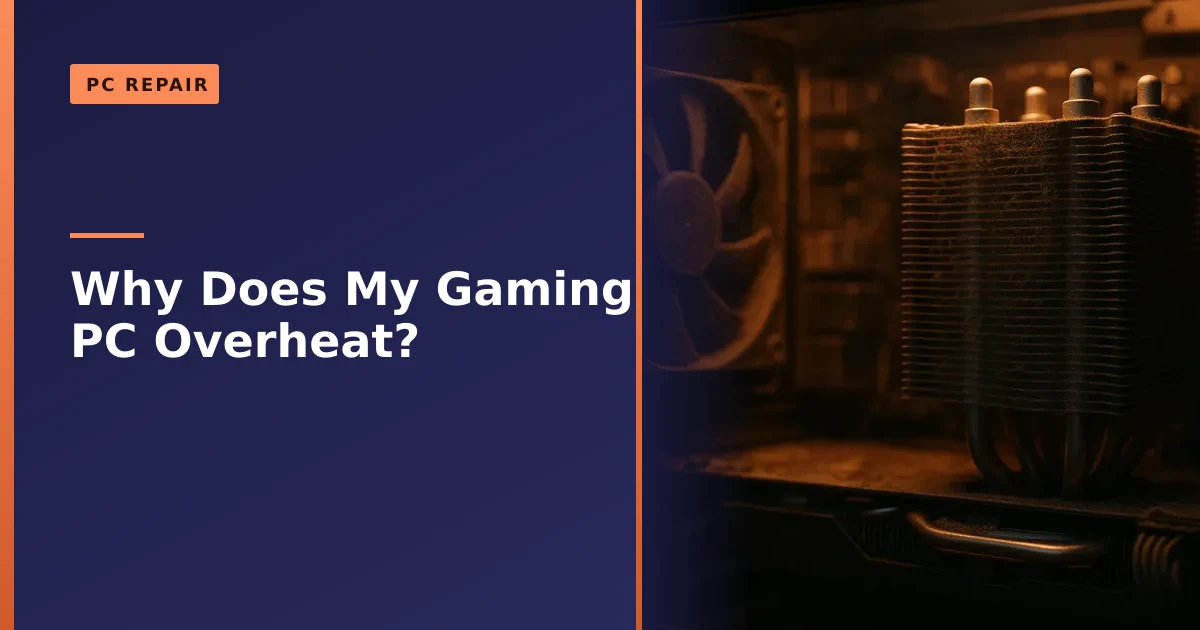
If we had to bet on one cause for a gaming PC that used to run cool and now overheats, it would be dust. A graphics card fan or a CPU cooler works by pulling air through tightly packed metal fins. Over months those fins fill with a felt of dust and pet hair, and once they are clogged the air can barely get through. The metal cannot shed its heat, so the temperature climbs and the fans spin faster and louder trying to compensate, which pulls in even more dust. It is a slow spiral.
Airflow is the other half of the story. Your case is meant to work like a wind tunnel. Cool air comes in at the front and bottom, sweeps across the hot parts, and leaves at the back and top. When that path is broken, heat pools inside the case and every component sits in warm air. Common airflow problems include:
- Not enough case fans, or none at all beyond the ones on the cooler.
- A tangle of unmanaged cables blocking the front to back flow.
- Dust filters so clogged that intake fans are effectively choked.
- A glass fronted case with almost no gap for air to get in.
- Fans fitted the wrong way round, so intake and exhaust fight each other.
Cleaning is the cheapest and most effective single fix there is, and it is a job you can do at home with a can of compressed air and a bit of care. We have a full walkthrough in our guide on how to clean and dust your PC if you want to try it yourself. If the machine is under warranty, awkward to open, or you would simply rather not risk it, this is part of a standard service for us.
Positive and negative pressure, and where your fans go
Once a case has more than a couple of fans, the balance between air coming in and air going out starts to matter, and it has a real effect on both temperatures and how quickly the inside gets dirty again.
Positive pressure means you push more air in than you let out, usually by having more intake fans than exhaust fans, or stronger ones. The extra air has to escape through every gap and vent, so dust cannot easily drift in through those gaps. As long as your intake fans have filters, the inside stays noticeably cleaner. The trade off is that temperatures can run a hair warmer.
Negative pressure means you pull more air out than you push in, with more or stronger exhaust fans. This can lower temperatures slightly because hot air is yanked out quickly, but the case now acts like a vacuum and sucks dusty air in through every unfiltered crack. It gets dirty fast and unevenly.
For most gaming builds the sweet spot is slightly positive, roughly one more intake fan than exhaust, with filters on the intakes. You get a clean interior and temperatures that are barely different from a negative setup. A sensible starting layout is two or three fans at the front pulling cool air in, one at the rear pushing warm air out, and if the case supports it, one or two at the top as exhaust because heat rises. Getting this balance right is often the difference between a PC that needs cleaning every few months and one that stays healthy for a year or more.
Thermal paste: the silent performance killer
Between your CPU (and inside your graphics card) and the metal cooler that sits on it, there is a thin layer of thermal paste. Its whole job is to fill the microscopic gaps between the two surfaces so heat can cross efficiently. When it is fresh it works brilliantly. As it ages it fails quietly, and this is one of the most overlooked causes of a gaming PC that has slowly got hotter over the years.
Two things happen to old paste. First, the liquids in it evaporate and it turns dry, chalky and cracked, so it can no longer bridge the gap properly. Second, thousands of heat and cool cycles physically squeeze it out from the centre of the chip towards the edges, a process people call pump out, which leaves the hottest part of the chip with the least coverage. Both mean heat struggles to escape and the chip runs hotter for no obvious reason.
As a rough guide, standard paste is worth refreshing every two to three years of regular gaming, and premium paste can last three to five. On a desktop with moderately tired paste, a fresh application commonly drops temperatures by anywhere from around 5 to 15°C, which is often enough to stop throttling on its own. It is a small, cheap job with a big payoff. We cover the details, including why we do not simply pile more paste on, in our piece on thermal paste and repasting in Manchester.
Is your cooler actually big enough?
Sometimes the PC is clean and the paste is fine and it still overheats, and the honest answer is that the cooler was never up to the job. This is very common after an upgrade. You drop in a hotter CPU or a much faster graphics card, but the little cooler that came with the machine, or the stock cooler in the box, is still trying to deal with a lot more heat than it was designed for.
There are three broad choices, and the right one depends on the chip, the case and how much noise you can live with.
| Cooler type | Best for | Strengths | Things to watch |
|---|---|---|---|
| Stock or basic cooler | Low to mid power CPUs, light gaming | Free or cheap, small, simple | Runs out of headroom under sustained load |
| Large air tower cooler | Most gaming CPUs | Excellent value, quiet, no pump to fail, lasts for years | Big and heavy, must clear tall memory and the case side |
| All in one (AIO) liquid cooler | High power CPUs, tidy or compact builds | Strong cooling, moves heat straight to a radiator, clean look | More expensive, the pump is a part that can wear out over time |
For the vast majority of gaming PCs, a good quiet air cooler is the sensible upgrade. It costs less than liquid, there is no pump to eventually fail, and a well made tower cooler will keep a mainstream gaming CPU comfortable for many years. We are a fan of the quieter, well engineered air coolers for exactly this reason, and you can see a real example in our writeup of a be quiet! Pure Rock cooler upgrade.
Liquid cooling has its place on the hottest chips or in slim cases where a tall air cooler will not fit, but it is not automatically better, and it carries risks that pure air cooling does not. Before you assume an AIO is the answer, it is worth reading our honest take on the dangers of water cooling your PC, because a pump failure or a leak can do far more damage than a hot chip ever would.
The room, the desk and the enclosed cupboard
It is easy to focus entirely on what is inside the case and forget that the case has to live somewhere. Where you put the tower has a real effect on how hot it runs, because a PC can only dump its heat into the air around it. If that air is already warm or trapped, the whole machine runs hotter no matter how good the cooler is.
The classic mistake is shutting the tower inside a closed desk cabinet. The PC blows its heat out, that hot air has nowhere to go, and the fans pull the same warm air straight back in. Temperatures can climb by ten degrees or more compared with the same machine in the open. Standing the tower next to a radiator, sitting it on thick carpet that blocks the bottom intake, or gaming in a small warm room with the door shut all add heat too.
None of this needs new parts. Give the tower a few inches of clear space front and back, keep it off deep carpet, leave any cabinet doors open while you play, and open a window on a hot day. We have solved plenty of overheating complaints simply by moving the PC out of the cupboard it was hidden in.
Undervolting: free temperature drops explained
Undervolting is one of the most useful tricks for a hot gaming PC, and it costs nothing but a bit of patience. To keep things simple, every chip is fed a certain voltage to hit its speeds. Manufacturers set that voltage on the generous side so that even the weakest chip off the production line stays stable, which means most chips are being given more voltage than they actually need.
Undervolting means asking the chip to do the same work at a slightly lower voltage. Because heat rises out of proportion to voltage, a small reduction in voltage can cut heat by a surprisingly large amount. In practice people often see temperatures fall by around 5 to 15°C with no loss of performance, and sometimes a small gain, because a cooler chip can hold its top speeds for longer instead of throttling. It works on both graphics cards and processors.
The reassuring part is that undervolting is very hard to damage anything with. You are lowering stress on the chip, not pushing it harder, so the worst realistic outcome is a setting that will not boot, which you simply reset. The one thing to watch is subtle instability, the odd crash or freeze under a workload you did not test, which is why it is done in small steps with a little safety margin added back in. If that sounds fiddly, it is exactly the kind of tuning we can set up and test for you as part of sorting out an overheating build.
How to monitor your temperatures
You do not have to guess whether your PC is overheating, and this is the first thing to do before spending any money. Free monitoring tools show you the exact temperatures of the CPU and graphics card in real time, so you can watch what happens the moment a game starts to struggle. Two well known, trusted options are:
- HWiNFO. Very detailed, shows every sensor including per core CPU temperatures, GPU temperature and, importantly, the highest value each part reached during your session. Ideal for catching a brief spike that causes a crash.
- HWMonitor. Simpler and easier to read at a glance, showing current, minimum and maximum temperatures in one tidy list. A good starting point if HWiNFO feels overwhelming.
The method is straightforward. Open your chosen tool, note the idle temperatures, then play a demanding game for fifteen to twenty minutes and check the maximum figures afterwards. Compare them against the safe ranges in the table earlier. If your CPU or GPU is hitting the mid 90s or 100°C and the frame rate is dropping when it does, you have confirmed thermal throttling and you know the cause of your stutter. If the temperatures are sensible but the game still crashes, the problem is probably somewhere else, and it is worth reading our guide on why your PC keeps crashing while gaming, which covers the other suspects like memory, power supply and drivers.
Is it definitely heat, or something else?
Heat is a common cause of gaming crashes but it is not the only one, and it is worth being sure before you act. A few tell tale signs point clearly at overheating rather than another fault:
- The crash or stutter happens after a period of play, not straight away, because the PC needs time to heat up.
- Fans audibly ramp up to a roar shortly before the trouble starts.
- The case, and the air coming out of the back, is noticeably hot.
- Monitoring software shows the CPU or GPU touching its limit at the exact moment things go wrong.
- Lowering the game settings or frame rate makes the problem go away or delays it, because that produces less heat.
By contrast, a crash that happens instantly on launch, at the same point every time regardless of temperature, or with a specific error message, usually points at software, drivers, memory or the power supply instead. Knowing which camp you are in saves a lot of wasted effort, and if you are not sure, a proper diagnostic is exactly what we do first.
How Manchester PC fixes an overheating gaming PC
When an overheating gaming PC comes to us, we do not guess. We run it, monitor the CPU and graphics card temperatures under load, and find out where the heat is actually building up before we touch anything. Once we know the cause, the fix is almost always one or more of these, all of which are cleaning, servicing or part replacement and upgrade work:
- A full clean and service. Clearing dust from the cooler, fans, filters and graphics card, so air can move again.
- Fresh thermal paste. Removing the old dried paste from the CPU and reapplying a quality compound, which often drops temperatures on its own.
- A better cooler. Fitting a larger, quieter air tower cooler, or a suitable AIO where the chip and case call for it.
- More or better case fans. Setting up a sensible intake and exhaust layout with slightly positive pressure for clean, cool running.
- Replacing a failed fan. Swapping out a dead or noisy cooler or case fan.
- Tuning. Sensible fan curves and, where it helps, a tested undervolt to cut heat without losing performance.
To be completely clear about what we do and do not do, we replace faulty or inadequate parts and whole components. We do not carry out board-level or soldering repairs. If a fault turns out to sit at that level, we will tell you honestly and advise the best route, whether that is replacing the part, replacing the whole board, or a sensible alternative. Everything above is standard part replacement and upgrade work, which is exactly where a hot gaming PC needs attention.
How Manchester PC can help
If your gaming PC overheats, throttles or shuts down mid game and you would rather have it sorted properly, we can help. We diagnose the real cause, then clean, repaste, fit better coolers or fans, and tune the machine so it stays cool and quiet under load. It is the kind of job we do every week, and most overheating PCs leave running better than they have in years.
We offer free local collection and return right across Manchester, so you do not even need to bring it to us. Call the workshop on 0161 820 1992 for a friendly, no jargon chat about what your PC is doing, or get a written quote through our tech support quote page and we will take it from there.