Key takeaways
- A slow laptop almost always comes down to a short list: a nearly full disk, too many startup programs, an old hard drive instead of an SSD, too little memory, malware, overheating, or simply an ageing machine.
- Start with the free fixes. A restart, clearing startup apps, freeing disk space and a malware scan cost nothing and fix a surprising number of slow laptops.
- If your laptop still has a mechanical hard drive, fitting an SSD is the single biggest speed upgrade you can make, often turning a one-minute start-up into ten seconds.
- If it is slow only when you have lots open, more memory helps. If it is slow from the moment it switches on, look at the drive, startup clutter and heat first.
- Diagnose before you change anything. Five minutes in Task Manager usually tells you whether the disk, the memory or the processor is the real bottleneck.
- You rarely need a new laptop. A clean-up plus an SSD and a memory bump usually makes a tired machine feel new for a fraction of the cost.
If your laptop is running slow, the cause is almost always one of a handful of things: the disk is nearly full, too many programs load at start-up, it is still using an old mechanical hard drive, it is short of memory, it has picked up malware, or it is overheating and slowing itself down to cope. The good news is that most of these are quick and cheap to fix, and you can work through them yourself before spending a penny.
We bring slow laptops back to life for people across Manchester every week, so this guide is the same checklist we run through in the workshop, from the free two-minute fixes to the upgrades that make the biggest difference. Work through it in order and you will usually find the culprit.
The short answer
Slow laptops fall into two camps, and telling them apart saves a lot of time. If your machine is slow from the moment you switch it on, before you have opened anything, the problem is usually the storage drive, startup clutter, a full disk, or heat. If it is fine at first but grinds to a halt once you open a few things, the problem is more likely too little memory or background programs eating resources.
Either way, the fix is rarely a brand-new laptop. Below, we go through every common cause and exactly what to do about it.
First, the two-minute quick wins
Before anything else, try these. They are free, take minutes, and genuinely fix a lot of "slow" laptops:
- Restart it properly. Not sleep, a full restart. If you have not rebooted in days, this alone clears out stuck processes hogging memory and often makes the machine feel noticeably quicker.
- Close what you are not using. Dozens of browser tabs and a stack of open programs all compete for memory. Shut the ones you do not need.
- Check for a stuck update. Windows often slows right down while it downloads and installs updates in the background. Let it finish, or install pending updates and restart.
- Give it a minute after start-up. Modern laptops do a lot in the first couple of minutes after you log in. If it is only sluggish at the very start, wait it out before judging.
If it is still slow after that, work through the causes below. They are roughly ordered by how often we see them.
How to find out what is slowing it down
Before you change anything, it pays to see where the bottleneck actually is, and Windows gives you the tool for free. Press Ctrl, Shift and Escape to open Task Manager and click the Performance tab. It shows live graphs for your processor (CPU), memory, disk and network. Watch them while the laptop feels slow:
- Disk pinned at or near 100% almost constantly is the classic sign of a tired mechanical hard drive, or a drive that is failing or nearly full. This is the most common cause of a generally sluggish laptop.
- Memory sitting near the top while you work means you have run out of RAM, and Windows is shuffling data to the slow drive to cope.
- CPU stuck high when you are doing nothing points at a background program, a stuck Windows process, or malware. Switch to the Processes tab and sort by CPU to see the offender.
Five minutes watching these graphs usually tells you which of the causes below to focus on, so you fix the real problem rather than guessing and changing things at random.
Your disk is nearly full
This is one of the most common and most overlooked causes. When your drive is almost full, Windows has nowhere to put the temporary files it relies on to run smoothly, and everything slows down. Microsoft's own tips to improve PC performance put low disk space near the top of the list.
The fix is to free up space. Windows has a built-in tool called Storage Sense that clears temporary files, empties the recycle bin and removes old downloads automatically; Microsoft explains how to use it in its guide to managing drive space. Uninstalling programs you no longer use helps too. Aim to keep at least 10 to 15 percent of your drive free. If you constantly run out of space, that is a sign you have outgrown the drive and a larger SSD is the real answer. Our guide to disk cleanup walks through the whole process step by step.
The usual space-hogs are easy to deal with once you know where to look: the Downloads folder, which quietly fills with installers and attachments; old Windows update files, which can run to several gigabytes; temporary and cache files; and large photo and video libraries that would be better kept on an external drive or in the cloud. It is worth noting that an SSD slows down too when it gets very full, so the "keep some space free" rule applies whatever type of drive you have.
Too many startup programs
Every program that launches automatically when you switch on adds to your boot time and quietly sits in the background using memory afterwards. Over the years these pile up, until a laptop that once started in seconds takes minutes to become usable.
The fix is quick and safe. Press Ctrl, Shift and Escape to open Task Manager, click the Startup apps tab, and disable anything you do not need launching at boot, exactly as Microsoft describes in its guide to startup applications. Task Manager even rates each item's start-up impact, so you can see which ones are worst. Leave your antivirus and anything essential enabled, but chat apps, updaters, printer helpers and the like rarely need to start with Windows. This one change often transforms a slow boot.
New laptops are particularly bad for this, because manufacturers pre-install trial software and "helper" utilities, often called bloatware, that all want to launch at start-up and serve you very little. Disabling a startup item does not uninstall the program, it just stops it loading automatically, so the change is completely safe and easy to reverse if you ever need that program back. If you are not sure what something is, a quick search of its name will tell you whether it is safe to disable.
You are still on a hard drive, not an SSD

If your laptop still has a traditional mechanical hard drive (HDD), this is very likely the biggest single reason it feels slow, especially when starting Windows or opening programs. A hard drive has spinning platters and a moving head that physically has to find your data, and that mechanical delay is what you feel as lag.
A solid state drive (SSD) has no moving parts and reads data almost instantly. As the drive makers explain, the difference is night and day: an SSD can turn a one-minute start-up into ten or fifteen seconds and make programs open the moment you click them. Fitting one is the upgrade we recommend most often because it makes the biggest, most obvious difference to everyday speed. Our full guide to why you should upgrade to an SSD explains it in detail, and it is a quick job for our Manchester laptop repair workshop, including moving your files and Windows across so nothing is lost.
Do I still need to defragment? The SSD myth
On an old mechanical hard drive, defragmenting still helps a little by gathering the scattered pieces of your files back together, but Windows already does this automatically on a schedule, so it is rarely a job you need to do by hand. On an SSD it is a different story, and this is where a lot of well-meaning advice goes wrong. An SSD has no moving parts and reads any part of the drive equally fast, so defragmenting it the old-fashioned way gives no speed benefit at all and simply causes needless wear. Windows knows the difference and runs the right maintenance for an SSD instead, a process called TRIM. The simple rule is to leave Windows' built-in drive optimisation switched on, and ignore any third-party tool that promises to speed up an SSD by defragmenting it.
You do not have enough memory (RAM)
Memory, or RAM, is your laptop's short-term working space. When it fills up, because you have lots of programs or browser tabs open, Windows starts shuffling data to the much slower drive instead, a process that makes everything stutter and lag. This is the classic cause of a laptop that is fine at first but bogs down once you get going.
For most people in 2026, 8GB is the workable minimum and 16GB is the comfortable sweet spot for everyday multitasking. If your laptop has 4GB, or you regularly see memory usage near the top in Task Manager, more RAM will help a lot. Our guide on whether more memory will speed up your computer explains exactly how to check whether RAM is your bottleneck, and how much you really need, so you do not pay for memory you will never use.
One word of caution before you buy: not every laptop can have its memory upgraded. Many thin-and-light models now have the RAM soldered to the board, fixed at whatever it shipped with, while others have a spare slot or replaceable sticks. Checking your exact model first avoids disappointment, and it is something we can confirm for you in moments. Where memory can be upgraded, it is usually a quick and very cost-effective job.
Malware is stealing your resources
A laptop that has suddenly become slow, hot and noisy can be infected. Malware runs hidden in the background, using your processor and memory to show ads, spy on you, or mine cryptocurrency, all of which steals the resources your own programs need.
Run a full scan with Microsoft Defender, which is built into Windows and genuinely capable, and a second-opinion scan with the free Malwarebytes. The NCSC's guidance on malware is a good companion. Warning signs include browser pop-ups and redirects, unfamiliar programs at start-up, and the fans spinning hard even when you are doing nothing. If you suspect an infection but cannot shift it, our virus and malware removal service will clean it properly and make sure nothing is left behind.
Is it actually your web browser?
For a lot of people the laptop is not slow, the browser is. Modern browsers like Chrome and Edge are powerful but hungry, and a dozen open tabs, several extensions and a few background web apps can use as much memory as everything else on the machine put together. If your laptop only feels slow when you are online, the browser is the prime suspect.
The fixes are easy. Close tabs you are not using, remove extensions you do not need, clear the cache, and make sure the browser itself is up to date. Chrome and Edge both have a built-in memory-saver feature that puts inactive tabs to sleep, which helps a great deal on a laptop with limited RAM. If trimming the browser transforms the experience, that is also a strong hint that a little more memory would pay off.
Overheating and thermal throttling
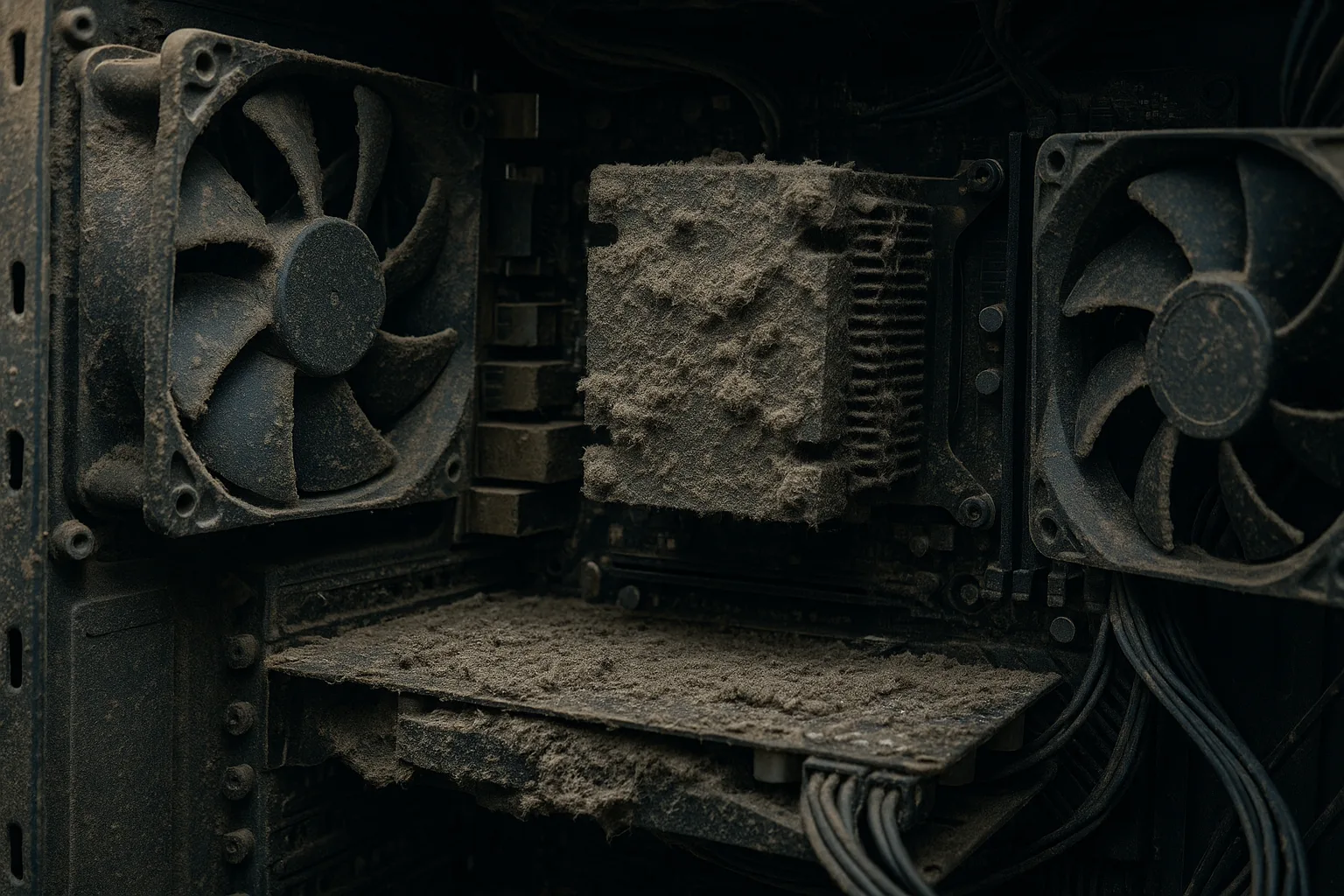
When a laptop overheats, the processor deliberately slows itself down to avoid damage, a process called thermal throttling. The result is a machine that feels sluggish, especially during video calls, games or anything demanding, and whose fans roar constantly. It is a built-in safety feature, not a fault: a modern processor throttles as it approaches its thermal limit, typically somewhere around 90 to 100 degrees Celsius for current Intel and AMD chips, lowering its clock speed to protect the silicon from permanent damage.
The usual causes are simple: dust clogging the vents and fans, like the photo above, or thermal paste that has dried out over the years. On a laptop, using it on a soft surface like a bed or sofa makes it worse by blocking the vents. A proper clean-out and fresh thermal paste can drop temperatures sharply and restore full speed; our guide to thermal paste and cooling covers why it matters. If your laptop also restarts unexpectedly, our guide on random crashes and restarts goes deeper into heat-related shutdowns.
Will a clean reinstall of Windows fix it?
It is a fair question, and sometimes the answer is yes. Over years of use, Windows accumulates leftover programs, half-removed software, registry clutter and background services that all drag on performance. Wiping the machine and reinstalling a fresh copy of Windows clears all of that away and can make a laptop feel genuinely quicker, almost like a factory reset.
But there are two important caveats. First, a reinstall only helps if the slowness is caused by software; it will do nothing for a failing hard drive, too little memory or an overheating laptop, because the hardware is unchanged. Diagnose first, using the Task Manager check above, so you are not wiping the machine only to find it is still slow. Second, a clean reinstall erases everything, so you must back up your files and have your program installers and licence keys ready before you start. It is a bigger job than the other fixes here, which is why many people prefer to have it done properly, with a full backup taken first, rather than risk losing data. If a reinstall is the right call, we can handle the whole process, including saving and restoring your files.
The machine, or Windows, is simply getting old
Sometimes the honest answer is age. Software keeps getting heavier, so a laptop that flew five years ago can feel left behind even in perfect health. A fresh, fully updated copy of Windows runs better than a cluttered one that has been running for years, so a clean reinstall can genuinely help, though it is a bigger job that means backing up and reinstalling your programs.
If you are still on Windows 10, there is an extra reason to act: Microsoft confirms it stopped getting free security updates on 14 October 2025, which leaves it more exposed to viruses and malware over time. Our guide on whether to upgrade to Windows 11 covers your options, including the cases where the sensible move is a clean start or a newer machine. The key point is that "old" does not always mean "finished", because the upgrades below often buy an ageing laptop several more good years.
A free speed-up checklist, no money needed
Before any upgrade, work through this free housekeeping. On many laptops it is enough on its own:
- Restart the laptop fully, then install all pending Windows updates and restart again.
- Disable unnecessary startup programs in Task Manager.
- Run Storage Sense and uninstall apps you no longer use to free disk space.
- Run a full Microsoft Defender scan, plus a Malwarebytes second opinion.
- Clear your browser cache, trim your tabs and remove unused extensions.
- Check the laptop's vents are clear and it is sitting on a hard, flat surface so it can breathe.
- Make sure you have at least 10 to 15 percent of your drive free.
If the laptop is still slow after all of that, you have ruled out the free fixes and the answer is almost certainly hardware: an SSD, more memory, or a cooling clean-out. That is the point at which a small, targeted upgrade pays for itself many times over.
Slow laptop causes and fixes at a glance
| The symptom | Likely cause | The fix |
|---|---|---|
| Slow from the moment it starts; long boot | Mechanical hard drive, or startup clutter | Fit an SSD; trim startup apps |
| Fine at first, bogs down with things open | Not enough memory (RAM) | Add RAM (8GB to 16GB) |
| Freezes, stutters, low free space warnings | Disk nearly full | Storage Sense, uninstall unused apps, larger SSD |
| Hot, noisy fans, slow under load | Overheating and throttling | Clean dust, fresh thermal paste |
| Sudden slowdown, pop-ups, fans at idle | Malware | Full Defender and Malwarebytes scan |
| Generally tired after years of use | Cluttered or ageing Windows | Clean reinstall; consider Windows 11 |
Step by step: a 30-minute speed-up you can do today
If you would rather follow one clear sequence than jump around, here is the order we would tackle a slow laptop in. Set aside about half an hour and plug the laptop in first:
- 1. Restart fully. Choose Restart, not Shut down. This alone clears stuck processes and is the single most effective free fix.
- 2. Install every pending update. Settings, Windows Update, Check for updates, install everything including optional driver updates, then restart again.
- 3. Open Task Manager and look. On the Performance tab, note whether the disk, memory or CPU is pinned near the top. This tells you where to focus.
- 4. Trim your startup apps. In the Startup apps tab, disable anything non-essential rated Medium or High impact.
- 5. Free up disk space. Turn on Storage Sense, empty the Recycle Bin and the Downloads folder, and uninstall programmes you no longer use.
- 6. Run a malware scan. Start a full Microsoft Defender scan and let it work in the background.
- 7. Tidy your browser. Close spare tabs, remove unused extensions and switch on the memory saver.
Restart once more at the end. For a great many laptops, that half hour is the whole fix. If it is still slow afterwards, you have done the diagnosis for free and narrowed the problem down to hardware.
Common mistakes that make a slow laptop worse
When a laptop drags it is tempting to reach for an instant fix, but some do nothing and a few make things worse. The ones we see most often:
- Installing a "PC cleaner" or "speed booster". Most do little beyond what Windows already does for free, and some bundle adware or nag you to pay for an upgrade. Storage Sense and the built-in Disk Cleanup do the real work safely.
- Running two antivirus programmes at once. They fight each other and slow the machine down. Microsoft Defender plus the occasional Malwarebytes scan is plenty.
- Never restarting, or using it on a soft surface. Leaving a laptop on sleep for weeks lets stuck processes build up, and a bed or sofa blocks the vents and traps heat. A weekly restart and a hard, flat surface both help.
- Buying memory the laptop cannot use. Ordering RAM before checking whether it is soldered, or buying the wrong type, is an avoidable waste of money. Check the model first.
How long should each fix take, and what will it cost?
It helps to know what you are getting into, in time and in money, before you start. The free housekeeping fixes are quick; the hardware upgrades cost a little but deliver the biggest, longest-lasting gains. Parts and labour vary, so for an exact figure it is best to get a quote, but here is a guide to effort and impact:
| The fix | Roughly how long | Cost | Speed impact |
|---|---|---|---|
| Restart and install updates | 10 to 30 minutes | Free | Medium |
| Trim startup and background apps | 5 to 10 minutes | Free | Medium to high on boot |
| Free up disk space | 15 minutes | Free | Medium |
| Malware scan and removal | 30 minutes to a few hours | Free to do yourself | High if infected |
| Add memory (RAM) | Quick workshop job | Cost of the RAM plus fitting | High when low on memory |
| Fit an SSD | Workshop job, often same day | Cost of the SSD plus fitting | Very high |
| Clean cooling and new thermal paste | Workshop job | Labour | High if overheating |
| Clean Windows reinstall | Half a day, including backup | Labour | High if software-related |
The pattern is clear: do the free steps first, and when an upgrade is needed, an SSD gives you the most speed for your money. For more, see our guide on how much it costs to fix a laptop. Watch too for a drive that is genuinely failing rather than just slow (clicking or grinding noises, files that will not open, or repeated freezes): stop using it and seek help, as our data recovery service can often save files that would otherwise be lost.
Upgrade or replace? And how we can help
Here is the reassuring part: you very rarely need a new laptop. In the large majority of cases, a clean-up combined with an SSD and a little more memory makes a five-year-old machine feel genuinely new again, for a fraction of the cost of replacing it. The exceptions are laptops that are physically failing, or so old that even the upgrades will not keep up, and an honest engineer will tell you when that is the case rather than sell you parts for a lost cause, which is the same honest call our guide to repair or replace walks through.
That is exactly the honest advice we give. We will diagnose why your laptop is slow, do the free housekeeping, fit an SSD or extra memory where it will genuinely help, clean out the dust, and remove any malware, then tell you plainly if the machine is worth it or whether your money is better spent elsewhere. Whether it is a laptop or a desktop PC, we cover Manchester and the surrounding areas with free local collection and return. Get a free, no-obligation quote or call us on 0161 820 1992 and we will get it flying again.