Key takeaways
- If your PC is eligible, yes, upgrade to Windows 11. It is free, it keeps your files, and Windows 10 stopped getting free security updates on 14 October 2025.
- Check eligibility with Microsoft's free PC Health Check app. The usual blockers are TPM 2.0 and Secure Boot, which are often just switched off in the BIOS rather than missing.
- If you cannot or do not want to upgrade yet, free Extended Security Updates now keep Windows 10 patched until 12 October 2027. Treat it as breathing space, not a permanent home.
- If a PC is genuinely too old for Windows 11, your options are ESU for now, a lightweight alternative like ChromeOS Flex or Linux, or a new machine.
- Back up your data before any upgrade, and consider an SSD or more RAM to make an older but eligible PC feel new again.
- After upgrading you get a 10-day window to roll back to Windows 10 with your files intact, so trying it is genuinely low-risk.
Should you upgrade to Windows 11? For most people in 2026 the honest answer is yes, as long as your computer is eligible: the upgrade is free, it keeps your files and programs, and Windows 10 no longer receives free security updates. If your PC is not eligible, you have a few sensible options rather than one, and this guide walks through all of them so you can make the right call for your situation and budget.
We fit, upgrade and repair Windows machines for people across Manchester every week, so this is the same straight advice we give customers who ring up asking whether they need to do anything at all. Let us take it step by step.
The short answer
There are really only three questions that decide this, and you can answer them in a couple of minutes:
- Is your PC eligible for Windows 11? If yes, upgrade. It is free and low-risk.
- Is it not eligible, but you want to keep using it? Enrol in free Extended Security Updates to stay protected until October 2027, then plan your next move.
- Is the machine old and slow anyway? Weigh up a cost-effective replacement, or a lighter operating system, against pouring money into ageing hardware.
The one thing you should not do is carry on running Windows 10 with no security updates and no plan. That is the option that quietly puts your data, your accounts and your money at risk, and it is the one we would steer any friend or customer away from.
What "Windows 10 end of support" actually means
On 14 October 2025, Microsoft ended free support for Windows 10. Your computer did not stop working that day and it will not suddenly break. What changed is that Microsoft no longer ships the regular free security updates, feature updates or technical support for Windows 10 that it did before.
That matters more than it sounds. Every month, security updates quietly patch newly discovered holes that criminals are actively trying to exploit. Once those stop, each new vulnerability found from that date onwards simply stays open on a standard Windows 10 machine. The UK's National Cyber Security Centre is blunt about this in its guidance on keeping software up to date: running unsupported software is one of the easier ways to get compromised, because attackers know exactly where the unpatched gaps are. Microsoft's own end-of-support hub says the same thing in plainer words: without updates, your PC is at greater risk of viruses and malware over time.
One useful nuance for anyone who relies on Office: Microsoft has said it will keep delivering security updates for Microsoft 365 apps on Windows 10 for three years beyond the operating system's end of support, into 2028. That softens the blow slightly, but it does not protect Windows itself, which is the part that matters most. The operating system is the front door, and it is the front door that is no longer being maintained.
So "end of support" is not a switch-off. It is the start of a slow, invisible decline in safety, and the whole point of this article is to help you get ahead of it calmly rather than wait for something to go wrong.
Can your PC run Windows 11? How to check
The quickest way to find out is Microsoft's free PC Health Check app. Install it, click "Check now," and it tells you in seconds whether your machine is eligible and, if not, exactly which requirement it fails. No guesswork.
For reference, here are the official minimum requirements for Windows 11:
| Requirement | What Windows 11 needs |
|---|---|
| Processor | 1 GHz or faster, 2+ cores, 64-bit, on Microsoft's approved list (broadly Intel 8th-gen and newer, AMD Ryzen 2000 and newer) |
| Memory (RAM) | 4 GB minimum (8 GB or 16 GB is far more comfortable in practice) |
| Storage | 64 GB or larger |
| Firmware | UEFI with Secure Boot capable |
| Security chip | TPM 2.0 (Trusted Platform Module) |
| Graphics | DirectX 12 compatible (WDDM 2.0 driver) |
| Display | 9 inches or larger, 720p HD or better |
The two requirements that trip people up are almost always TPM 2.0 and Secure Boot. Here is the good news: most computers sold in the last six or seven years actually have TPM 2.0, it is just switched off in the BIOS from the factory. If PC Health Check says you fail on TPM or Secure Boot, the chip may well be there, dormant. Microsoft has a guide to enabling TPM 2.0, and turning it on (along with Secure Boot) often turns an apparently "incompatible" PC into a fully eligible one. If you are not comfortable poking around in the BIOS, this is a five-minute job we are happy to do for you as part of a computer health check.
The processor list is the requirement you cannot work around so easily. If your CPU is older than roughly Intel's 8th generation or AMD's Ryzen 2000 series, the machine is not officially supported, and that is where the options later in this guide come in.
TPM 2.0 and Secure Boot, explained without the jargon
These two phrases cause more confusion than anything else in the whole upgrade, so they are worth a plain-English explanation. Once you understand them, the Windows 11 check stops feeling mysterious and you can often fix a "not compatible" verdict yourself in a couple of minutes.
TPM 2.0 stands for Trusted Platform Module version 2.0. Think of it as a tiny, locked safe built into your computer that stores the keys to things like disk encryption, fingerprint logins and Windows Hello. Because those secrets live in dedicated hardware rather than in ordinary memory, they are far harder for malware to steal. Microsoft's Windows 11 specifications make TPM 2.0 a hard requirement precisely because it raises the security floor for every machine running the new system.
Secure Boot is a feature of modern UEFI firmware, the software that runs before Windows even starts. It checks that the operating system has not been tampered with before it loads, which is the digital equivalent of checking the seal on a bottle before you drink from it. Together, TPM and Secure Boot make a whole class of stealthy attacks, the kind that try to hide below Windows itself, much harder to pull off.
Here is the part that saves people money: on the vast majority of computers built since roughly 2017, both features are present but simply switched off in the BIOS. Modern Intel chips include the function as "Intel PTT" and AMD chips as "AMD fTPM", and enabling it is a settings change, not a hardware purchase. So a "not compatible" message often just means "not switched on yet". If you would rather not go digging through firmware menus, it is a quick job for us during a computer repair visit or drop-in.
Is the upgrade free, how long does it take, and will I lose my files?
Three questions, three reassuring answers, all confirmed in Microsoft's official upgrade FAQ:
- Is it free? Yes. For an eligible PC already running a genuine, activated copy of Windows 10, the upgrade to Windows 11 costs nothing. There is no licence to buy.
- Will I lose my files and programs? No, not if you choose "Keep personal files and apps" during setup, which is the default. Your documents, photos, browser, and installed software all carry across. We still strongly recommend a backup first, because no upgrade is ever completely risk-free, and a backup is cheap insurance.
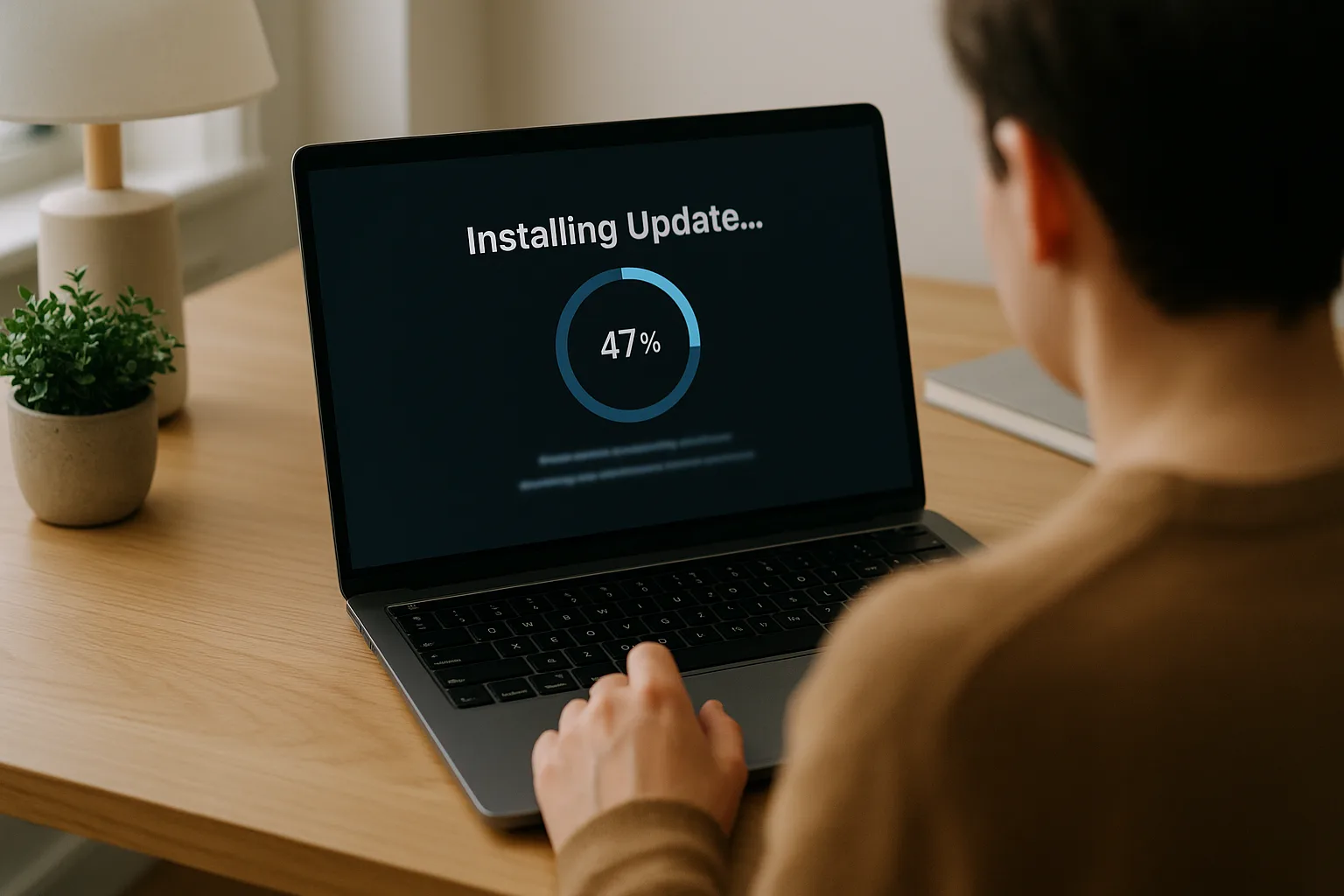
- How long does it take? Usually somewhere between thirty minutes and a couple of hours, depending on your machine and internet speed. Most of it is a hands-off download and install, with a few restarts. Plan to leave the laptop plugged in and alone for the afternoon rather than rushing it before a meeting.
There is one more comfort built in: after you upgrade, you get a 10-day window to roll back to Windows 10 while keeping your files, if you decide you do not get on with it. So the upgrade is genuinely low-commitment. Before you start, take a proper backup; our guide to why backing up your data is critical covers the simple 3-2-1 approach, and if a drive ever fails mid-process, our data recovery service can often get your files back.
Before you upgrade: a quick pre-flight checklist
A Windows 11 upgrade usually goes smoothly, but five minutes of preparation removes almost all the things that turn it into a bad afternoon. Run through this first:
- Back up your important files. Documents, photos, anything irreplaceable, onto an external drive or cloud storage. The upgrade keeps your files, but a backup means a power cut or a rare glitch can never cost you anything.
- Make sure you have enough free space. The installer needs room to work, so aim for at least 20GB free. If your drive is nearly full, our guide to disk cleanup will clear space quickly.
- Plug the laptop in. Do not upgrade on battery; a flat battery part-way through an install is exactly the situation to avoid.
- Run Windows Update first. Get Windows 10 fully up to date and on version 22H2 before you start, which smooths the path to 11.
- Note down your logins. Make sure you know your Microsoft account password and any app or licence keys, in case a program asks you to sign in again afterwards.
- Check the things you depend on. If you rely on a specific printer, scanner or an older piece of software for work, a quick check that it supports Windows 11 saves a nasty surprise. Most modern kit is fine; very old peripherals occasionally are not.
How to upgrade to Windows 11, step by step
Once you have run the pre-flight checklist above, the upgrade itself is straightforward. Here is the route we use, which keeps everything firmly in your control:
- Take your backup. Copy anything irreplaceable to an external drive or cloud storage before you touch anything else. This is the one step you should never skip.
- Fully update Windows 10 first. Go to Settings, then Update and Security, then Windows Update, and keep installing until it reports you are up to date and on version 22H2.
- Check eligibility. Run the PC Health Check app. If it flags TPM or Secure Boot, enable those in the BIOS (or ask us) and check again.
- Look for the offer in Windows Update. On eligible machines, an "Upgrade to Windows 11 is ready" message appears in Windows Update. Click Download and install.
- Choose to keep your files and apps. When prompted, select the option that keeps your personal files and applications. This is the default and the one almost everyone wants.
- Leave it to run. Keep the laptop plugged in and let it download, install and restart a few times. Do not force a shutdown, even if a restart seems to sit still for a while.
- Sign in and check the essentials. Once you reach the new desktop, open your email, your printer and any work-critical software to confirm everything is happy, then let Windows Update run once more to pull down the latest drivers.
If the upgrade does not appear in Windows Update straight away, that is normal, as Microsoft rolls it out in waves; you can use the Installation Assistant on Microsoft's official Windows 11 download page to start it manually. And if you would rather not do any of this yourself, it is exactly the sort of job we handle for Manchester customers week in, week out.
What Windows 11 actually gives you over Windows 10
Beyond the obvious "it keeps getting security updates" point, which is the real headline, Windows 11 brings a handful of genuine improvements. It is worth being honest here: this is an evolution, not a revolution, and you should not expect a tired old laptop to suddenly feel twice as fast.
- Security baked in. Windows 11 requires TPM 2.0, Secure Boot and virtualisation-based security, which together make it much harder for ransomware, firmware attacks and credential theft to take hold. This is the single biggest reason to move, and it is why businesses in particular should not drag their feet.
- A cleaner, calmer interface. A centred Start menu, tidier Settings, and Snap Layouts that make arranging windows side by side genuinely useful, especially on a bigger screen or when you work from home.
- Slightly better performance on modern hardware. Independent testing puts Windows 11 a few percent quicker than Windows 10 on recent processors, with smarter memory management. On older eligible hardware the difference is marginal, so do not upgrade expecting a speed miracle.
- Newer connectivity. Windows 11 adds support for Wi-Fi 7, the latest wireless standard, which can mean faster, steadier connections on compatible routers and laptops. Windows 10 does not get this.
- Ongoing features. New tools, including the Copilot AI features Microsoft keeps adding, are landing on Windows 11 only. Windows 10 is frozen in time from here on.
One more reassurance if you have been holding off: Windows 11 has now been out for several years and is mature and stable, well past the teething problems of its early releases. The "wait and see" argument that genuinely made sense back in 2021 no longer really applies in 2026, particularly now that staying on Windows 10 carries its own steadily growing security risk. For most eligible machines, waiting longer adds risk without adding much benefit.
If your machine feels sluggish today, the operating system is rarely the real cause. More often it is a tired hard drive or not enough memory, both of which we cover below and both of which make a far bigger difference to everyday speed than the version of Windows you run.
Windows 10 vs Windows 11: a side-by-side comparison
If you like to see the trade-offs laid out plainly, here is how the two compare in 2026:
| Feature | Windows 10 | Windows 11 |
|---|---|---|
| Free security updates | Ended 14 October 2025 (free ESU until Oct 2027) | Yes, ongoing |
| New features and AI tools | Frozen, no new features | Yes, including Copilot and regular feature drops |
| Hardware needed | Runs on older PCs | TPM 2.0, Secure Boot, 2018-era CPU or newer |
| Built-in security | Good | Stronger, with TPM and virtualisation-based security required |
| Interface | Familiar, left-aligned Start menu | Centred Start, Snap Layouts, tidier Settings |
| Wi-Fi 7 support | No | Yes, on compatible hardware |
| Cost to you | Free, but increasingly risky | Free upgrade for eligible PCs |
Read down the Windows 11 column and the pattern is clear: for an eligible machine, you gain security and longevity and give up very little. The only row where Windows 10 still wins is running on genuinely old hardware, which is exactly the situation a later section is about.
Common problems after upgrading, and how to fix them
Most people upgrade and barely notice a hiccup, but a few things come up often enough to be worth knowing in advance:
- Everything feels slow for the first day or two. This is normal. After a big update Windows re-indexes your files and downloads driver updates in the background. Leave it switched on for a few hours and it settles down.
- The Start menu and taskbar look different. Windows 11 centres them by default. You can move the Start button back to the left in Settings, under Personalisation then Taskbar, if you prefer the old look.
- The right-click menu is shorter. Windows 11 tucks some options under "Show more options", or you can press Shift and right-click. It is a change of habit, not a missing feature.
- A printer or device stops working. This is usually a driver issue, and installing the latest driver from the manufacturer's website fixes the large majority of them.
- Something important will not run. Rare, but if a critical program misbehaves you have that 10-day window to roll back to Windows 10 with your files intact, found in Settings under System then Recovery.
If any of this feels daunting, or something does not come back to life after the upgrade, that is exactly the sort of thing we sort out quickly. A computer repair drop-in or collection can have you back to normal the same day. If the upgrade triggered odd crashes or restarts, our guide to fixing random PC crashes and restarts is a useful first port of call.
Myths about the Windows 11 upgrade, and the truth
A lot of half-truths float around about this upgrade, and they stop people doing the sensible thing. Here are the ones we hear most, and what is actually true:
- "Windows 10 stopped working in October 2025." Not true. It keeps running. What stopped is the free flow of security updates, which is a slower, quieter risk rather than a sudden death.
- "The upgrade will wipe my files." Not if you choose to keep your files and apps, which is the default. We still back up first because it is sensible, not because the upgrade is dangerous.
- "I have to pay for Windows 11." No. For an eligible PC with a genuine Windows 10 licence, the upgrade is free.
- "My PC is fast, so it must be compatible." Not necessarily. A perfectly quick machine can still fail on the processor requirement if its CPU predates 2018. Speed and eligibility are separate things.
- "I should just force Windows 11 onto my unsupported PC with a workaround." We would not. Microsoft does not support it, updates can stop arriving, and you may end up worse off than before. There is almost always a cleaner option.
- "Windows 11 is still buggy and new." Out of date. It has been out since 2021 and is mature and stable in 2026, well past its early teething troubles.
If your PC cannot run Windows 11: your options
Plenty of perfectly good computers fail the Windows 11 check on the processor requirement alone. If that is you, do not panic and do not feel pushed into binning a machine that still does everything you need. Here are your realistic choices:
| Option | Good for | The catch |
|---|---|---|
| Free Extended Security Updates (ESU) | Staying safe on Windows 10 until 12 October 2027 with no new hardware | A bridge, not a destination; you will still need a plan before it ends |
| ChromeOS Flex (free, from Google) | Older laptops used mainly for web, email and video; gets updates for the life of the hardware | No Windows or Android apps; it is a different system to learn |
| A lightweight Linux (Mint, Zorin, Ubuntu) | Reviving an old but capable PC, free of charge | Some learning curve; not every Windows program has an equivalent |
| A new or refurbished PC | Anyone whose machine is slow as well as unsupported | Up-front cost, though it fixes speed, battery and security in one go |
The free ESU programme is the headline option for most people, and it recently got much better. It was originally a single extra year, but in June 2026 Microsoft quietly extended the free consumer programme to 12 October 2027. You can enrol from within Windows 10 itself (you need version 22H2 with the latest updates installed), and there are three ways in: enable Windows Backup to sync your settings at no cost, redeem 1,000 Microsoft Rewards points, or pay a one-off fee of around thirty dollars. Microsoft's UK ESU page has the exact steps. It is genuinely useful breathing space, but the word "extended" is doing a lot of work: it buys time, it does not solve the underlying problem of an ageing, unsupported machine.
The other route worth a serious look is ChromeOS Flex, Google's free operating system that installs over the top of an old Windows laptop and turns it into something closer to a Chromebook. For a machine used mostly for browsing, email, banking and streaming, it is a brilliant way to get a fast, secure, well-supported computer out of hardware that Windows 11 has left behind. The trade-off is that it runs web apps, not traditional Windows software, so it suits some people perfectly and others not at all.
What we would gently warn against is the unofficial "bypass" trick that forces Windows 11 onto unsupported hardware. It can be done, but Microsoft does not support it, such machines may not receive updates reliably, and you can be left in a worse position than you started. If you are tempted down that road, talk to us first; there is usually a cleaner answer.
How to enrol in free Windows 10 ESU, step by step
If you are staying on Windows 10 for now, do not leave the free Extended Security Updates programme switched off, because an unenrolled machine simply stops receiving patches. Microsoft's ESU documentation sets out the rules, and for a home PC the enrolment is quick:
- Get on version 22H2. ESU only covers Windows 10 version 22H2, so install all outstanding updates until you are on that version.
- Install the latest cumulative updates. The enrolment option arrives through Windows Update, so a fully patched machine is the prerequisite for the prompt to appear.
- Open Windows Update and find the enrol link. Go to Settings, then Update and Security, then Windows Update. An "Enrol now" prompt for Extended Security Updates shows up on eligible machines.
- Pick your free route. You can enrol at no cost by syncing your Windows settings to a Microsoft account (Windows Backup), or by redeeming 1,000 Microsoft Rewards points. There is also a one-off paid option of around thirty US dollars if you would rather not use a Microsoft account.
Remember the limits, set out in that same Microsoft documentation: ESU delivers only critical and important security patches. It brings no new features, no general technical support and no non-security fixes. It is a safety net while you plan, not a way to keep Windows 10 fresh forever. If you are not sure whether your PC is enrolled or eligible, we can check it for you in minutes.
Make an eligible PC feel new again

Here is a tip that saves people a lot of money: if your PC is eligible for Windows 11 but feels slow, the answer is usually not a new computer, it is a couple of cheap, high-impact upgrades done at the same time as the operating system.
If your machine still has an old mechanical hard drive, fitting a solid state drive is the single biggest speed improvement you can make, often turning a one-minute start-up into ten or fifteen seconds. Our guide to why you should upgrade to an SSD explains why. And if you regularly juggle lots of browser tabs, video calls and apps, a little more memory helps; our article on whether more RAM will speed up your computer shows when it is worth it. Done together with the Windows 11 upgrade, an SSD and a memory bump can make a five-year-old laptop feel genuinely new for a fraction of the price of replacing it. That is exactly the kind of work we do on a laptop repair and upgrade in our Manchester workshop. If you are weighing up the spend, our honest take on whether to repair or replace a machine is worth a read before you decide.
Windows 11 for Manchester small businesses
If you run a business, the calculation is a little different, and a bit more urgent. Running unsupported operating systems is not just a personal risk; for any business handling customer data it can become a compliance and insurance problem too, because "we were running software the vendor had stopped patching" is a difficult position to defend after a breach.
It is also worth knowing that the business side of ESU works differently from the free consumer route. Microsoft's commercial ESU programme is a paid, per-device subscription whose price doubles each year for up to three years, which makes it a deliberately short-term stopgap rather than a budget line you want to keep paying. That pricing is Microsoft's way of nudging organisations towards Windows 11, and for most small firms upgrading the eligible machines works out cheaper and simpler than paying escalating ESU fees on old ones.
The sensible approach is a planned, phased rollout rather than a last-minute scramble: audit which machines are eligible, upgrade those first, put the ineligible ones on ESU as a stopgap, and budget to replace the genuine stragglers over the year. We help local firms do exactly this through our business computer support and IT support services, so the whole fleet moves across smoothly with no nasty surprises. While you are reviewing security, our guide to working more securely from home is a good companion for any team that works remotely, and it pairs well with a sensible backup setup so a single failure never takes the business down.
How Manchester PC can help
Whether you just want to know if your laptop is eligible, or you would rather hand the whole thing over and get on with your day, that is what we are here for. We will check Windows 11 eligibility, enable TPM and Secure Boot where needed, back up your data, carry out the upgrade, and fit an SSD or extra memory at the same time if it will help. If your machine genuinely cannot move to Windows 11, we will give you honest, no-pressure advice on ESU, a lighter operating system, or a sensible replacement, rather than selling you something you do not need.
We cover Manchester and the surrounding areas with free local collection and return, honest quotes, and no jargon. If you would like a hand, get a free, no-obligation quote or call us on 0161 820 1992 and we will point you in the right direction.