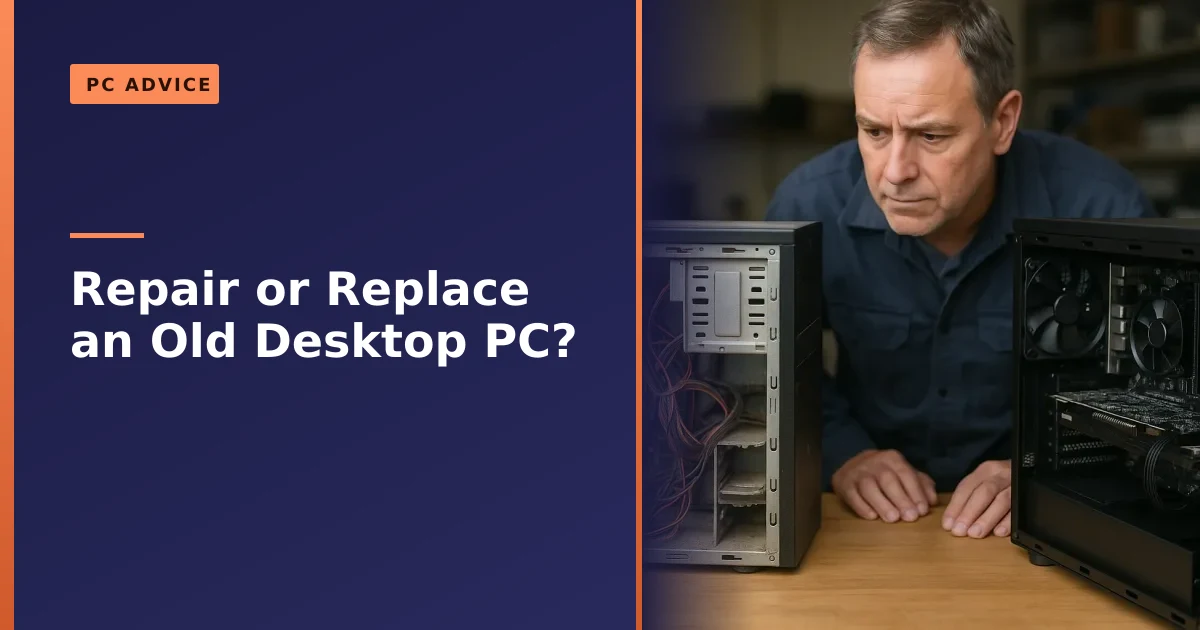
Repair or upgrade your old desktop when the work costs less than about half the price of a fair replacement and the platform still has a future. Replace it when the processor, motherboard and memory are all a dead end at once, or when a new machine genuinely costs less to run over the next few years. Most desktops fall on the repair side of that line for longer than people expect.
Key takeaways
- A desktop is far more upgradeable than a laptop, so a tired old tower is usually worth reviving rather than replacing.
- The two cheapest upgrades, a solid state drive and more memory, transform how fast almost any older PC feels.
- Use the 50 percent rule: if the fixes and upgrades cost more than roughly half a sensible new machine, lean towards replacing.
- The real dead end is the platform. When the processor, socket and memory type are all obsolete together, upgrading in stages stops making sense.
- Windows 11 and its TPM 2.0 requirement is the big 2026 deciding factor for many older desktops.
- Repairing and upgrading keeps a working machine out of landfill, which is better for your wallet and the planet.
Desktops age very differently from laptops. A laptop is largely sealed and fixed, so once the processor and screen are behind the curve you often have little choice but to replace the whole thing. A desktop is the opposite. It is a box of separate parts, and almost every one of them can be swapped out on its own. That single fact changes the whole repair or replace decision, and it is why we so often talk customers out of buying new when a targeted upgrade would serve them better. This guide walks through exactly how to make that call, and it is the desktop companion to our repair or replace guide for laptops. If you would rather we simply looked at your machine and told you straight, that is what our PC repair service in Manchester does every day.
Why desktops are worth repairing far longer than laptops
The single biggest reason to think twice before replacing a desktop is that it is modular. A tower is not one product, it is a collection of standard parts bolted into a case: a power supply, a motherboard, a processor, memory sticks, a graphics card, and one or more drives. Each of those follows an industry standard, which means each can be replaced or improved without touching the rest.
That has real consequences for the repair or replace decision:
- You upgrade the bottleneck, not the whole machine. If the only thing holding your PC back is a slow hard drive, you fix that one thing for a small outlay. You do not throw away a perfectly good processor and case to solve it.
- Faults are usually one part, not the whole PC. When a desktop stops working, it is normally a single failed component: a power supply, a fan, a stick of memory or a drive. Diagnose it, replace that part, and the machine lives on.
- Good cases and coolers last a decade or more. The chassis, the fans and the cooler do not really go out of date. A ten year old case can happily house a brand new build, so the money you spend rarely goes to waste.
Compare that with a laptop, where the memory is often fixed in place, the drive may be built in, and replacing the screen or keyboard means a careful strip down. A desktop hands you options a laptop never will. So before you price up a new machine, ask a simpler question: which one part is actually letting me down, and what would it cost to fix just that?
How old is too old? Using age as a rough guide
Age on its own is a blunt tool, but it is a useful starting point. It tells you roughly how much life a machine has left and how likely the parts are to be worth keeping. The key is to think in platform generations rather than calendar years, because a well specified PC from six years ago can still outrun a cheap new one.
As a general rule of thumb for desktops:
| Age of the PC | Usual verdict | What to do |
|---|---|---|
| 0 to 3 years | Almost always repair or upgrade | Parts are current and easy to source. Fix the fault or add an upgrade and carry on. |
| 3 to 6 years | Usually worth upgrading | The sweet spot for an SSD and memory boost, or a graphics card. Often adds years of life cheaply. |
| 6 to 9 years | It depends on the platform | Targeted upgrades can still work well, but check the processor and Windows 11 eligibility first. |
| 9 years or more | Lean towards replacing | The processor, socket and memory type are likely all obsolete. A new base may cost less than piecemeal upgrades. |
Notice that nothing here says a nine year old machine is scrap. It says the odds shift. Plenty of older desktops are still doing sterling work as home office machines, media boxes or a child's first PC, and a small upgrade keeps them going. What changes with age is not whether the PC still works, but whether spending money on it is the best use of that money compared with a fresh start. That is where the maths comes in.
The 50 percent rule: doing the simple maths
The most useful single test for any repair or replace decision is the 50 percent rule. It is not a law of physics, just a sensible line in the sand, but it stops you making an emotional decision and forces you to compare like with like.
The rule is this. Add up what it would cost to get your current PC to where you want it: the repair, plus any upgrades you would need to make it genuinely pleasant to use. Then compare that figure with the cost of a fair replacement that does the same job. If the work comes in under about half the price of the replacement, repairing and upgrading is usually the smart move. If it climbs past half, the balance tips towards replacing.
A worked example makes it clear. Say you have a six year old desktop that feels sluggish:
- A solid state drive to replace the old mechanical hard drive.
- A memory upgrade from 8GB to 16GB.
- A general service, a clean and fresh cooling paste.
That is a modest spend, and it turns a frustrating machine into a quick, responsive one. Against the cost of a decent new desktop that would do the same everyday jobs, it is well under half. The rule says repair, and it is right. Now imagine the same machine needs a new processor, which needs a new motherboard, which needs a new type of memory, plus the SSD. Suddenly you are replacing almost everything except the case, the total sails past half the price of a new machine, and the rule quite rightly nudges you towards buying new or doing a proper fresh build.
A couple of honest caveats keep the rule sensible. Factor in the value you already have: your data is set up, your software is installed and licensed, and everything just works, which has a worth of its own. And be realistic about the replacement you are comparing against. Comparing a targeted upgrade with a bargain basement new PC is unfair, because that cheap machine may be slower than your upgraded one. Compare like for like and the rule serves you well.
The two upgrades that revive almost any desktop
If you take one thing from this guide, make it this. The two cheapest upgrades in the whole PC, a solid state drive and more memory, do more to make an old desktop feel new than anything else you can buy. Before you even think about replacing a machine that simply feels slow, these two should be the first port of call.
A solid state drive (SSD)
If your desktop still boots from an old mechanical hard drive, this is the upgrade that will astonish you. A traditional hard drive has spinning platters and a moving arm, and that mechanical delay is behind most of the waiting you do: the long boot, the slow program launches, the general treacle when the machine is busy. A solid state drive has no moving parts and reads data electronically, so everything that was waiting on the disk becomes near instant. The difference between a hard drive and an SSD is stark, as Crucial's own SSD versus hard drive comparison lays out plainly.
For most people, moving Windows and their programs onto an SSD is the single biggest speed improvement available for the money, and it is why we fit so many of them. An old desktop that felt ready for the scrap heap often feels perfectly modern once it boots in seconds instead of minutes. We explain the whole case for it in our guide on why you need to upgrade to an SSD today.
More memory (RAM)
The second revival upgrade is system memory. When your PC runs short of RAM, it starts shuffling data back and forth to the drive to cope, and everything grinds. Adding memory gives it the headroom to keep more things running at once without that slowdown. If you are still on 8GB and you keep a lot of browser tabs open, run several programs together, or do any photo or video work, a jump to 16GB is transformative and inexpensive.
The main thing to get right is the type. Older desktops use DDR3 or DDR4 memory, and newer ones use DDR5, and they are not interchangeable, so the upgrade has to match what your motherboard takes. Our guide on whether you need extra memory walks through how to tell what you have and how much you actually need. For most everyday and light gaming use, 16GB is the comfortable target in 2026, with 32GB for heavier gaming, creative work and virtual machines.
Here is roughly what each of the common upgrades buys you on an older desktop, from cheapest and most transformative to most involved.
| Upgrade | What it fixes | Effort and cost | Who it helps most |
|---|---|---|---|
| Hard drive to SSD | Slow boot, slow program launches, general lag | Low cost, biggest single improvement | Anyone still on a mechanical hard drive |
| More RAM | Stutter with many tabs or programs open | Low cost, easy fit | Multitaskers, creators, gamers on 8GB |
| Graphics card | Low frame rates in games | Moderate cost, needs PSU and space checks | Gamers, video editors |
| Power supply | Random shutdowns, no headroom for a new GPU | Moderate cost | Anyone adding a hungrier graphics card |
| Processor and motherboard | An aged, slow platform overall | Higher cost, this is where the 50 percent rule bites | Those whose whole platform is a dead end |
The pattern is clear. The upgrades at the top of that list are cheap and hugely effective, and they revive the vast majority of slow desktops. It is only when you reach the bottom of the list, the processor and motherboard, that costs climb and the replace conversation begins in earnest. If your PC simply feels slow rather than faulty, our guide on why your desktop PC is so slow helps you pin down which of these is the real culprit.
Graphics card and power supply headroom
For gamers, the graphics card is usually the part that decides whether an old PC still cuts it, and happily it is one of the easiest things to upgrade in a desktop. If games stutter or refuse to run at the settings you want, but the rest of the machine is fine, a new graphics card can breathe years of life into an otherwise capable tower. That is a classic repair over replace win, and we cover the whole decision in our graphics card upgrade guide.
There are two things that decide whether your existing PC can take a new card, and both are about headroom rather than the card itself:
- The power supply. A new graphics card is often the most power hungry part in the machine, and an old or weak power supply may not have the wattage or the right connectors to feed it. Modern cards also draw brief spikes of power that tired supplies struggle with, which shows up as random shutdowns under load. If your supply is more than five or six years old, or already misbehaving, budget to replace it alongside the card. Our guide on the signs of a failing power supply helps you spot a unit on the way out before it spoils a good upgrade.
- The processor. A graphics card does not work alone. The processor feeds it work, and a much older processor can hold a powerful new card back, particularly at lower resolutions. This is the bottleneck question, and it is where the platform starts to matter, which brings us neatly to the part that most often decides repair against replace.
The encouraging news is that a graphics card upgrade rarely requires you to change anything else structurally. The slot standard it plugs into, PCIe, is backward and forward compatible, so a current card will work in an older board, just at the speed of the slower of the two, which for most cards costs very little in practice. So if gaming performance is your only complaint, you are usually looking at a straightforward upgrade rather than a new machine.
The processor and socket: when a platform is a dead end
This is the heart of the whole decision. Everything else in a desktop can be swapped in isolation, but the processor is tied to the motherboard through a physical connection called the socket, and the socket is tied to the type of memory the board accepts. When all three of those are obsolete together, you have reached what we call a platform dead end, and that is the point where upgrading in stages stops making sense.
Here is why it matters. If you want a much faster processor, you first have to check whether a better one exists for your current socket. Often, on an older board, it does not, or the best available is only a small step up. To get a genuinely modern processor you then need a new motherboard, and a new motherboard usually needs a new type of memory too. At that point you are replacing the processor, the motherboard and the memory all at once, which is most of a new machine. The case, the drives and often the power supply can come across, but the core has been rebuilt.
The two big platforms in 2026 illustrate the point:
- AMD's AM5 socket is a long lived platform. AMD has committed to supporting it for years, which means a board bought today should accept future processors, so it has a real upgrade path. You can read the detail on the Socket AM5 overview. The older AM4 socket it replaced is now a closed platform for new processors, though it was itself famously long lived and remains perfectly usable.
- Intel's recent desktops have tended to change socket more often, so an Intel board has historically offered a shorter in place upgrade path before a new socket arrives. That is not a fault, it simply means the platform question is worth checking carefully before you plan an Intel processor upgrade.
The practical takeaway is this. If your desktop is on a platform that still has newer processors available for the same socket, a processor upgrade alone can be a cost effective boost. If it is on a dead end platform where a faster processor means a new board and new memory as well, you are effectively into new build territory, and the 50 percent rule will usually tell you to build fresh or buy new. This is exactly the sort of thing worth weighing up before you commit, and our guide on custom PC versus prebuilt helps if a fresh build turns out to be the better road.
To be completely clear about what we do here: we diagnose the fault and then replace or upgrade the part, whether that is a stick of memory, a drive, a graphics card, a power supply, or a whole processor or motherboard fitted as a part. We do not carry out board-level or soldering repairs. If a fault sits deep inside a component, we replace the part or the whole board, or we advise you honestly on the best route, so you never pay for guesswork.
Windows 11, TPM 2.0 and the 2025 deadline
For a great many older desktops, the deciding factor in 2026 is not speed at all. It is Windows. Support for Windows 10 ended on 14 October 2025, as Microsoft confirms on its end of support page. Machines still running it keep working, but they stop receiving security updates, which over time makes them a growing risk to use online. That single change has pushed the repair or replace question to the front of a lot of minds.
The catch is that Windows 11 has stricter hardware requirements than any Windows before it. According to Microsoft's Windows 11 specifications, a machine needs a compatible 64-bit processor, 4GB of memory, 64GB of storage, UEFI firmware with Secure Boot, and crucially a security chip called TPM 2.0. That TPM requirement, together with the list of supported processors, is what rules out a lot of otherwise healthy older desktops. In practice Windows 11 broadly supports Intel 8th generation processors and AMD Ryzen 2000 series and newer, so machines built before around 2018 often fall outside the list.
So what are your options if your desktop cannot officially run Windows 11? You have a few, and they lead to genuinely different answers:
- Check whether it really is ineligible. Many desktops have a TPM that is simply switched off in the firmware settings, and turning it on makes the machine eligible after all. It is always worth checking before you assume the worst, and it is a free fix.
- Add a compatible part. On some desktop motherboards a TPM module can be added, or Secure Boot enabled, which brings an otherwise borderline machine into line. Whether this is possible depends entirely on the board.
- Enrol in Extended Security Updates. Microsoft offers a paid programme that keeps Windows 10 receiving security updates beyond the deadline, which buys time on a machine that is otherwise fine but not Windows 11 eligible.
- Replace or rebuild. If the processor is genuinely too old for Windows 11 and it was already feeling slow, this is often the moment the 50 percent rule points to a new machine, since you were nearing that decision anyway.
We go through all of this in detail, including how to check eligibility and what each route means for you, in our guide on whether you should upgrade to Windows 11. The important point is not to let the Windows 11 question alone panic you into replacing a good machine. For many desktops there is a straightforward path to Windows 11, and it costs a fraction of a new PC.
Upgrade path versus a new build: a decision table
Pulling all of this together, the choice usually comes down to whether your machine has a sensible upgrade path left, or whether you have reached the point where a fresh build makes more sense. The table below sums up the main scenarios we see, and what we would generally advise for each.
| Your situation | Likely best move | Why |
|---|---|---|
| Slow, still on a hard drive, otherwise fine | Upgrade: SSD and RAM | Cheapest, most transformative fix. Nowhere near the 50 percent line. |
| Games struggle but the rest is fine | Upgrade: graphics card (check PSU) | The GPU is the gaming bottleneck and is easy to swap. |
| One part has failed (PSU, fan, drive, RAM stick) | Repair: replace that part | A single failed component is not a reason to replace the whole PC. |
| Processor is the limit but the socket has newer chips | Upgrade: processor | A real upgrade path exists, so a chip swap is cost effective. |
| Processor, socket and memory all obsolete together | Replace or fresh build | You would be rebuilding almost everything. The 50 percent rule bites. |
| Not Windows 11 eligible and already slow | Replace or fresh build | Two reasons to move on line up at once. |
| Not Windows 11 eligible but otherwise good | Check TPM, or add a part, or ESU | Often a cheap fix keeps a good machine going. |
One theme runs through the whole table. Single problems mean upgrades, and upgrades are cheap. It is only when several ageing problems arrive together, an obsolete processor and no Windows 11 and a slow drive, that replacement earns its place. If you are planning a fresh build rather than another patch, it is worth reading our notes on things to consider before building a new PC so you spend on the right parts.
The sustainability case for repairing
There is a good reason to lean towards repair beyond the money, and it is worth saying plainly. Electronics are the fastest growing waste stream in the world. Global figures show around 62 million tonnes of electronic waste generated in a single recent year, with only a small fraction, roughly a fifth, formally collected and recycled, as summarised in the overview of electronic waste. A desktop tower is a heavy, materials rich object, and the greenest one is the one you already own and keep using.
The environmental cost of a computer is not mostly in running it. It is in making it: the mining, the manufacturing and the shipping that go into every new machine. When you fit an SSD and some memory to extend a desktop's life by three or four years, you avoid all of that embodied cost for the price of two small parts. Extending the working life of the electronics we already have is one of the most effective everyday things any of us can do to cut waste, and it happens to be the cheaper option too, which is a rare and welcome alignment of interests.
None of this means clinging to a machine that genuinely owes you nothing. When a PC truly reaches the end of the road, the right thing is to have it recycled properly through a WEEE registered route rather than sent to landfill, so its materials are recovered. But that moment usually comes much later than people assume. In our experience, the majority of desktops written off as too old are, in fact, one or two cheap upgrades away from another few good years.
Signs it really is time to replace
To keep this balanced, there are cases where replacing is the honest answer, and it helps to know them so you do not pour money into a lost cause. Lean towards a new machine or a fresh build when several of these are true at once:
- The whole platform is a dead end. The processor is slow, there is nothing much better for its socket, and a better one means a new board and new memory as well. You would be replacing everything but the case.
- It cannot run Windows 11 and it was already struggling. Two reasons to move on arriving together is a strong signal, especially once Windows 10 security updates are behind us.
- The upgrades add up past the 50 percent line. If getting the machine to where you want it costs more than half a fair replacement, the maths has spoken.
- It fails repeatedly in different ways. A machine that needs one part after another, with new faults appearing as fast as you fix the last, may simply be worn out. That said, do get it diagnosed first, because a single root cause such as a failing power supply can masquerade as many separate faults.
- Your needs have outgrown it entirely. If you have moved into serious gaming, high resolution video editing or heavy creative work, a very old base may not be worth building on, and a modern platform is the better foundation.
Even here, remember that a replacement rarely means throwing everything away. In a desktop, your good parts, the case, the drives, sometimes the graphics card and power supply, can carry over into a new build. That is the quiet advantage of a tower that a laptop can never offer, and it softens the cost of replacing considerably.
How Manchester PC can help
If you are staring at an old desktop and cannot decide whether to spend money on it or start again, that is exactly the call we make with customers every week. We diagnose first, so you know precisely which part is letting you down, then we tell you honestly whether a targeted upgrade will sort it, or whether you have genuinely reached the point where a fresh build or a new machine is the better value. There is no push to spend, because the honest answer is usually the cheaper one.
We fit solid state drives and memory, install graphics cards, replace power supplies, fans and coolers, swap whole processors and motherboards as parts, sort out Windows 11 eligibility and clean installs, and we build custom PCs from scratch when that is the right road. We do not do board-level or soldering repairs, but we replace the faulty part or the whole board and advise you on the best route.
We offer free local collection and return right across Manchester, so you do not have to unplug and lug a heavy tower across town. Give us a call on 0161 820 1992 and tell us what the machine is doing and how you use it, or request a no obligation quote through our tech support quote page. Whether the answer turns out to be a twenty minute SSD swap or a whole new build, we will give it to you straight and get you sorted.