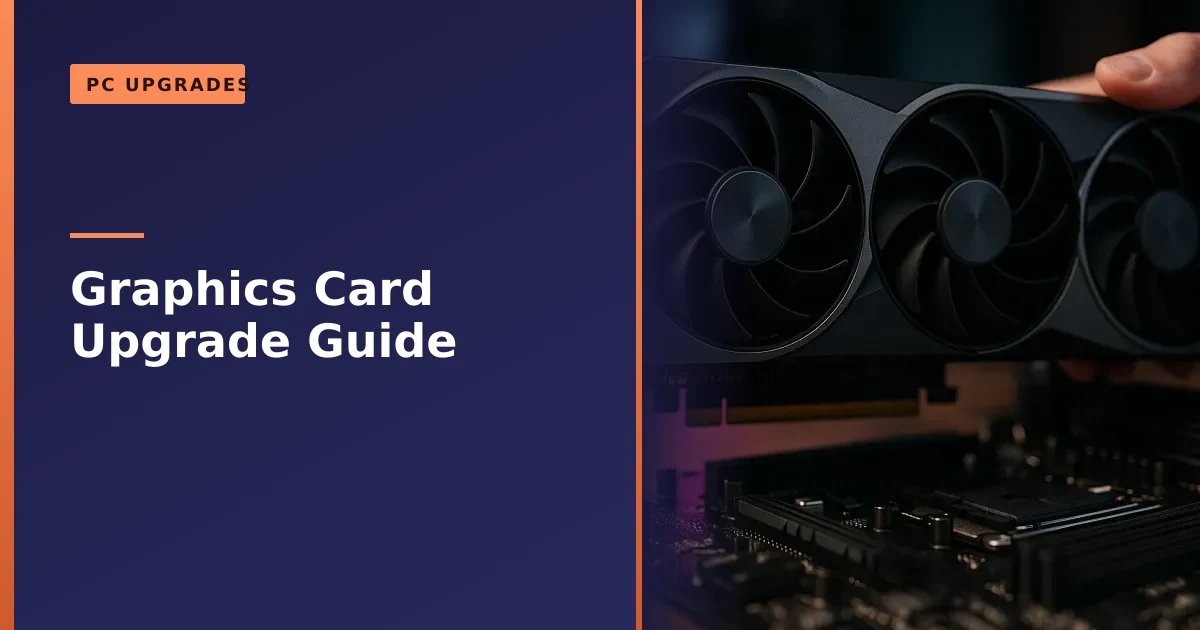
If your games stutter, drop frames or refuse to run at the settings you want, a new graphics card is usually the single biggest upgrade you can make to a desktop or gaming PC. Before you buy, though, you need to check four things: your resolution target, your processor, your power supply and whether the card physically fits. Get those right and the upgrade is transformative. Get them wrong and you waste money.
Key takeaways
- The graphics card (GPU) is the part that decides your frame rates in games, so it is the first upgrade to consider when gaming feels slow.
- Pick your card by resolution first: 1080p, 1440p or 4K each ask for a very different level of graphics power.
- Check three things before you buy: does your CPU keep up, does your power supply have the wattage and the right connector, and will the card physically fit the case.
- Modern high end cards use the 12V-2x6 connector and want a good quality ATX 3.0 or 3.1 power supply.
- Always do a clean driver install (DDU in safe mode) after fitting a new card to avoid conflicts and crashes.
- We fit and install graphics cards as an upgrade across Manchester, including free local collection and return.
This guide walks you through the whole decision in plain English, from working out whether you even need a new card, to choosing the right one for your screen, to fitting it without the usual headaches. It is written for desktop and custom gaming PC owners, and it is the kind of advice we give customers every week through our gaming PC repair and upgrade service in Manchester. If you would rather we just handle the whole job, we can, but it helps to understand what is going on either way.
Do you actually need a new graphics card?
The GPU is the component that draws everything you see in a game, so when frame rates are poor it is the natural suspect. But it is not always the culprit, and swapping it is the most expensive fix in the box, so it is worth a quick sanity check first.
Signs that point to the graphics card being the real limit:
- Frame rates are low even after you turn settings down, and the picture looks the same whether you play at high or medium.
- Newer games run poorly while older titles are fine, which usually means the card has simply aged out.
- You want to move up a resolution or refresh rate (say from 1080p 60Hz to 1440p 144Hz) and the current card cannot keep up.
- You are running out of video memory (VRAM), which shows up as sudden stutters, texture pop-in or games warning you that memory is full.
Signs the problem might be elsewhere:
- The whole PC feels slow, not just games. That often points to a slow hard drive rather than the GPU. Moving Windows and your games to a solid state drive is frequently the cheaper, bigger win, and we explain why in our guide on why you should upgrade to an SSD today.
- Games stutter in busy scenes but the average frame rate is fine, which can be a shortage of system memory. Our guide to how much RAM you need for gaming covers this in detail.
- Performance drops after a few minutes of play, which is classic overheating and throttling, not a weak card. A good clean and fresh thermal paste often brings performance back.
If the evidence points at the GPU, read on. If you are not sure, that is exactly the sort of thing our diagnostics can settle in an afternoon, so you only spend money where it counts.
Start with your resolution and refresh rate
The single most important number when choosing a graphics card is not the price, it is the resolution and refresh rate of your monitor. A card that is brilliant at 1080p can be overwhelmed at 4K, and a card built for 4K is wasted money if you play on a basic 1080p screen. Match the card to the screen and you get the best value every time.
Here is roughly how the three common resolutions stack up in terms of how hard they push the graphics card.
| Resolution | Pixels drawn per frame | What it asks of the GPU | Good for |
|---|---|---|---|
| 1080p (1920 x 1080) | About 2.1 million | Lightest load. Even mid range cards run high frame rates. | Fast competitive shooters, high refresh 144Hz and above, budget builds. |
| 1440p (2560 x 1440) | About 3.7 million | Around 78% more pixels than 1080p. The sweet spot for most gamers. | Sharp visuals with high frame rates on mid to upper range cards. |
| 4K (3840 x 2160) | About 8.3 million | Four times the pixels of 1080p. Very demanding, needs a strong card and plenty of VRAM. | Big screens, single player showcase games, top end cards. |
Refresh rate matters just as much as resolution. Chasing 240 frames per second on a 240Hz monitor is far harder work than a steady 60fps, and it leans on your processor as well as your graphics card. Be honest about what your monitor can actually show. There is no benefit in a card that produces 200fps if your screen only refreshes 60 times a second, and no point buying a 4K monitor if the card can only manage a slideshow on it. Decide the resolution and refresh rate you want to play at, then pick the card to suit.
Will your CPU hold the new card back?
This is the part people get wrong most often. A graphics card does not work alone. The processor (CPU) feeds it instructions, and if the CPU cannot keep up, your shiny new card sits half idle waiting for work. That is a bottleneck, and it means you paid for performance you never see.
The good news is that whether the CPU matters depends heavily on the resolution you play at:
- At 1080p, the CPU matters most. The graphics card can churn out frames very quickly at this resolution, so the processor becomes the limiting factor, especially in fast esports titles and when you are aiming for very high frame rates on a 144Hz or 240Hz monitor.
- At 1440p, the load is more balanced. The GPU is doing more work, but a weak or old CPU can still cause uneven frame times and stutter even when the average frame rate looks fine.
- At 4K, the GPU almost always leads. There are so many pixels to draw that the graphics card is the bottleneck in nearly every game, so even an older processor can pair well with a strong card.
So the practical rule is this. If you play at 1440p or 4K and your card is showing its age, a GPU upgrade almost always wins. If you chase very high frame rates at 1080p, or you are planning to drop a powerful new card into a PC with an older processor, look hard at the CPU first, because otherwise the new card will be starved of work. If you are not certain where your bottleneck sits, a quick diagnostic while playing a real game tells us straight away which part is holding you back.
One more note on VRAM, the memory built into the graphics card itself. This is separate from your system RAM. Modern games at 1440p and 4K, especially with high texture settings, can use a lot of video memory. When a card runs short, you get stutter and texture problems no matter how fast the rest of the PC is. That is why we generally steer people away from cards with very small memory pools if they want to play newer titles at higher resolutions.
Can your power supply handle it?
A new graphics card is often the most power hungry thing in your PC, and this is where a lot of upgrades come unstuck. If your power supply (PSU) is too weak, or lacks the right connectors, or is simply old and tired, the results range from random shutdowns to a PC that will not boot at all. Do not skip this step.
There are three things to check: total wattage, the connectors, and the age and quality of the unit.
Wattage and the right headroom
Every card has a rated power draw, and the maker publishes a recommended total system power supply size that leaves headroom for the rest of your components. As a rough guide for the current NVIDIA GeForce RTX 50 series, the numbers look like this.
| Graphics card | Typical card power draw | Maker recommended PSU (whole system) |
|---|---|---|
| RTX 5060 | Around 145W | Around 550W |
| RTX 5060 Ti | Around 180W | Around 600W |
| RTX 5070 | Around 250W | Around 650W |
| RTX 5070 Ti | Around 300W | Around 750W |
| RTX 5080 | Around 360W | Around 850W |
| RTX 5090 | Around 575W | Around 1000W |
AMD's current Radeon RX 9000 series sits in a similar range. The RX 9070 XT draws around 304W and the RX 9070 a little less, both comfortably served by a good 750W supply. Whatever card you choose, treat the maker's recommended figure as a sensible minimum, not a target to squeeze under. A supply running near its limit runs hot, gets noisy and ages faster, so a little headroom is money well spent.
The connectors: 12VHPWR and 12V-2x6
Wattage is only half the story. The card also needs the right power cable. Older and mid range cards use the familiar 8-pin PCIe power connectors. The current higher end cards, including much of the RTX 50 series, use a single 16-pin connector known as 12V-2x6, which is the updated version of the earlier 12VHPWR standard. A single 12V-2x6 cable can deliver up to 600W, which is why even a very powerful card needs only one.
A few practical points on these connectors:
- The newer 12V-2x6 has slightly redesigned pins for a safer, more reliable connection, but existing 12VHPWR cables and adapters will still work with it. The change is mostly on the card and PSU side.
- These connectors must be pushed fully home until they click. A cable that is not seated all the way is the main cause of the overheating stories you may have read, so it pays to check it is properly in.
- Many cards ship with an adapter that splits into several 8-pin plugs if your supply does not have a native 16-pin cable. It works, but a modern supply with the correct native cable is tidier and more reliable.
Age, quality and the ATX 3.0 / 3.1 standard
A cheap or elderly power supply is a false economy under a strong graphics card. Modern cards can draw sudden, brief spikes of power well above their average, and older units can trip or shut down when they hit these. The current ATX 3.0 and ATX 3.1 power supply standards are designed to handle exactly these spikes, and the better ones come with the native 16-pin cable built in. If you are pairing a new upper range card with a power supply that is more than five or six years old, replacing the supply at the same time is usually the wise move.
If your PC has already been shutting down under load, refusing to power on, or behaving erratically, the supply may already be on the way out. It is worth reading our guide on the signs of a failing PSU before you spend on a graphics card, because there is no sense fitting an expensive GPU to a supply that is about to give up. We can test the supply and, if needed, replace it as part of the same upgrade.
Will the card physically fit?
It sounds obvious, but modern graphics cards are big, and plenty of upgrades stall at the point where the card will not go in the case. Before you buy, measure three things.
- Length. Triple fan cards can be very long. Check the card's length against the clearance in your case, and watch out for drive cages or front mounted fans that eat into that space. Case makers publish a maximum GPU length, and the card makers publish the card's length, so you can compare the two before buying.
- Thickness (slots). Chunky coolers often take up three expansion slots or more. Make sure you have the room below the main slot, and that a fat card will not block other cards you need to keep.
- Height and cables. Some cards are tall enough to press against a side panel once the power cable is plugged in, particularly with the stiffer 16-pin cables. A little bend room matters.
The card slots into the long PCIe x16 slot, which is normally the top one nearest the processor. Line up the gold contacts, press down firmly and evenly until the locking latch clicks, then screw the bracket to the case. If it does not seem to seat, never force it. Something is usually in the way, or the latch needs releasing first. This is the sort of thing that is quick and clean when it goes to plan and frustrating when it does not, which is one reason many customers simply ask us to fit the card for them.
PCIe version: will an old motherboard cost you performance?
PCIe is the slot standard the graphics card plugs into, and it comes in generations: PCIe 3.0, 4.0 and the newer 5.0. A common worry is that a new card will not work, or will run badly, in an older motherboard. In practice this is rarely a problem.
PCIe is backward and forward compatible. A newer PCIe 5.0 card will happily run in an older PCIe 4.0 or even 3.0 slot, and vice versa. It simply runs at the speed of the slower of the two. The real question is whether the older slot loses you any noticeable performance, and for most cards the answer is very little. Even demanding cards see only a small difference between PCIe 4.0 and 3.0 in most games, often small enough that you would never notice it while playing.
There is one catch to watch for. A handful of lower end cards use only eight PCIe lanes rather than the full sixteen. On an older PCIe 3.0 board, those cut down cards can lose a meaningful chunk of performance, because they cannot make up for the older, slower slot with extra lanes. So if you are pairing a budget card with an older motherboard, it is worth checking the card's lane count. For mainstream and higher end cards on any reasonably modern board, PCIe generation is not something to lose sleep over.
The 2026 landscape: NVIDIA and AMD in plain terms
You do not need to memorise every model to make a good choice. In broad strokes, the market splits into two camps, and both make good cards. The goal is to match a card to your resolution and budget rather than to buy the biggest number.
NVIDIA's current range is the GeForce RTX 50 series, built on its Blackwell architecture. It runs from the more affordable RTX 5060 and 5060 Ti, aimed squarely at 1080p and entry 1440p, up through the RTX 5070 and 5070 Ti for strong 1440p, to the RTX 5080 and the flagship RTX 5090 for high refresh 1440p and 4K. NVIDIA's DLSS upscaling and frame generation features are a big part of the appeal, as they can lift frame rates significantly in supported games. You can see the current family on NVIDIA's own RTX 50 series page.
AMD's current range is the Radeon RX 9000 series, built on its RDNA 4 architecture. The RX 9070 XT and RX 9070, both with a generous 16GB of memory, are pitched as strong value cards for 1440p and capable 4K, and AMD's FSR 4 upscaling is its answer to DLSS. Details are on the AMD Radeon RX 9070 XT page. AMD cards often deliver a lot of raw performance for the money, which is why we frequently recommend them to gamers who want the most frames per pound.
Here is a simplified way to think about where each tier fits.
| Your goal | Rough tier to look at | What to prioritise |
|---|---|---|
| 1080p high frame rate, esports | Entry cards (e.g. RTX 5060 class) | A capable CPU matters as much as the GPU here. |
| 1440p high settings | Mid range (e.g. RTX 5070 / RX 9070 class) | The sweet spot for value. Aim for 12GB or more VRAM. |
| 1440p high refresh or entry 4K | Upper mid (e.g. RTX 5070 Ti / RX 9070 XT) | 16GB VRAM and a good PSU with a 16-pin cable. |
| 4K high settings, showcase games | High end (e.g. RTX 5080 / 5090 class) | Strong PSU, case clearance, and a modern CPU to feed it. |
Prices and availability move around, so we will not quote figures that go stale. The principle holds no matter what is on the shelf: buy the card that suits your resolution, make sure your CPU and PSU can support it, and do not overspend on a tier your monitor cannot make use of.
New or used: which makes sense?
A new card is the simple, safe route. You get a full warranty, the latest features and no history to worry about. If your budget stretches to the tier you need, new is the easy recommendation, and it is what we fit most often.
A used card can save real money, but it carries risk, and you need to buy carefully. Graphics cards are worked hard, and a tired one can look fine on the desktop yet fall over the moment a game loads it up. If you go the used route, keep these checks in mind:
- See it working under load. A card that only outputs a desktop picture tells you nothing. It needs to run a real game or a stress test without artefacts (odd patterns or flickering on screen), crashing or shutting down. A short run of a benchmark is the honest test.
- Check the physical condition. Any discolouration or scorching on the board is a red flag that it has been cooked, and is best avoided. Bent brackets and heavy dust tell you how it was looked after.
- Confirm it is what it claims to be. A free tool called GPU-Z reads the card's real identity, memory and clocks. If those do not match the advertised model, walk away.
- Ask about its life. A card that has spent years running flat out is more of a gamble than one from a gamer who used it a few evenings a week, though a well looked after card of either kind can still be fine.
If you have found a used card and want a second opinion before you buy, or you want us to test one you have already bought, we are happy to put it through its paces and fit it if it passes. It is far cheaper to test a card before you rely on it than to discover a fault mid game.
How to install a graphics card the right way
Fitting the card is only half the job. Just as important is doing a clean driver install afterwards, because leftover drivers from the old card are a leading cause of crashes, black screens and poor performance after an upgrade. Here is the process we follow.
- Prepare first. Download the correct new driver from NVIDIA or AMD before you start, so you are not hunting for it later. Note down which card you are fitting.
- Power down properly. Shut the PC down, switch off the supply at the wall and hold the power button briefly to discharge. Work on a hard surface, not thick carpet, and earth yourself by touching the metal case before handling parts.
- Remove the old card. Unplug its power cables, release the slot latch, undo the bracket screws and lift the card straight out. Do not tug it at an angle.
- Fit the new card. Line it up with the top PCIe x16 slot, press down until the latch clicks, screw the bracket to the case, then connect the power cable fully until it clicks. Double check that 16-pin connector is all the way home.
- Boot and check. Power on and make sure the PC posts and you get a picture. If you fit a card and get nothing on screen, that is worth troubleshooting calmly, and our guide on what to do when your PC turns on but shows no display covers the usual causes, from a loose card to a cable in the wrong port.
- Clean out the old drivers. This is the step people skip and then regret. Use a free tool called Display Driver Uninstaller (DDU). Boot into Windows safe mode, run DDU to strip out every trace of the old graphics driver, then restart. Keep Windows Update from grabbing a driver in the meantime, which is why you downloaded the right one first.
- Install the fresh driver. With the old driver gone, install the one you downloaded. If you are on an AMD Ryzen system, it is worth installing the AMD chipset drivers first and rebooting, then the graphics driver, so everything is set up in the right order.
- Test it under load. Load a game or a benchmark and watch temperatures and stability for a while. A card that is stable on the desktop but crashes in games usually points to a driver, power or seating issue rather than a dead card.
None of this is beyond a confident owner, but there are plenty of small ways for it to go sideways, and a botched driver install can leave a perfectly good card looking faulty. If you would rather it were simply done properly first time, that is exactly what we handle day in, day out.
Common problems after a GPU upgrade
Most upgrades go smoothly, but when they do not, the same handful of issues come up again and again. Knowing them saves a lot of worry.
- No picture after fitting the card. Nine times out of ten this is the monitor cable plugged into the motherboard's video output instead of the new card, or a card that has not clicked fully into the slot. Check both before assuming the worst.
- Random shutdowns or reboots in games. This usually means the power supply cannot cope, either not enough wattage or a connector that is not fully seated. It is the most common reason a new card seems faulty when it is not.
- Crashes, flickering or artefacts. Leftover old drivers are the usual cause, which is why the clean DDU install matters. If a clean install does not settle it, then power or the card itself come into question.
- Lower performance than expected. Look at the CPU bottleneck, the PCIe lane situation on older boards, and whether the card is overheating in a cramped or dusty case. A card choked for airflow will throttle and underperform.
- Coil whine. A faint high pitched buzz under heavy load is common on many cards and, while it can be annoying, it is not usually a fault.
To be completely clear about what we do and do not offer: we diagnose the fault and then replace or upgrade the part, whether that is the graphics card, the power supply, the cooling or the whole build. We do not carry out board-level or soldering repairs. If a fault turns out to sit deep inside a component, we replace the part or the whole board, or advise you on the best route, honestly and without charging you for guesswork.
How Manchester PC can help
If you want a new graphics card fitted properly, matched to your monitor, your processor and your power supply, we do exactly that. We diagnose first so you only spend where it makes a difference, advise on the right card for your resolution and budget, check your power supply and case clearance, fit the card, do a clean driver install and test it under real load before it comes back to you. If your supply, cooling or memory needs attention at the same time, we can sort that in one visit.
We offer free local collection and return across Manchester, so you do not need to unplug and carry a heavy desktop across town. Give us a call on 0161 820 1992 and tell us what you play and on what screen, or request a no obligation quote through our tech support quote page. Whether you have already bought a card or want help choosing one, we will get it running the way it should.