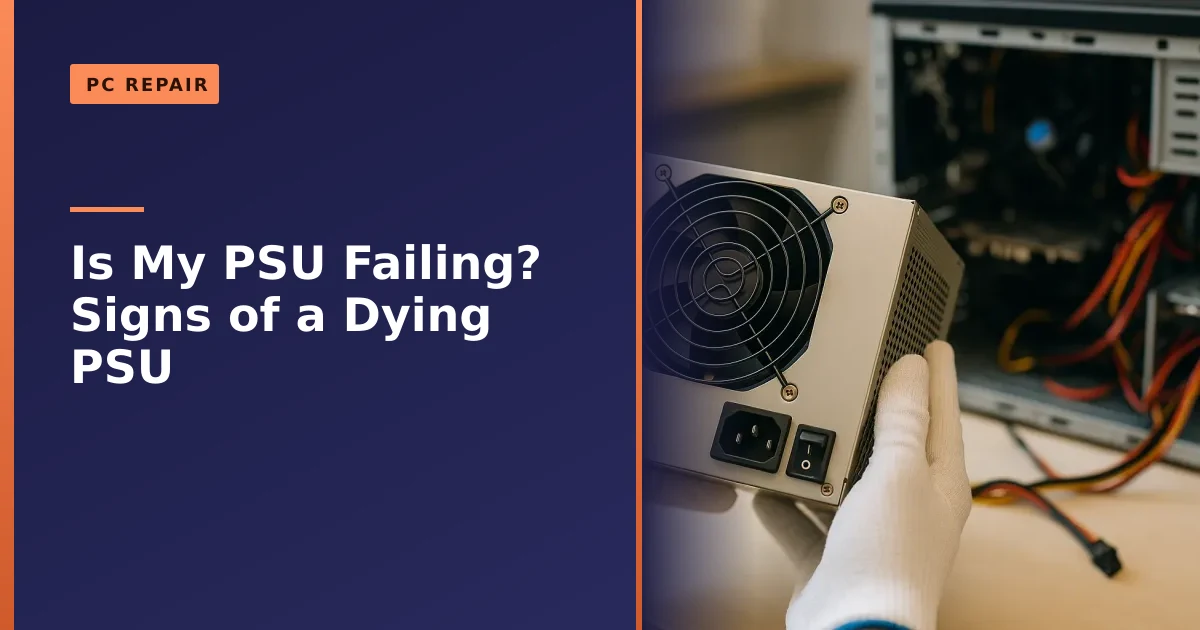
If your desktop shuts off the instant a game gets busy, refuses to turn on, or has started making a high pitched whine, a failing power supply is one of the most likely causes. A tired or underpowered PSU cannot deliver clean, steady power under load, and the rest of your PC pays the price.
Key takeaways
- Instant shutdowns under load (gaming, rendering, stress tests) that behave like the plug was pulled are a classic power supply symptom.
- No power at all, fans that twitch then stop, repeated boot attempts, coil whine or a burning smell all point at the PSU as a prime suspect.
- You can rule a PSU in or out with a tester, the paperclip jump test, or the most reliable method of all, a known good swap.
- After a graphics card upgrade, an old or underpowered PSU is the number one thing people forget, and it causes crashes that look like a faulty GPU.
- The fix is always to replace the unit, never to open or repair it. A PSU stores a dangerous charge even when unplugged.
- Buy quality: an 80 Plus rated unit from a reputable brand, with sensible wattage headroom above your real system draw.
This guide walks you through the warning signs of a dying power supply, how the PSU is tested, why it matters so much after a GPU upgrade, and how to choose a replacement that lasts. If you would rather someone local just sort it, our gaming PC repair service in Manchester can diagnose and replace a failing PSU with free collection and return.
What a power supply actually does (and why a weak one causes chaos)
The power supply unit, or PSU, is the box that takes the 230 volt AC from your wall socket and turns it into the low voltage, regulated DC that every part inside your PC needs. It feeds three main rails: 3.3 volts, 5 volts and 12 volts. Your graphics card and CPU draw most of their power from that 12 volt rail, and modern gaming hardware pulls a lot of it, often in sudden spikes.
When a PSU is healthy, it holds those voltages steady no matter what you throw at it. When it is failing or simply too small for the job, the voltages sag the moment the system gets busy. That instability is what causes the odd, hard to pin down faults people describe: a PC that is rock solid on the desktop but drops dead the second a game loads, or a machine that freezes only during the heavy bits.
Because the PSU sits underneath everything else, its problems disguise themselves as other faults. A sagging 12 volt rail can look like a dying graphics card, unstable memory, a corrupt Windows install or an overheating CPU. That is why a good diagnosis starts by ruling the power supply in or out rather than guessing at the expensive parts first. You can read more about how a computer power supply works on the Wikipedia PSU page if you like the technical detail.
The classic signs of a failing power supply
No single symptom proves a PSU is on the way out, but the pattern is usually clear. Here are the ones we see most often on desktop and gaming PCs.
Random shutdowns under load
This is the headline symptom. The PC is perfectly stable while you browse, type or watch a video, then the instant you fire up a demanding game, start a render or run a stress test, it powers off without warning. No blue screen, no error, just gone, exactly as if someone yanked the plug out. It often restarts a few seconds later.
That behaviour happens because the PSU's built in safety circuits, over current protection and over power protection, trip to stop the unit delivering unstable power. When the graphics card suddenly demands a burst of current the PSU cannot supply cleanly, the safety feature cuts everything. If your machine only dies when it is working hard, the power supply is the first thing to suspect.
Restarts and crashes while gaming
A slightly less dramatic version of the same fault is the machine that reboots itself mid game, or crashes to a black screen and then comes back. Games are the heaviest sustained load most home PCs ever face, so a marginal PSU shows itself there first. If your crashes cluster around gaming or video editing and never happen during light use, power delivery is high on the list. We cover the wider picture in our guide to why a gaming PC keeps crashing.
No power at all, or no POST
A PC that will not turn on is frightening, but the PSU is one of the usual culprits. Sometimes there is no response whatsoever when you press the power button. Other times the fans give a single twitch, spin for a fraction of a second and stop, or the machine tries to boot several times before it gives up. None of these reach POST, the power on self test that runs before Windows loads.
A dead or dying PSU cannot deliver the initial surge needed to bring the board and CPU to life, so the system never completes that first handshake. This is not the only cause of a no boot, but it is common enough that it should always be checked. Our companion article on why a gaming PC will not turn on walks through the full checklist.
Fans twitch then stop
The twitch is worth calling out on its own because it is such a telling sign. You press the button, everything jerks into life for a heartbeat, then dies. This is the PSU trying to start, detecting a fault or a short, and shutting itself down through its protection circuit before anything is damaged. It can be a failing PSU, but it can also be a short elsewhere in the system, which is exactly why proper testing matters.
Coil whine and buzzing
Coil whine is a high pitched squeal or buzz that comes from tiny components inside the PSU (or sometimes the graphics card) vibrating as current passes through them. A faint whine is not always a fault, and plenty of healthy units make a little noise. What matters is change. A brand new buzz, or a whine that has clearly got louder and rises and falls with load, suggests components are stressed or degrading. Treat a sudden increase in noise as a prompt to test, especially if it arrives alongside any of the other symptoms here.
A burning or hot electrical smell
This one you do not ignore. A sharp, hot, electrical or plastic smell coming from the back of the case, sometimes with a faint whiff near the PSU vents, means something is overheating or has started to fail. If you ever smell burning, power the machine off at the wall and stop using it. Do not open the PSU to investigate. A scorched smell usually means the unit needs replacing, and continuing to run it risks taking other parts with it.
The smaller tells
- USB devices that randomly disconnect and reconnect.
- Drives that vanish from Windows and reappear after a reboot.
- Occasional freezes that only happen when the system is busy.
- The PSU's own fan not spinning up, or a case that runs unusually hot around the unit.
- Age. Most quality PSUs are built to last many years, but cheap units, or any unit that has run hot and dusty for a long time, degrade faster.
Individually these can point elsewhere. Together, or alongside load related shutdowns, they build a strong case against the power supply.
Symptom to suspect, at a glance
- Dies only under load → PSU very likely (sagging 12V rail or tripped protection)
- No power / fans twitch then stop → PSU or a short in the system, test before spending
- Crashes only while gaming → PSU, GPU or heat, check power first if it is instant
- Burning smell → stop using it now, PSU replacement almost certain
- New or worsening coil whine → stressed PSU components, test under load
Symptoms that look like a PSU but often are not
Being honest matters more than selling you a part you do not need, so here are the faults that mimic a dying power supply. A blue screen with an error code is usually software, a driver or memory, not a raw power cut. Shutdowns that happen after a long session and are preceded by loud fans point at heat and dust rather than the PSU, which is why we always check cooling too. You can find that side of things in our guides to why a gaming PC overheats and how to clean and dust your PC.
Random crashes that happen at any load, including idle, are more likely to be memory, storage or Windows itself. Our article on fixing random PC crashes and restarts covers the software and memory angles. The rule of thumb: if the fault tracks power draw (worse under load, fine at idle), think PSU. If it is random or software flavoured, look elsewhere first.
How a PSU is tested
You do not have to guess. There are three practical ways to test a power supply, and they climb in reliability. A quick word of safety before any of them: only ever test a PSU on the outside, through its cables. Never open the metal case of the unit itself.
1. The PSU tester
A power supply tester is a small, cheap device you plug the PSU's main 24 pin cable (and often the 8 pin CPU cable) into. Switch the unit on and the tester's little screen lights up and shows the voltage on each rail. It is a fast way to confirm the PSU powers up and that the rails are roughly where they should be. The limitation is that a basic tester checks the unit with almost no load on it. A PSU can pass a bench tester and still sag badly once a real graphics card is pulling hundreds of watts, so a clean tester result does not fully clear a unit that fails under load.
2. The paperclip (jump start) test
The paperclip test, also called the jumper or jump start test, checks the most basic question of all: will the PSU switch on at all when disconnected from the motherboard? The idea is simple. With the PSU unplugged from everything except the 24 pin cable, you bridge the green power on pin to an adjacent black ground pin with a bent paperclip, then switch the unit on. If the PSU fan spins, the unit powers up on its own.
It is a useful, no cost check to separate a totally dead PSU from a fault elsewhere. But be careful: bridge the wrong pins and you can injure yourself or damage the unit, and like the tester, a spinning fan only proves the PSU turns on, not that it holds voltage under a real gaming load. If you are not fully confident, this is a job to hand to a workshop rather than risk it.
3. The swap test (the gold standard)
The single most reliable way to diagnose a power supply is to fit a known good unit of adequate wattage and see if the problem disappears. If a healthy PSU makes the random shutdowns, no boots or gaming crashes vanish, you have your answer. If the fault survives the swap, the power supply was innocent and the real culprit is elsewhere. This is exactly how we test in the workshop, because it removes all the guesswork that a bench tester leaves behind. It needs a spare quality PSU on hand, which is where a repair shop has the advantage over testing at home.
| Method | What it proves | What it misses | Best for |
|---|---|---|---|
| PSU tester | Unit powers on, rough rail voltages | Behaviour under real load | A fast first check |
| Paperclip / jump test | Unit switches on at all | Voltage stability, capacity, heat | Telling a dead PSU from other faults |
| Known good swap | Whether the PSU is actually the cause | Nothing, if the spare is sound | A confident, final diagnosis |
Why a dying or underpowered PSU matters most after a GPU upgrade
If your PC started crashing soon after you fitted a new graphics card, do not assume the card is faulty. The most common mistake we see is a shiny new GPU bolted onto an old or undersized power supply. Modern graphics cards are hungry, and the newest generations draw large, sudden spikes of current far above their headline figure. A PSU that happily ran your old card can be pushed over the edge by a more powerful one.
The symptoms are textbook: the PC is fine on the desktop, then crashes, reboots or shuts down the moment a game loads and the card ramps up. People understandably blame the expensive new part, when the real issue is that the power supply can no longer meet demand. We flag this in our graphics card upgrade guide, because checking the PSU is a core part of any upgrade, not an afterthought.
Two things go wrong here. First, wattage: the old unit simply does not have enough total capacity for the new card plus the rest of the system. Second, age and quality: an older, cheaper unit that is already tired cannot handle the transient spikes even if the sticker wattage looks adequate on paper. Either way the answer is the same, fit a quality PSU with proper headroom before you write off the graphics card.
It is also worth remembering that a failing PSU does not always fail quietly. A poor quality unit that dies badly can, in the worst cases, take other components with it. That is one more reason not to cut corners on the one part that feeds everything else. We have seen how one failing part can drag the power supply down too, as in this real example of a power supply that failed because of a faulty DVD drive.
Choosing a quality replacement PSU
Once a power supply is confirmed faulty, the job is to replace it with something that will not give you the same trouble in a year. Two things matter above all: quality and sensible wattage.
Look for 80 Plus efficiency
The 80 Plus certification is a voluntary standard that tells you how efficiently a PSU converts wall power into usable DC. The tiers climb from 80 Plus (basic) through Bronze, Silver, Gold, Platinum and Titanium, with each level wasting less energy as heat. For a gaming PC, 80 Plus Bronze is a reasonable floor and Gold is the popular sweet spot: efficient, cooler running and usually built to a higher standard. The rating is not the whole story, but a decent 80 Plus tier from a reputable brand is a strong sign of a well made unit.
Get the wattage right, with headroom
Undersizing is a false economy and running a unit at its absolute limit shortens its life. The straightforward way to size a PSU is to add up your two biggest power draws, the CPU and the graphics card, add roughly 100 to 150 watts for everything else (drives, fans, memory, board), then leave a comfortable buffer on top of that total. A buffer of around 20 to 30 percent keeps the unit out of its stressed zone, absorbs the brief spikes modern GPUs produce, and keeps it running in its efficient range rather than flat out.
Graphics card makers publish a recommended system wattage for each card, and that figure is a sensible starting point. If in doubt, size up a little. The difference in cost between an adequate unit and a comfortable one is small, and the comfortable one runs cooler, quieter and longer.
Rough wattage guide (whole system, with headroom)
- Entry / esports GPU: a good 550W to 650W unit is usually plenty
- Mid range gaming GPU: 650W to 750W is a comfortable target
- High end GPU: 850W and up, following the card maker's advice
- Flagship GPU: 1000W or more, do not skimp on quality here
Treat these as starting points and always check the recommended figure for your specific card.
Other things worth checking
- Reputable brand: a well known maker with a solid warranty is a good proxy for internal quality. A long warranty (five to ten years on better units) tells you the maker trusts the parts inside.
- The right connectors: make sure it has the PCIe power connectors your graphics card needs, including any newer connector the latest cards use.
- Physical fit: most desktops take a standard ATX unit, but smaller cases may need a compact SFX size. Getting this right avoids a return.
- Modular or not: a modular unit lets you use only the cables you need, which tidies the case and helps airflow, though it does not change performance.
If you would like our take on quiet, reliable units, we are a recognised service point and have written about the be quiet! UK service centre we work with.
Why you never repair a PSU, you replace it
This is the most important safety point in the whole article, so we will be blunt. A power supply is not a component you open up and fix. It is a sealed unit, and the correct response to a faulty one is always to replace the whole thing.
The reason is stored charge. Inside every PSU are large capacitors that hold a substantial electrical charge, and they can keep that charge for a long time after the unit is switched off and unplugged from the wall. Opening the case and touching the wrong point can deliver a serious, potentially dangerous shock even though nothing is plugged in. This is not scaremongering, it is basic electrical safety that professional guidance is unanimous on: high voltage capacitors should be treated with real respect, and casual repair is strongly discouraged.
For the record, Manchester PC does not carry out board level or soldering repairs on power supplies. There is nothing to gain from it and a real hazard in trying. We diagnose the fault, then replace the faulty unit with a quality PSU that suits your system, or advise you on the best route if the machine needs more than that. Replacing a PSU is quick, safe and reliable. Opening one is neither, and we would never recommend it to a customer at home.
- Do: switch off at the wall, unplug the machine, and swap the whole unit for a new one.
- Do not: open the PSU casing, poke inside it, or try to fix or discharge it yourself.
- If you smell burning: stop using the PC immediately and get it checked.
A simple checklist before you call it in
If you are comfortable working inside a desktop and want to do the safe, external checks first, here is a sensible order. None of these involves opening the PSU.
- Check the obvious: is the wall socket live, the PSU switch at the back set to on, and the kettle lead pushed in fully at both ends? A loose or faulty mains lead mimics a dead PSU.
- Reseat the power cables to the motherboard and graphics card, with the machine off and unplugged. A loose 8 pin CPU or PCIe connector causes load related crashes.
- Note the pattern: does it fail only under load, only when gaming, at random, or never boot at all? That pattern is the single most useful clue for diagnosis.
- Listen and smell: new coil whine or any burning smell moves the PSU right to the top of the suspect list.
- If you have the kit and confidence, a tester or the paperclip test rules a totally dead unit in or out. If not, that is fine, leave it to the workshop.
If the checklist points at the power supply, or you are simply not sure, the safest and quickest path is a proper diagnosis with a known good swap.
How Manchester PC can help
If your desktop or gaming PC is shutting down under load, refusing to boot, whining, or crashing since a graphics card upgrade, we can get to the bottom of it. We diagnose the fault properly, including a known good swap test to confirm the power supply is genuinely the cause, then replace it with a quality, correctly sized 80 Plus unit that suits your build. No board level work, no soldering, no cutting corners on the part that feeds everything else.
We offer free local collection and return across Manchester and the surrounding areas, so you do not have to lug a heavy tower anywhere. Call us on 0161 820 1992 for a chat about what your PC is doing, or request a free tech support quote and we will tell you honestly what it needs. If it is just a PSU, we will say so, and if it is not, we will find what is.