Key takeaways
- The single most common reason a desktop PC feels slow is still an old mechanical hard drive doing the work that a modern SSD or NVMe drive does many times faster. Move Windows onto an SSD and a tired machine can feel brand new.
- The next biggest causes are not enough RAM for what you actually do, a drive that is nearly full or starting to fail, a startup list stuffed with programs you never asked for, and background apps quietly eating your memory and processor.
- Heat and dust matter too. A dusty desktop lets the processor and graphics card overheat, and they protect themselves by slowing down, which is called thermal throttling.
- Malware, bloatware and years of Windows clutter all pile on top of each other, so slowness is usually several small problems at once rather than one big fault.
- Almost none of this needs a new computer. The reliable fixes are an SSD, more memory, a clean out, a fresh Windows setup and up to date drivers, which we do as diagnostics and part upgrades, never board-level or soldering work.
If your desktop PC is slow, the most likely cause is a mechanical hard drive holding everything back, closely followed by too little RAM, a drive that is nearly full, and a startup list packed with programs you never chose to run. The good news is that a slow tower is one of the most fixable machines there is, and you almost never need to buy a new one to get a fast, responsive PC back.
This guide walks through every common reason a desktop or gaming PC crawls in 2026, in roughly the order that matters, and gives you a clear fix for each one. It is the desktop counterpart to our guide on why your laptop is running slow, so if you are on a portable machine, start there instead. If you would rather hand the whole job over, our PC repair service in Manchester covers all of it, and there is a phone number at the bottom.
First, work out what "slow" actually means for you
Slow is a feeling before it is a fault, and pinning down when the machine drags tells you a great deal about the cause. Spend a minute matching your PC to one of these patterns, because the fix is very different depending on which one you have.
- Slow to start up. You press the power button, go and make a brew, and it is still churning when you come back. That points at the drive and at too many startup programs.
- Slow to open programs and files. Everything opens, but you wait and wait for each click. Classic old hard drive behaviour, sometimes with a failing drive on top.
- Fine until you open a few things, then it grinds. The machine is snappy with one window open but chokes with a browser, a game and a chat app running together. That is almost always not enough RAM.
- Fast for ten minutes, then it slows down. Good at first and then stuttering, especially in a game, usually means heat. The chips are throttling because they are too hot.
- Slow all the time, and it got worse gradually. A steady decline over months is normally a full drive, Windows clutter, or unwanted software that crept in.
Most tired desktops have two or three of these at once, which is why a single tweak rarely fixes everything. Work through the sections below in order and you will catch the big wins first.
The biggest cause by far: an old mechanical hard drive
If your PC still boots Windows from a spinning mechanical hard drive (an HDD), this is almost certainly your problem, and fixing it is the single best thing you can do. A hard drive stores data on spinning metal platters and reads it with a physical arm that has to move to the right spot, a bit like the needle on a record player. That physical movement takes time, measured in thousandths of a second, and Windows asks the drive for thousands of little pieces of data every second. The delays stack up into the lag you feel.
A solid state drive (an SSD) has no moving parts. It stores everything in flash memory and returns it almost instantly, which is why it transforms an old machine. An NVMe SSD, the small stick-shaped kind that plugs straight into the motherboard, is faster again. In everyday use the difference is night and day. Boot times drop from a minute or more to a few seconds, programs open the instant you click, and the whole machine stops feeling like it is thinking before it acts. You can read the background in the Wikipedia overview of solid state drives, and Crucial has a plain SSD versus HDD comparison if you want more detail.
Here is how the three common desktop drive types compare in the ways you actually notice.
| Drive type | Rough everyday feel | Typical desktop boot | Best for |
|---|---|---|---|
| Mechanical HDD | Slow, laggy, lots of waiting | 60 seconds or more | Cheap bulk storage of files you rarely touch |
| SATA SSD (2.5 inch) | Fast, responsive, huge upgrade over HDD | Around 15 to 25 seconds | Any PC with no spare NVMe slot; a brilliant, cheap upgrade |
| NVMe SSD (M.2 stick) | Fastest, instant feel, best for gaming and big files | Around 10 to 20 seconds | Modern boards; games, large files, everyday speed |
The important point is that even a basic SSD feels enormously faster than any hard drive for opening Windows and programs, so you do not need the fastest NVMe drive to feel the benefit. If your desktop is more than a few years old and has never had this upgrade, an SSD is where your money goes first. We cover it in depth in why you need to upgrade to an SSD today. A sensible desktop setup is a smaller SSD for Windows and your games, with the old hard drive kept inside the case purely for storing photos, videos and backups.
Not enough RAM for what you actually do
RAM (memory) is the short term workspace your PC uses for everything it is doing right now. Every open browser tab, every running program and Windows itself all sit in RAM. When you run out, Windows starts shuffling data back and forth to the drive to cope, a process called paging. Even on an SSD that is much slower than real memory, and on a hard drive it brings the machine to its knees. You can read a short explanation of paging on Wikipedia if you like, but the symptom is the giveaway: the PC is fine with one thing open and grinds the moment you multitask.
How much you need depends on what you do, not on how old the PC is.
- 8GB is now the bare minimum for Windows 11 and light use, and it fills up fast once you have a browser with lots of tabs open.
- 16GB is the comfortable sweet spot for most people in 2026, including everyday work and mainstream gaming.
- 32GB suits serious gaming, video editing, virtual machines, or anyone who keeps dozens of tabs and several heavy apps open at once.
To see whether memory is your bottleneck, press Ctrl, Shift and Escape together to open Task Manager, click the Performance tab and watch the Memory graph while you use the PC normally. If it sits near the top and the Committed figure climbs well past your installed amount, you are short on RAM. Adding more is one of the cheapest, most effective desktop upgrades there is, and towers usually have spare memory slots that make it straightforward. We go deeper in do I need extra memory and, for players specifically, how much RAM do you need for gaming. Crucial also publishes clear guidance on choosing the right memory for your board.
A full or failing drive quietly wrecks performance
Two separate drive problems get lumped together here, and both make a PC drag, so it is worth pulling them apart.
A nearly full drive. When any drive gets close to full, it slows down, and on an SSD the effect is bigger than people expect. Solid state drives keep some spare space to write quickly and to tidy themselves up in the background, and when the drive is packed there is little room to do either, so write speeds fall away sharply. As a rule of thumb, keep at least ten to fifteen percent of the drive free, and a bit more on the drive that holds Windows. If your C drive is showing red in File Explorer, that alone can explain a lot of lag.
A failing drive. A drive that is physically wearing out gets slow before it dies, because it has to retry reads over and over to get clean data. The warning signs are worth knowing:
- The whole PC freezes for several seconds at a time, then carries on.
- Copying files crawls, stalls, or throws read and write errors.
- An old hard drive makes clicking, buzzing or grinding noises.
- Windows reports corrupt files, or programs randomly refuse to open.
If you see these, back up your important files straight away, before you do anything else, because a failing drive can go from slow to gone with little warning. You can check a drive's health with free tools such as CrystalDiskInfo, which reads the drive's own built-in health data and gives you a simple Good, Caution or Bad rating. A "Caution" result means plan to replace it soon. If a drive has already failed and it holds files you cannot lose, stop using it and talk to us about data recovery in Manchester, because continuing to run a dying drive makes recovery harder.
For the everyday full-drive side of things, a proper clear out often frees more space than you expect. Our walkthrough on using Disk Cleanup to help your computer run faster takes you through it step by step.
Too many startup programs and background apps
Over the years, half the programs you install quietly add themselves to Windows startup so they load the moment you sign in. Chat apps, updaters, game launchers, printer helpers, "cloud" sync tools and more all pile in, and they carry on running in the background all day whether you use them or not. Each one takes a slice of your processor, memory and drive, and together they can turn a capable PC into a sluggish one, especially during that first couple of minutes after you log in.
This is one of the easiest wins, and you can do it yourself in a few minutes.
- Press Ctrl, Shift and Escape to open Task Manager, then click the Startup apps tab.
- Look at the Startup impact column. Anything marked High is a prime candidate.
- Right click and Disable anything you do not need loading at boot, such as game launchers, PDF readers, music apps and manufacturer utilities. Disabling does not uninstall the program; it just stops it launching automatically, and you can still open it whenever you want.
- Leave your security software and anything you genuinely rely on enabled.
While you are there, click the Processes tab and sort by Memory, then by CPU, to see what is eating resources right now. You will often spot a background app you forgot you had. Microsoft's own tips to improve PC performance in Windows cover the same ground if you want the official version. Trimming startup will not fix a hard drive or a lack of RAM, but on top of those fixes it makes the whole machine feel noticeably snappier.
Malware, bloatware and a cluttered Windows
Software rot is real, and it comes in three flavours. Each one drags performance in its own way.
Malware. Viruses, cryptominers and other nasties run hidden in the background and can hammer your processor, drive and internet connection without you knowing. If your PC suddenly runs hot and slow, the fans roar for no reason, or you see pop ups, redirected searches and toolbars you never installed, suspect an infection. Run a full scan with Windows Security, which is built into Windows 11 and genuinely good; you will find it under Settings, then Privacy and security, then Windows Security. Microsoft explains how to stay protected with Windows Security. If something has dug in and will not clear, our virus and malware removal service gets the machine properly clean.
Bloatware. Many prebuilt desktops arrive stuffed with trial software, "PC cleaner" utilities and manufacturer add ons that run in the background and do little but slow things down. Ironically, the worst offenders are often the "speed up your PC" and "driver updater" tools themselves, which nag, pop up and phone home constantly. Go to Settings, then Apps, then Installed apps, and uninstall anything you do not recognise or use. Be sensible and leave hardware drivers and anything from your PC or motherboard maker alone.
Windows clutter. Over years of updates, installs and uninstalls, Windows collects temporary files, old update caches and leftover junk. A drive that is stuffed with this cannot breathe. Windows has a built in tool called Storage Sense (under Settings, then System, then Storage) that clears a lot of it automatically, and our Disk Cleanup guide covers the manual approach. When a machine is really far gone, the cleanest fix is a fresh Windows setup, which wipes years of accumulated mess in one go and often feels like a brand new PC. We do that as a standard job, moving your files across safely first.
Heat and dust: thermal throttling makes a fast PC feel slow
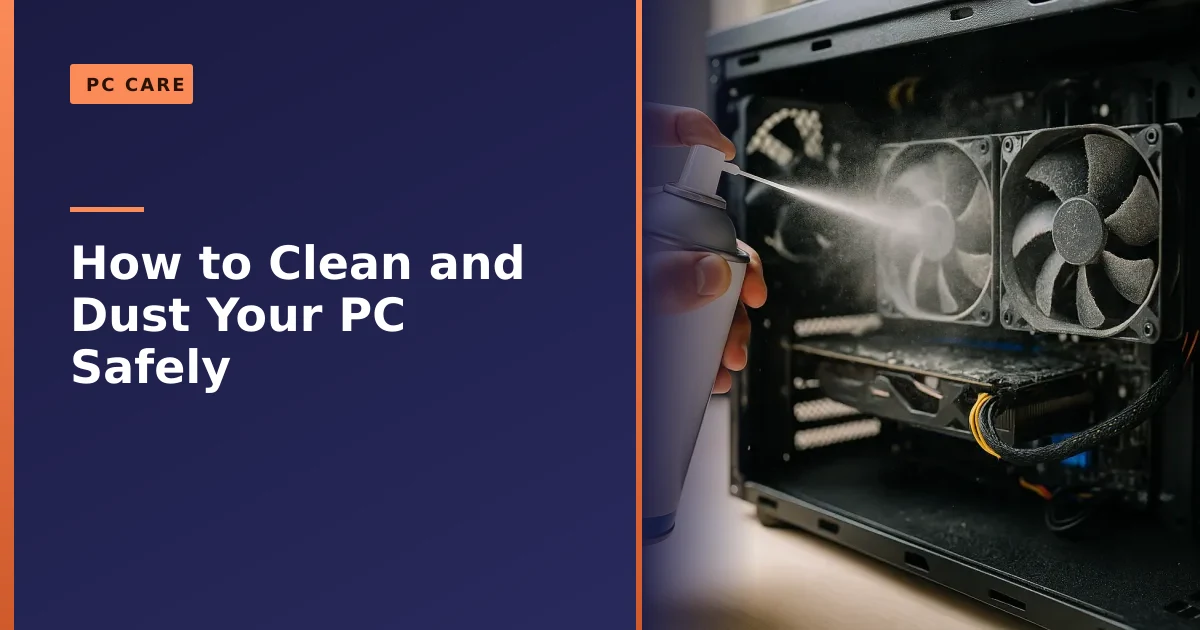
A desktop sat on the floor is a vacuum cleaner for dust. Over a year or two, the fans, filters and heatsinks clog with a grey felt of dust and pet hair that blocks airflow. Warm air cannot escape, temperatures climb, and both the processor and the graphics card protect themselves by cutting their own speed to make less heat. That deliberate slowdown is called thermal throttling, and it feels exactly like a slow PC: fine at first, then stuttering and dragging once things warm up, with fans spinning loud.
You can check whether heat is the culprit with a free monitoring tool such as HWiNFO or HWMonitor, which show live temperatures while you work or play. Modern chips run warm, so a gaming processor in the seventies or low eighties Celsius under load is normal, but if you see it pinned at its limit while the machine is slowing down, heat is your answer.
The fix is refreshingly low tech: clean the machine out. A careful clean with compressed air, clearing the dust from the fans, filters and heatsinks, often drops temperatures by ten degrees or more and brings performance straight back. On older machines the thermal paste between the processor and its cooler dries out over the years and can be renewed too. We walk through a safe clean in our guide on how to clean and dust your PC, and if the machine is overheating badly there is a deeper look at the causes in why does my gaming PC overheat. All of this is cleaning and part replacement, such as fresh paste, a better cooler or extra case fans, never board-level or soldering work.
Graphics card and drivers, especially for gaming
If your desktop feels fine for everyday tasks but games run poorly, stutter or drop frames, the focus shifts to the graphics card and its drivers rather than the drive or memory.
- Out of date or broken drivers. Graphics drivers are updated constantly, and a stale or corrupt driver can cause stutter, crashes and poor frame rates. Update from the maker directly, either NVIDIA or AMD, rather than relying on Windows to do it. A clean reinstall of the driver often cures gremlins that a simple update does not.
- The card simply is not fast enough. Newer games ask more of the hardware every year. If a once smooth game has started to chug, the card may have been overtaken. Turning some in game settings down helps, and a graphics card upgrade is often the single biggest boost a gaming PC can get. See our graphics card upgrade guide for how to pick one that suits your PC and screen.
- A bottleneck elsewhere. A strong graphics card paired with too little RAM, a slow hard drive or an overheating processor will never show its full pace, which is why slow gaming is worth diagnosing as a whole.
If your PC does not just run slowly but actually locks up or reboots while gaming, that is a related but different problem. Our guides on why your PC keeps crashing while gaming and how to fix random PC crashes or restarts dig into that side of things.
The order to work through it
You do not need to do everything at once. Work down this list and stop when the PC feels right, because the biggest wins are near the top. This is roughly how we prioritise a slow desktop on the bench.
Fix a slow desktop, in order of impact
- 1. Move Windows onto an SSD or NVMe drive. The single biggest change for any PC still on a mechanical hard drive.
- 2. Check your RAM and add more if it is maxed out. Cheap, easy on a tower, and cures multitasking lag.
- 3. Free up drive space and check drive health. Clear the clutter; replace a drive that reads as failing.
- 4. Trim startup programs and background apps. A few minutes in Task Manager for a snappier boot.
- 5. Scan for malware and remove bloatware. Clear anything running that should not be.
- 6. Clean out dust and check temperatures. Stops thermal throttling on warm machines.
- 7. Update graphics drivers, or consider a GPU upgrade. For gaming specifically.
- 8. If it is still a mess, do a fresh Windows setup. Wipes years of rot in one go.
Here is a quick way to jump straight to the likely cause based on how your PC misbehaves.
| What you notice | Most likely cause | First thing to try |
|---|---|---|
| Slow to boot and open everything | Mechanical hard drive | Upgrade to an SSD or NVMe |
| Fine with one app, grinds when multitasking | Not enough RAM | Add more memory |
| Freezes for seconds, odd noises, file errors | Failing drive | Back up now, check drive health, replace |
| Slow start plus lots of tray icons | Too many startup programs | Disable startup items in Task Manager |
| Hot, loud, fans racing, random pop ups | Malware or dust and heat | Full virus scan, then clean out the dust |
| Good for ten minutes then stutters | Thermal throttling | Clean the PC, check temperatures |
| Everyday tasks fine, games run poorly | GPU or drivers | Update drivers, review settings, consider a GPU upgrade |
When it is worth upgrading rather than replacing
People often assume a slow PC means it is time for a new one, and that is usually not true. A desktop is the easiest kind of computer to upgrade, because the parts are standard and there is room inside to work. An SSD and a bit more RAM will breathe years of life into most towers for a fraction of the price of a new machine, and a graphics card upgrade keeps a gaming PC current for longer.
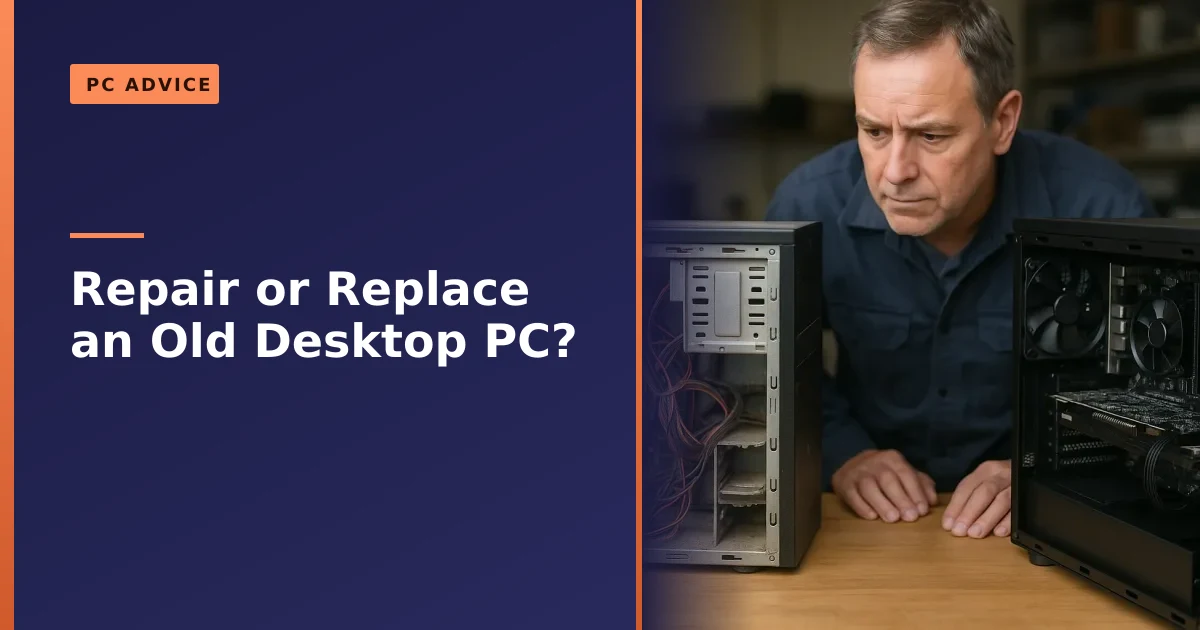
Replacement starts to make sense only when the core of the machine is genuinely dated, for example a processor and motherboard so old that new memory and drives will not fit, or a case with no room to add anything. Even then, your files, and sometimes your drives and graphics card, can move across to a new build. If you are weighing it up, our honest breakdown in repair or replace a desktop PC lays out where the line sits, and how much PC repair costs in Manchester gives you a feel for the numbers before you commit to anything.
One honest note on what we do and do not do. We diagnose the fault and then replace or upgrade the part that is holding you back, whether that is a drive, memory, a graphics card, a power supply, a cooler, or a whole motherboard swapped as a part. We do not carry out board-level or soldering repairs; where that would be the only route, we will tell you plainly and point you to the best option rather than sell you work that does not add up.
How Manchester PC can help
If you would rather not poke around inside the case yourself, we will sort the whole thing for you. We diagnose exactly why your desktop or gaming PC is slow, tell you honestly what will make the biggest difference, and carry out the work, whether that is fitting an SSD, adding memory, clearing malware, a full clean and fresh thermal paste, a graphics card upgrade or a clean Windows setup with your files carried safely across.
We offer free local collection and return across Manchester and the surrounding areas, so you do not even need to unplug and carry your tower anywhere. Call us on 0161 820 1992 for a friendly, no pressure chat about what your PC needs, or request a tech support quote and we will come back to you with a clear price. No jargon, no upselling, just a faster PC.