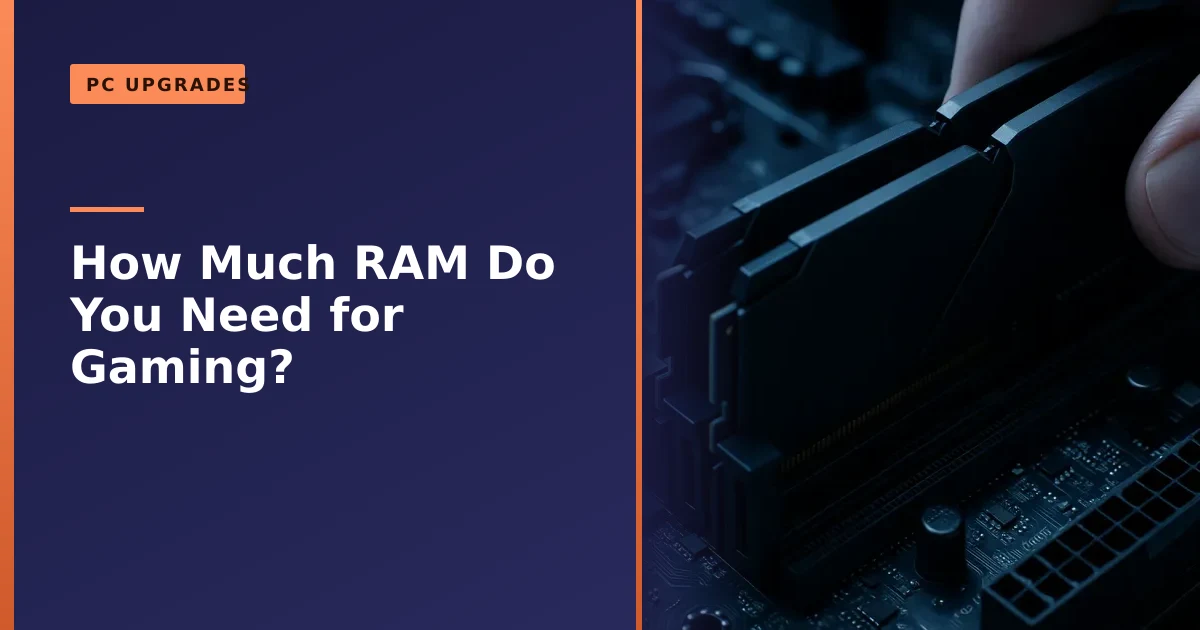
For gaming in 2026, 32GB of RAM is the sweet spot. 16GB still works for many titles but is getting tight, 32GB gives you comfortable headroom for modern games plus a browser, Discord and a stream in the background, and 64GB is overkill for pure gaming and only earns its keep if you also edit video or run heavy creative software. Just as important as the amount, though, is running two sticks in dual channel at their rated speed.
Key takeaways
- 32GB is the 2026 default for a gaming PC. 16GB is the floor and can stutter in newer open world games, and 64GB is wasted on gaming alone.
- Two matched sticks in dual channel beat one big stick. Single channel can cost you 10% or more in some games and makes stutter noticeably worse.
- New builds use DDR5, but a healthy DDR4 gaming PC is not worth scrapping just to chase DDR5, the real world gap at 1440p and 4K is tiny.
- Most RAM runs slower than you paid for until you switch on XMP (Intel) or EXPO (AMD) in the BIOS. This is free performance many people never enable.
- Random stutters and freezes that get worse the more tabs you open point to a RAM shortage, not the graphics card.
- We fit and upgrade RAM across Manchester with free local collection and return, and we test it properly before it comes back.
This guide walks through the whole question in plain English: how much memory modern games actually use, why two sticks matter more than one big one, DDR4 versus DDR5, the free speed you unlock with XMP or EXPO, how to tell whether RAM is really your problem, and how to fit an upgrade cleanly. It is the advice we give desktop and gaming PC owners every week through our gaming PC repair and upgrade service in Manchester. If you would rather just hand it to us, we are happy to do the lot. If you want the wider picture on when a memory top up is worthwhile for any PC, our companion guide on whether you need extra memory covers the everyday case. This article zooms in on gaming specifically.
Do you actually need more RAM?
Before you spend a penny, check that memory really is your bottleneck, because throwing RAM at a problem that lives elsewhere is money down the drain. RAM does not produce your frame rate, that is the graphics card and processor. What RAM does is hold everything the game and Windows need to hand quickly, so when there is too little of it the symptoms are very specific.
Signs that point at a RAM shortage rather than the GPU or CPU:
- Games stutter, hitch or freeze for a moment at random, especially when you enter a new area and the game loads fresh textures, while the average frame rate otherwise looks fine.
- The stutter gets noticeably worse when you have a browser with lots of tabs, Discord, a game launcher and the game all open at once, and it eases off when you close some of them.
- Alt tabbing out to the desktop and back is slow and choppy, or the whole system briefly hangs when you switch programs.
- Open world and modern titles (think GTA V, Cyberpunk, Warzone, Red Dead Redemption) stutter while older or lighter games run perfectly, because the big games are the ones that fill your memory.
- You see the hard drive or SSD light hammering away during these pauses, which is the tell tale sign that Windows has run out of RAM and is shuffling data to and from the much slower drive.
That last point is the heart of why too little RAM hurts. When memory fills up, Windows moves the least used data out to a hidden file on your storage drive, called the page file or virtual memory, to free up space. Even a fast SSD is many times slower than RAM, so every time the game needs that data back it has to wait. Those waits are the stutters you feel. Add more RAM and the shuffling stops.
If instead the whole PC feels slow all the time, not just in games, the cause may be a tired hard drive or a cluttered Windows install rather than memory. Our guide on why your desktop PC is so slow works through those causes in order. And if frame rates are simply low across the board even at lower settings, the graphics card is the more likely limit, which our graphics card upgrade guide covers. A quick diagnostic while a real game is running tells us exactly which part is holding you back, so you only spend where it counts.
How much RAM do you need for gaming in 2026?
Here is the honest, up to date answer, tier by tier. Games have crept up in their memory appetite over the last few years, and a handful of 2025 and 2026 releases now recommend well over 16GB of system memory for a smooth experience, so the goalposts have moved since the days when 16GB was plenty for everything.
| Capacity | Best for | Gaming in 2026 |
|---|---|---|
| 8GB | Light desktop use, older or very light games | Not enough. Modern games will stutter badly or refuse to run well. Avoid for any new gaming PC. |
| 16GB | Budget gaming, one game at a time, older titles | The floor. Works for many games but getting tight. Expect occasional stutter in newer open world titles and little room for a browser or stream alongside. |
| 32GB | Modern gaming, streaming, multitasking | The sweet spot. Comfortable headroom for the latest games plus background apps. The right target for a new build or upgrade. |
| 64GB | Video editing, 3D work, virtual machines, heavy creative apps | Overkill for pure gaming. No current game gets close to using it. Only worth it if your other work genuinely needs it. |
Why 16GB feels tight now: a modern game can easily want 10GB to 16GB of memory on its own at high settings, and Windows itself plus your browser, chat app and game launcher can quietly eat 4GB to 8GB before the game even starts. Add those together and 16GB is full, which is when the stutter creeps in. It still works, and plenty of people game happily on 16GB, but it leaves no slack.
Why 32GB is the answer for most people: it holds the biggest current games with room to spare, and it lets you keep a browser, Discord, Spotify and a stream running without the system ever running short. It is not much dearer than 16GB, and it is the capacity that will stay comfortable for years rather than months. If you are building or upgrading a gaming PC in 2026 and want one number to aim at, it is 32GB.
Why 64GB is usually a waste for gaming: no mainstream game today comes anywhere near using 64GB, even at 4K with everything turned up. The extra memory simply sits idle during play and adds nothing to your frame rate. It only makes sense if you do serious video editing, 3D rendering, run virtual machines or keep dozens of heavy programs open beside your game. For a pure gaming rig, that money is far better spent on a stronger graphics card or a faster CPU.
Capacity for streaming and multitasking
The single number that most often pushes someone from 16GB up to 32GB is not the game itself, it is everything they run alongside it. Modern gaming is rarely just the game in isolation, and each extra thing you keep open takes its slice of memory.
Here is roughly where the memory goes on a typical setup while you play:
- Windows and background services: around 3GB to 5GB just sitting idle after boot, more once a few things are running.
- A web browser: browsers are famously hungry, and a handful of tabs (a guide, YouTube, your inbox) can use 2GB to 4GB on their own.
- Chat and voice: Discord or similar, plus overlays, another 0.5GB to 1GB.
- The game launcher and overlays: Steam, Epic, and any capture or performance overlay, another 0.5GB to 1GB.
- Streaming or recording software: if you use OBS to stream or record, that can add 1GB to 2GB and leans on the CPU too.
- The game itself: 8GB to 16GB at high settings for a modern title.
Add the middle of those ranges together and you are already brushing against 24GB before anything unusual happens. That is exactly why 16GB stutters when you multitask and 32GB does not. If you stream, record, or simply like leaving lots of things open, 32GB stops being a nice to have and becomes the sensible minimum. Content creators who edit their footage as well may be the rare gamers who genuinely benefit from 64GB, but that is because of the editing, not the gaming.
Dual channel: why two sticks beat one
This is the part people most often get wrong, and it is free performance. The amount of RAM matters, but how it is arranged matters almost as much. Memory talks to your processor through channels, and mainstream desktop platforms have two of them. Fill both, using two sticks, and the processor can move data down both lanes at once. This is called dual channel, and it roughly doubles the memory bandwidth compared with a single stick using one lane.
The practical upshot for gaming:
- A single stick (single channel) can cost you 10% or more of your frame rate in memory sensitive games, and the loss is worse in exactly the busy, fast moving titles where you notice it.
- Even when the average frame rate looks similar, single channel produces much worse 1% and 0.1% lows, which is the technical way of saying you get more frequent, sharper stutters. Dual channel feels smoother even when the headline number barely moves.
- This matters most on systems that share memory with built in graphics, but every gaming PC benefits to some degree.
The takeaway is simple. Two 16GB sticks are almost always a better buy than one 32GB stick, because the pair runs in dual channel and the single stick does not. If you already have one stick and are wondering whether to add a second, doing so is one of the cheapest ways to lift smoothness. If you want the technical detail, the concept is explained on Wikipedia's multi-channel memory architecture page. When we build or upgrade a machine, we fit matched pairs as standard for exactly this reason.
| Setup | What you get | Verdict for gaming |
|---|---|---|
| 1 x 16GB | 16GB, single channel | Avoid. Half the bandwidth and worse stutter. Add a second stick. |
| 2 x 8GB | 16GB, dual channel | Fine on a budget, but 16GB total is tight in 2026. |
| 1 x 32GB | 32GB, single channel | Plenty of capacity but wastes half the bandwidth. Two smaller sticks are better. |
| 2 x 16GB | 32GB, dual channel | The recommended sweet spot for a 2026 gaming PC. |
DDR4 versus DDR5: which do you need?
RAM comes in generations, and the two that matter today are DDR4 and DDR5. DDR5 is the newer, faster standard, but the answer to which you need is decided almost entirely by your motherboard and processor, not by choice. The two are not interchangeable. A DDR5 stick will not fit or work in a DDR4 slot, and the other way round, because the boards are physically keyed for one or the other.
So the rule is straightforward:
- If you are building a new PC in 2026 on a current platform (AMD's AM5 socket or Intel's latest Core Ultra chips), it takes DDR5. There is no DDR4 option, so you are on DDR5 by default.
- If you have an existing gaming PC on an older platform, it almost certainly uses DDR4, and you upgrade with more DDR4. You cannot fit DDR5 to it without changing the motherboard and processor too.
The bigger question people ask is whether it is worth scrapping a working DDR4 system just to move to DDR5. For gaming, the honest answer is usually no. DDR5 has far more bandwidth on paper, and at 1080p in processor bound games it can show a real lead, but at the 1440p and 4K resolutions most people game at, where the graphics card is doing the heavy lifting, the difference between good DDR4 and good DDR5 shrinks to a few percent or less. You would struggle to feel it. DDR5 is the right choice when you are building fresh, but it is not a reason on its own to replace a healthy DDR4 machine.
| DDR4 | DDR5 | |
|---|---|---|
| Typical gaming speeds | 3200 to 3600 MT/s | 6000 to 6400 MT/s and up |
| Platforms | Older Intel and AMD boards | AMD AM5, latest Intel Core Ultra |
| Bandwidth | Lower | Much higher on paper |
| Real gaming gain at 1440p/4K | Baseline | Usually only a few percent |
| Best for | Upgrading an existing DDR4 PC | Any brand new build |
One important note if you are upgrading: check which type your motherboard takes before you buy a single stick, because the wrong generation simply will not go in. You can find your board model in Windows system information, or we can check it for you. Crucial's RAM speeds and compatibility guide and the DDR5 overview on Wikipedia are good background reads if you like the detail.
RAM speed, XMP and EXPO: the free performance most people miss
Here is a quietly common problem we see all the time. Someone buys a fast kit of memory, say DDR5-6000, fits it, and it runs at a plodding 4800 by default without them ever knowing. They paid for speed they are not getting, and it is costing them smoothness in games. The fix is free and takes two minutes.
The reason it happens is safety. When a motherboard first meets a set of RAM, it does not know what that RAM is capable of, so it boots at a slow, guaranteed safe speed (a standard called JEDEC) that works with almost any combination of board and processor. Your fast kit has its real rated speed stored on a tiny chip, but the board will not use it until you tell it to. That instruction is a single setting in the BIOS:
- XMP (Extreme Memory Profile) is Intel's name for it.
- EXPO (Extended Profiles for Overclocking) is AMD's equivalent for its current chips. Some older boards call a similar thing DOCP.
Both do the same job: they load the exact speed, timings and voltage your memory was built, tested and sold to run at, in one click. It is not risky overclocking, it is simply running the kit at its rated spec. These profiles live on the memory's own SPD chip, which you can read about on Wikipedia's serial presence detect page.
To turn it on: restart the PC, tap the key that enters the BIOS as it boots (often Delete or F2), find the setting labelled XMP, EXPO or DOCP, choose Profile 1, save and exit. When Windows loads, you can confirm the new speed in Task Manager under the Performance tab, next to Memory. The gain shows up most in 1% lows and frame time smoothness, and it is especially worthwhile on AMD Ryzen systems, where memory speed is tightly linked to the processor's internal fabric. If you are not comfortable poking around in the BIOS, it is one of the things we set correctly as part of any memory fit or build.
Are you RAM-limited, or is it the GPU or CPU?
Since RAM, the graphics card and the processor produce different symptoms when they run short, you can usually work out the culprit yourself with a free tool that is already on your PC: Windows Task Manager. Open it with Ctrl, Shift and Escape together, go to the Performance tab, then play your game in a window or alt tab out to peek during a stutter. Here is how to read what you see.
| What you see | Likely limit | What it feels like |
|---|---|---|
| Memory sits at 90% to 100% used, disk activity spikes during stutters | RAM | Random hitches and freezes, worse with more apps open, texture loading pauses |
| CPU at 99% to 100% while the GPU is well below full use | Processor (CPU) | Stutter and uneven frame times, often in busy scenes or fast esports titles |
| GPU at 99% to 100% while the CPU has spare capacity | Graphics card (GPU) | Low but steady frame rates, improves when you lower graphics settings |
| Nothing maxed out, but games still hitch | Storage or drivers | Slow loading, pop in, or occasional freezes, often a slow hard drive |
A useful way to tell RAM and GPU apart is what happens when you change the graphics settings. If dropping the resolution or detail lifts your frame rate nicely, the graphics card was the limit. If the average was already fine and your problem is those random one second freezes that no settings change fixes, memory is the more likely cause, particularly when the memory graph is pinned near the top and the disk lights up each time it stutters.
For a fuller explanation of how the four main parts (processor, graphics card, memory and storage) can each become the bottleneck, Kingston has a clear write up in its guide to PC gaming bottlenecks. And if you would rather not guess, this is exactly what our diagnostics settle quickly. We watch the machine under a real gaming load and tell you which upgrade will actually move the needle, so you are not buying RAM to fix a graphics card problem or the other way round.
Mixing RAM sticks: what works and what breaks
A very common upgrade question is whether you can just add a stick to what you already have, or mix brands and sizes. The short answer is that you often can, and it usually works, but you get the best, most reliable result when the sticks match. Here is what actually matters, roughly in order of importance.
- Generation must match, always. DDR4 and DDR5 will never work together, and cannot even physically fit the same slots. This is the one rule with no exceptions.
- Speed sorts itself out, downwards. If you mix sticks rated at different speeds, the whole set runs at the speed of the slowest one. You do not get a crash, just less speed than the faster stick could manage.
- Sizes can differ, but matched pairs are better. You can run, say, an 8GB and a 16GB stick together, and modern systems handle it, but a matched pair keeps everything in clean dual channel and avoids odd performance quirks.
- Voltage and profiles can trip you up. Sticks designed for very different voltages, or with clashing XMP or EXPO profiles, can cause the PC to refuse to boot or to be unstable when you enable the fast profile.
Brand is the least important thing on that list, despite the myths. Two different brands with the same generation, speed and capacity will almost always play nicely. The instability stories usually come down to mismatched speeds or profiles, not the name on the sticker. Crucial's own advice, echoed across the industry, is that you can add faster memory to a system but it will run at the speed of the slowest module, which is why matching matters. You can see their take on the RAM compatibility page.
Our practical recommendation: if you are upgrading, the cleanest route is to replace the old memory with a fresh matched pair (for example two 16GB sticks for 32GB total) rather than piecing together odd sticks. It is more reliable, it guarantees dual channel, and it sidesteps the boot and stability headaches that mismatched kits can bring. If you would rather keep and add to what you have, bring it to us and we will match it as closely as possible and test the result properly.
Fitting a RAM upgrade the right way
Fitting memory is one of the more approachable upgrades, but there are a few steps that make the difference between a smooth job and a PC that will not boot afterwards. Here is the process we follow.
- Check compatibility first. Confirm whether your board takes DDR4 or DDR5, how many slots it has, and the maximum capacity and speed it supports. Buy a matched kit that suits it. This one check prevents most upgrade disappointments.
- Power down properly. Shut Windows down, switch the power supply off at the wall, and hold the power button for a few seconds to discharge any remaining power. Work on a hard surface, not thick carpet.
- Earth yourself. Static can damage memory. Touch the bare metal of the case before you handle the sticks to discharge yourself, and hold the sticks by their edges, not the gold contacts.
- Use the correct slots. This is the step people miss. To get dual channel with two sticks, they must go in the correct pair of slots, which is usually slots 2 and 4 (often colour coded, and always listed in the motherboard manual). Putting both sticks side by side in the wrong pair can drop you to single channel or stop the PC booting.
- Seat them firmly. Open the clips at the ends of the slot, line up the notch in the stick with the ridge in the slot (it only fits one way), then press down evenly and firmly on both ends until the clips snap up and grip the stick. Loose memory is the number one cause of a no boot after an upgrade.
- Boot and enable the profile. Power on. The PC may take a little longer to start the first time as it trains the new memory, which is normal. Then enter the BIOS and switch on XMP or EXPO so the RAM runs at its rated speed.
- Confirm and test. Check the amount and speed in Task Manager, then run the machine under load for a while to be sure it is stable. If a stick was not seated fully, or a profile is unhappy, you can get no boot, no display or random crashes, and it is worth settling that before you rely on the PC.
If fitting the sticks produces no picture at all, do not panic, it is almost always a stick that has not clicked fully home or memory in the wrong slots. Crucial has a helpful memory installation troubleshooting guide for exactly these cases. To be completely clear about what we offer: we diagnose the fault and then fit or upgrade the part, whether that is memory, storage, cooling or the whole build. We do not carry out board-level or soldering repairs. If a fault turns out to sit deep inside a component, we replace the part or the whole board, or advise you honestly on the best route.
How Manchester PC can help
If you want more memory fitted properly, matched to your motherboard, set to its full rated speed and tested before it comes back to you, that is exactly what we do. We diagnose first, so if your stutter is really a graphics card, a slow drive or an overheating problem, we tell you before you spend on RAM you did not need. We advise on the right capacity for how you actually play, fit a matched dual channel kit, switch on XMP or EXPO, and check the machine is stable under a real gaming load.
We offer free local collection and return across Manchester, so you do not have to unplug and lug a heavy desktop across the city. Call us on 0161 820 1992 and tell us what you play and what you run alongside it, or request a no obligation quote through our tech support quote page. Whether you just want a straight memory upgrade or a proper look at why your gaming PC feels slow, we will get it running the way it should.