Key takeaways
- A useful rule of thumb: if the repair costs more than about half the price of a comparable new machine, replacing is usually the better value. Below that, repair almost always wins.
- Age matters too. Under about four years old, repairing or upgrading is nearly always worth it. Much older than that, weigh the cost against what you would get new.
- Many "dying" laptops just need a cheap, high-impact upgrade. An SSD, more memory or a new battery can add years of life for a fraction of the cost of replacing.
- Replace when multiple major parts have failed, there is severe liquid damage to an old machine, or it can no longer run a supported, secure operating system.
- A good refurbished business laptop is often a smarter buy than a cheap new consumer one, and rescuing your data always comes before any hardware decision.
- Repairing is also far kinder to the planet. Extending a device's life dramatically cuts electronic waste and the emissions of making a new one.
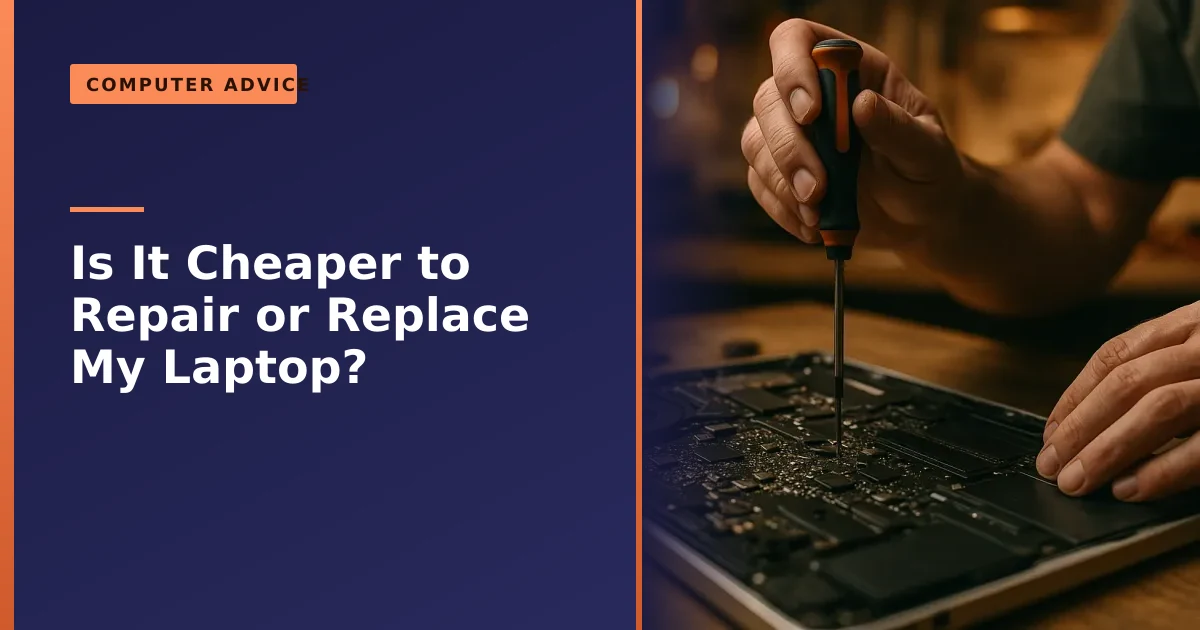
Is it cheaper to repair or replace your laptop? The quick answer is a simple piece of maths: if a repair costs more than roughly half the price of a comparable new machine, replacing is usually the smarter buy. If it costs less than that, and the laptop is not ancient, repairing is almost always the better value, and often by a wide margin. This guide gives you a clear way to make that decision, the situations where each option wins, and an honest steer on when a tired old laptop is genuinely worth saving.
We give this advice every single day in our Manchester workshop, and we would far rather tell you honestly that a machine is not worth fixing than take your money for a repair that does not make sense. So here is the same straight thinking we use, with the real numbers, the common faults, the lifespan you can expect, and the green and data factors most people forget.
The short answer: the 50% rule, plus age
Two numbers decide most of these cases. The first is the cost of the repair as a proportion of a comparable new laptop. The widely used guide is the 50% rule: if the repair comes to more than half the price of an equivalent new machine, replacement generally makes more sense. If it is comfortably under half, repair wins.
The second number is age. A laptop under about four years old is usually well worth repairing or upgrading, because the rest of the machine has plenty of life left. Once a laptop is past five or six years, the calculation gets tighter, because even a successful repair leaves you with ageing hardware that may struggle with modern software. Put those two together, repair cost and age, and you have your answer in most cases.
The 50% figure is a guide, not a law, and it bends in two directions. On a well-built business laptop, a ThinkPad, an EliteBook, a Latitude or a MacBook, repairs costing up to 60 to 70 per cent of a replacement can still be worth it, because the machine you keep is sturdier and longer-lived than most of what you would buy new for the same money. On a very old or very cheap laptop, the threshold drops, and many workshops will not recommend spending more than about a quarter of the replacement price. The point of the rule is not the exact percentage, it is to stop you sinking serious money into a machine that is on its way out. The sections below cover the details and the exceptions.
Typical repair costs, and what a new laptop really costs
To use the 50% rule you need two honest figures: what the repair will cost, and what you would genuinely have to spend to replace the machine like for like. People routinely get the second one wrong. They compare a quoted repair against the cheapest laptop on a supermarket shelf, when that bargain machine is slower, flimsier and shorter-lived than the laptop they already own. A fair comparison is against a new laptop of similar quality, not the cheapest box available.
On the repair side, the good news is that the most common faults are also among the most affordable. Screen replacements, battery swaps, keyboard fixes and charging port repairs are everyday jobs that usually land well under half the cost of a decent new laptop, which is exactly why they so often pass the test. The big-ticket repairs, mainly motherboard and processor faults, are the ones that push past the threshold on an older machine. We will not quote prices in a blog post, because they depend on your exact model and the parts it needs, but our guide to how much it costs to fix a laptop sets out the typical ranges, and any reputable repairer will tell you the figure before you commit. Get the repair quote, work out a fair replacement price, and the maths makes itself.
When repairing is the clear winner
For a huge proportion of the laptops we see, repair is the obvious choice. Repairing usually makes the most sense when:
- It is a single, well-defined fault on an otherwise good machine, such as a cracked screen, a worn-out battery, a failed charging port or a faulty keyboard. These are common, contained repairs that restore a perfectly capable laptop.
- The laptop is under about four years old. Modern enough to run current software comfortably, so fixing one fault gives you years more use.
- The repair is well under half the cost of replacing. Spending a modest sum to avoid a much larger one is simply good value.
- It is the storage drive or memory. These are not just repairs but upgrades, often making the machine faster than it ever was, which we will come back to.
In all of these, you keep a machine you already know, with your files and setup intact, for far less than the cost of starting again. There is a hidden saving here too. A repair leaves you with the laptop you have already set up: your programmes installed, your logins remembered, your files where you expect them. Replacing means hours of reinstalling, re-signing-in and rebuilding your settings, plus the risk of leaving something behind. That convenience is worth real money, and it tips a borderline decision firmly towards repair.
Which faults are worth fixing, and which are not
Not all repairs are equal. Some faults are cheap, contained and well worth fixing on almost any machine. Others are expensive, unpredictable or a sign that more trouble is coming. Here is an honest run-through of the faults we see most often and how we tend to judge them.
| Fault | Worth fixing? | Why |
|---|---|---|
| Cracked or dim screen | Usually yes | A contained, common repair on a part that does not affect the rest of the machine. See our screen replacement service. |
| Worn-out battery | Almost always yes | Cheap relative to a new laptop and instantly restores all-day use. Our battery not charging guide covers the symptoms. |
| Faulty keyboard or trackpad | Usually yes | A modest, well-defined fix. More on this in our keyboard repair guide. |
| Loose or broken charging port | Usually yes | Small part, big difference, and ignoring it can leave you with a flat, useless laptop. |
| Slow performance, old hard drive | Yes, as an upgrade | An SSD and more memory make it faster than new for a fraction of replacement cost. |
| Cracked hinges or casing | Often yes | Worth fixing early before the damage spreads to the screen cable or board. |
| Motherboard or processor failure | Depends on age | One of the costliest repairs. Worth it on a newer premium machine, rarely on an old cheap one. |
| Severe liquid damage on an old laptop | Usually no | Unpredictable, with faults that surface later. Recover the data, then replace. |
The pattern is clear. Repairs that swap a single, well-defined part, the screen, the battery, the keyboard, the charging port, the drive, are almost always worth doing, because they restore a capable machine cheaply and the rest of the laptop carries on as before. The repairs to think hard about are the ones that touch the heart of the machine, the motherboard and processor, or that involve liquid, because the cost is high and the outcome is less certain. On a newer, better laptop those big repairs can still make sense. On an old budget machine, they usually do not.
When replacing makes more sense
We will always be honest when a machine is not worth saving. Replacement tends to be the better option when:
- Multiple major components have failed, so the total repair cost climbs past that 50% threshold. Fixing one expensive fault on a machine that is failing in several places is throwing good money after bad.
- There is severe liquid damage to an older laptop. Liquid damage can be unpredictable, with new problems surfacing later, so on an older machine it is often not worth the risk once data has been recovered.
- The motherboard has failed on an older laptop. A motherboard or processor failure is one of the costliest repairs, and on an ageing machine it rarely makes financial sense.
- It cannot run a supported, secure operating system. A laptop too old for Windows 11, left stranded on an unsupported version of Windows, is a growing security risk. Our guide on upgrading to Windows 11 explains the options, and if none fit, replacement may be the sensible path.
That last point matters more than ever. When a version of Windows stops receiving security updates, the machine keeps working but quietly becomes a softer target, because newly discovered flaws are never patched. If your laptop cannot be moved to a supported, secure operating system, that alone can justify replacing it even if the hardware still technically runs. Even then, it is worth a quick conversation first, because what looks terminal sometimes is not, and your data can almost always be saved either way.
Repair or replace at a glance
| Your situation | Usually best to... |
|---|---|
| Under ~4 years old, single fault (screen, battery, charging port, keyboard) | Repair |
| Repair costs under ~50% of a comparable new laptop | Repair |
| Slow but otherwise working fine | Upgrade (SSD and/or RAM), do not replace |
| Multiple major parts failing at once | Consider replacing |
| Severe liquid damage on an older machine | Often replace (recover data first) |
| Motherboard failure on an old laptop | Usually replace |
| Too old to run a supported, secure OS | Replace or repurpose |
How long should a laptop actually last?
Age sits behind every repair-or-replace decision, so it helps to know what is normal. As a broad guide, a typical consumer laptop is built to give around three to five years of comfortable service, while a well-made business laptop, the kind designed to be opened and serviced, regularly delivers four to six years or more. Apple's MacBooks and the better business ranges often stretch towards seven years or beyond with care and the odd upgrade. Desktops, with their roomier cases and easier cooling, tend to outlast laptops by a couple of years.
Those numbers are not a countdown to failure, they are a guide to value. A four-year-old laptop is middle-aged, not old, and almost always worth a sensible repair. A seven-year-old budget machine has had a full life, so only the cheapest fixes make sense. Crucially, lifespan is not fixed. How long a laptop lasts depends far more on care and a couple of well-timed upgrades than on the date it was made. Keeping it cool and clean, not letting the storage fill up, and fitting an SSD partway through its life can comfortably add years. Our laptop care guide covers the habits that make the biggest difference.
The middle path everyone forgets: upgrade, do not replace

Here is the option people rarely consider when their laptop feels past it: not repair, not replace, but upgrade. A great many laptops we are asked to "replace" are not broken at all, they are just slow, and that is almost always cheap to fix.
If a laptop still has an old mechanical hard drive, fitting a solid state drive is transformative, as our guide on upgrading to an SSD explains. An SSD has no moving parts, so the machine boots in seconds, programmes open instantly, and the whole laptop feels responsive in a way a tired hard drive never can. Add a little more memory, covered in our guide on whether you need more RAM, so the laptop can keep more open at once without grinding, and a worn battery swap from our battery guide, and a five-year-old laptop can feel genuinely new again for a fraction of the price of replacing it.
Before you write off a sluggish machine, read our guide on why laptops run slow, because the fix is often far cheaper than you fear. Plenty of slowdowns are pure software, a cluttered start-up, a full drive, a stray programme hogging everything, and a tidy-up costs nothing in parts at all. Our disk cleanup guide walks through the free steps worth trying first. The lesson is simple: a slow laptop is rarely a dying laptop, and replacing one is usually the most expensive way to solve a problem an upgrade would fix for a fraction of the cost.
Refurbished: the third buying option
If the maths does point towards replacing, do not assume brand new is your only choice. A good refurbished laptop sits neatly between repair and buying new, and it is often the smartest spend of the lot. A refurbished machine has been returned, professionally tested against a checklist, repaired where needed, cleaned and resold, usually with a warranty. That is very different from "used", which is sold as seen with no testing and no cover.
The appeal is value. Refurbished laptops are commonly 20 to 40 per cent cheaper than the same model new, and a properly refurbished business laptop at that discount will often out-build, out-last and out-type a brand-new budget consumer machine costing the same. For most people who just need a reliable everyday laptop, that is a better deal than the cheapest new box on the shelf. The independent consumer group Which? explains how to buy refurbished safely, and the headline advice is straightforward: buy from a manufacturer outlet or an established refurbisher, insist on at least a twelve-month warranty, and walk away from anything offering less. Choosing refurbished over new is also the greener replacement, for the same reasons repair beats replacing, which we come to below.
Do not forget your data
Whatever you decide, your files matter more than the hardware, and they are usually recoverable even when the laptop is not. If you replace the machine, your data can be transferred to the new one. If a component has failed, it can often still be retrieved.
The one thing to avoid is throwing away or trading in a faulty laptop without first rescuing your photos, documents and accounts. If the machine will not start, our data recovery service can frequently get the files off a failed drive, and we always recover and transfer data as part of a repair or replacement. The hardware decision and the data are two separate things, and the data is the part you cannot buy again.
The real lesson, though, is to act before disaster strikes. A current backup turns a dead laptop from a crisis into a mild inconvenience, because the decision becomes purely about hardware with nothing precious at stake. If you do not already have one, our guide on why backing up your data is critical explains the simple routine, and our backup service can set it up for you. One more thing before any laptop leaves your hands for trade-in, recycling or resale: make sure it is securely wiped, so your personal files and saved logins do not go with it.
A simple step-by-step way to decide
If you would rather not weigh it all up in your head, here is the order we work through it, and you can follow the same steps yourself.
- Back up first, if you still can. Before touching anything, copy your important files somewhere safe. If the machine will not start, skip to data recovery later.
- Name the real fault. Is it one clear problem (a cracked screen, a dead battery) or several at once? A single fault leans towards repair, multiple faults towards replacing.
- Get a proper repair quote. A reputable repairer will diagnose and tell you the cost before you commit. Guessing leads to bad decisions.
- Work out a fair replacement price. Compare against a new laptop of similar quality, not the cheapest one you can find.
- Apply the 50% rule, adjusted for age. Under half and under about four years old, repair. Well over half, or a costly fault on an old machine, lean towards replacing.
- Check the upgrade angle. If the only real complaint is speed, an SSD and more memory almost always beat both repair and replacement.
- If replacing, compare new against refurbished. A good refurbished business laptop is often better value than a new budget one.
Run through those in order and the answer usually becomes obvious. When it does not, that is exactly the borderline case where a quick chat with an honest repairer earns its keep.
Common mistakes people make
Most regrets in this area come down to the same handful of avoidable errors. Watch out for these.
- Binning a slow laptop. Slow almost never means broken. Replacing a machine that just needed a forty-pound SSD is the most expensive fix going.
- Throwing it away before saving the data. Once the laptop is gone, so are the files. Recover them first, every time.
- Comparing repair against the cheapest new laptop. That makes repair look poor value, when the fair comparison is a machine of similar quality to the one you own.
- Spending big on a dying machine. Pouring money into one expensive fault on a laptop that is failing all over is the classic mistake the 50% rule exists to prevent.
- Assuming new beats refurbished. A cheap new laptop can easily be slower and flimsier than a quality refurbished one at the same price.
- Ignoring small faults. A loose hinge or a frayed charging cable is cheap to fix early and expensive to fix once it has damaged something else.
The greener choice: repair extends a laptop's life
There is one more factor worth weighing, and it increasingly tips the balance towards repair: the environment. Manufacturing a new laptop has a significant carbon footprint and consumes scarce raw materials, while electronic waste is one of the fastest-growing waste streams in the world. According to the United Nations Global E-waste Monitor 2024, the world generated a record 62 million tonnes of electronic waste in 2022, a figure rising five times faster than documented recycling, and projected to reach 82 million tonnes by 2030. Less than a quarter of it is formally collected and recycled.
Keeping a working machine going for longer is one of the most effective everyday things you can do to reduce that impact, because so much of a laptop's lifetime carbon cost is locked in during manufacture, before you ever switch it on. Studies show repairing rather than replacing dramatically cuts both e-waste and emissions, as Earth.org explains. When a device genuinely does reach the end of its life, do not put it in the bin. UK rules on electrical waste (WEEE) mean retailers and recycling centres must take old electricals for proper recycling, so the materials are recovered rather than buried.
This is also at the heart of the wider right to repair movement, which pushes manufacturers to make spare parts and repair information available, and which we cover in our own article on the right to repair laws. So if a repair is sensible on cost and age, it is very often the greener choice too, getting more years out of resources that have already been mined, manufactured and shipped. A repair that makes financial sense almost always makes environmental sense as well, and where it does not, choosing refurbished over new is the next best thing for the planet.
How Manchester PC can help you decide
The honest truth is that the right answer depends on your specific machine, fault and budget, which is exactly why we offer a no-obligation diagnosis. We will tell you what is wrong, what it would cost to put right, and whether, in our genuine opinion, it is worth repairing, upgrading or replacing. If it is not worth fixing, we will say so, and help you move your data to a new machine instead.
No pressure, no upselling, and no charge for honest advice. We cover Manchester and the surrounding areas with free local collection and return, so whether it is a laptop or a desktop computer repair, get a free, no-obligation quote or call us on 0161 820 1992 and we will help you make the right call.