Key takeaways
- Most laptop repairs we see are avoidable. A little routine care keeps a machine running well and adds years to its life.
- Heat is the biggest enemy. Keep the vents clear of dust and always use a laptop on a hard, flat surface, never a bed or sofa.
- Clean the screen with only a soft microfiber cloth and distilled water, never household or window cleaner, which can ruin the coating.
- Look after the battery by keeping it roughly between 20 and 80 percent, and protect the laptop from knocks, drops and liquids.
- Good software hygiene matters too: keep Windows updated, free up space, and run antivirus. A surge protector, a padded bag and sensible temperatures cost little and prevent some of the most expensive repairs we see.
Looking after a laptop is mostly common sense, but a few simple habits make a genuine difference to how long it lasts and how well it runs. Keep it cool and clean, treat the battery and screen kindly, protect it from knocks and spills, and stay on top of basic software maintenance. Do that, and you will avoid the large majority of the faults that bring laptops into our workshop. This guide walks through exactly how, room by room and habit by habit.
We repair laptops across Manchester every day, and the honest truth is that a great many of those repairs were preventable. So consider this the maintenance advice we would give a friend who has just bought a new machine and wants to keep it that way. None of it is difficult or costs much, and what it buys you is years of extra life from a machine you have already paid for.
Keep it cool: airflow and dust are everything
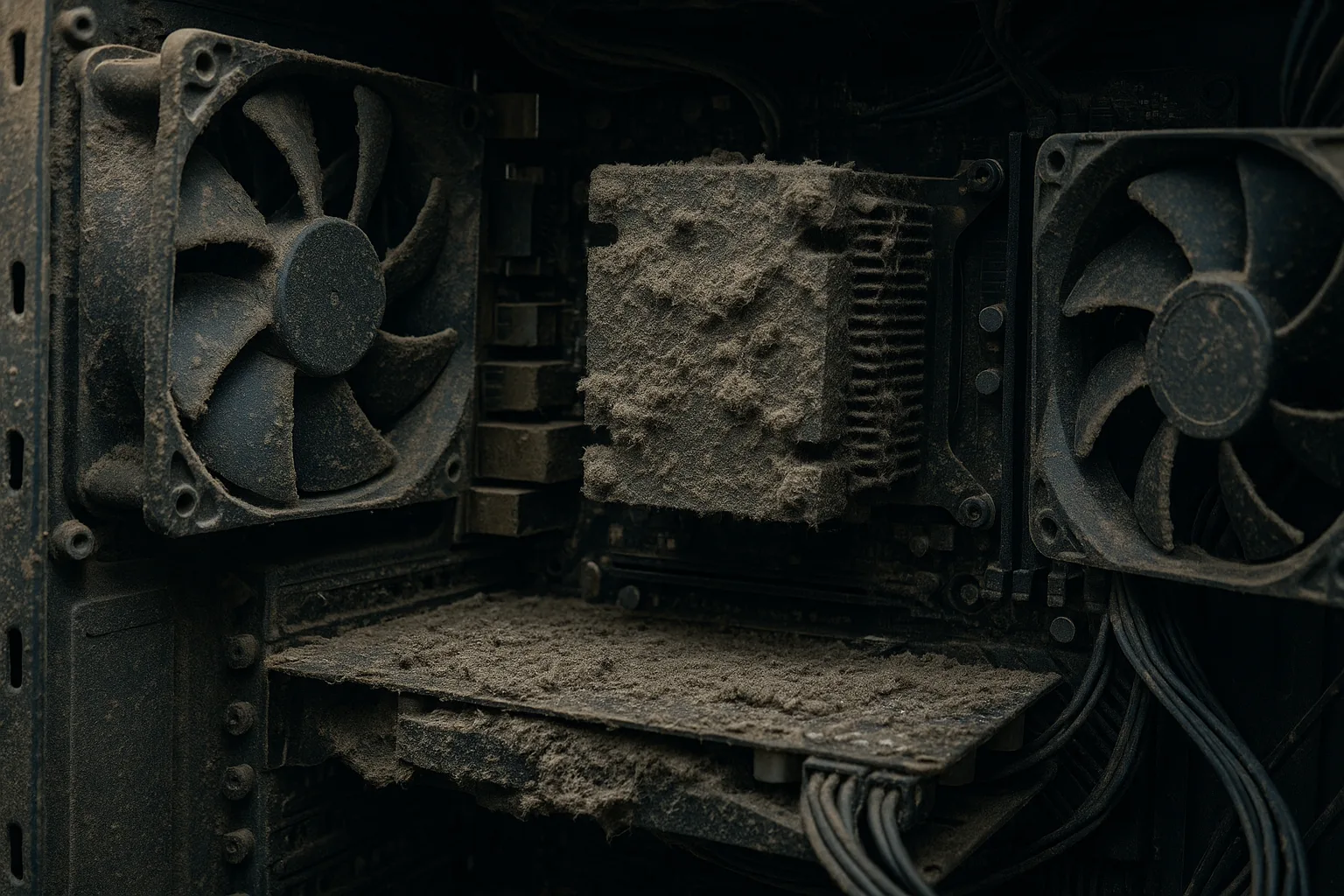
Heat is the single biggest threat to a laptop's health and lifespan. When the vents clog with dust, airflow is restricted, the processor gets hot, and it throttles its own speed, or shuts down entirely, to avoid damage. Over years, that heat also wears down components. So cooling is where good care starts.
It helps to understand what is happening inside. A laptop's processor and graphics chip produce heat whenever they work, and a thin copper pipe carries it to a small radiator where a fan blows it out of the vents. The system has very little spare margin because laptops are thin, so anything that reduces airflow pushes temperatures up quickly. When the chip reaches its limit (often around 90 to 100 degrees Celsius) it deliberately slows down, a process called thermal throttling. That is why a hot laptop feels sluggish: it is protecting itself by working at half pace. Sustained heat also ages the battery faster and can, over years, weaken solder joints and other components.
Two habits matter most. First, always use your laptop on a hard, flat surface like a desk or table. Soft surfaces such as a bed, sofa, lap or cushion block the vents on the base and smother the airflow, one of the most common causes of overheating; a cooling pad or stand helps further. Second, clear the dust periodically. A short blast from a can of compressed air through the vents, every few months, prevents the slow build-up that causes problems.
One important point on compressed air: hold the fan blades still while you do it, because letting the airflow spin the fan freely can spin it far faster than designed and wear out the bearing. Use short bursts, keep the can upright so it does not spit cold liquid, and steady the fan with a cocktail stick through a vent before you blow. If a laptop is already running hot and noisy, it may need a deeper clean and fresh thermal paste, which we cover in our guide to thermal paste and cooling, and overheating is a frequent cause of the shutdowns described in our guide on random crashes and restarts.
The temperatures and humidity your laptop actually likes
Laptops are happiest in roughly the same conditions you are. Manufacturers publish surprisingly consistent figures. Apple, for example, advises using a Mac laptop where the ambient temperature is between 10 and 35 degrees Celsius (50 to 95 Fahrenheit), storing it between minus 20 and 45 degrees Celsius, and keeping relative humidity between 0 and 95 percent non-condensing, as set out on its operating temperatures support page. Most Windows laptops are designed around very similar limits, so it is a sensible rule of thumb for any machine.
The practical lessons for a Manchester winter and summer are these:
- Never leave a laptop in a cold car overnight. The danger is not the cold itself but bringing a freezing laptop into a warm room: moisture condenses on the cold internal surfaces, exactly as it does on a cold drink, and that water can cause a short circuit. If a laptop has been somewhere cold, let it warm to room temperature, still switched off, before turning it on.
- Keep it out of direct sun and away from radiators. A laptop left on a sunny windowsill or next to a heat source can quickly exceed its safe range, which stresses the battery and the screen.
- Damp is the enemy. A persistently humid room, a steamy kitchen or a damp bag invites corrosion on the internal contacts over time. If you carry a laptop in the rain, dry the bag and the laptop before storing it.
You do not need a thermometer on your desk. Just treat your laptop as you would a houseplant that hates extremes: no freezing cars, no baking windowsills, no damp cupboards.
Clean it safely: screen, keyboard and body
Cleaning a laptop is easy to get wrong, and the wrong cleaner can do permanent damage. Always switch the laptop off and unplug it first. Then:
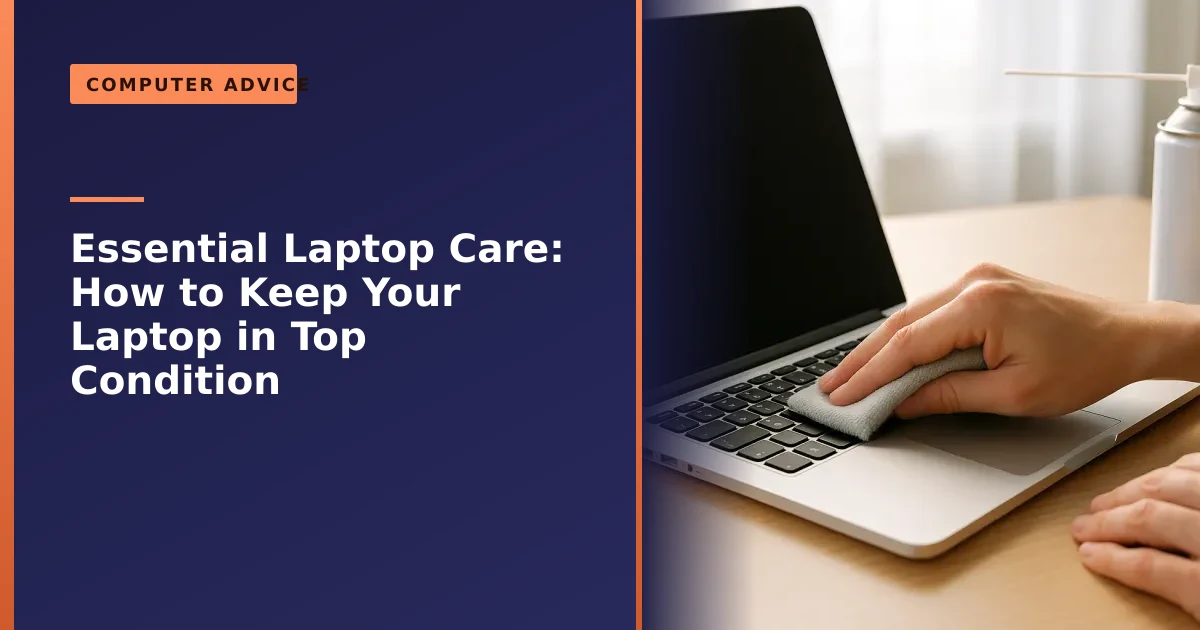
- The screen: use only a soft, dry microfiber cloth for dust, and for smudges dampen it very slightly with distilled water or a dedicated screen cleaner. Never use window cleaner or household sprays, as the ammonia and other chemicals corrode the screen's coating, and never spray liquid directly onto the screen, as it can seep inside. Wipe gently and never press hard, because modern panels are thin and the pressure can leave permanent marks.
- The keyboard: tip the laptop and use compressed air to blow crumbs from between the keys, then wipe them with a microfiber cloth lightly dampened with isopropyl alcohol. Try not to eat over the keyboard, as crumbs and spills are a leading cause of sticky or dead keys, and never force a gritty key, which can break the scissor mechanism underneath. We explain the options in our guide to laptop keyboard repair.
- The body and trackpad: a microfiber cloth with a little isopropyl alcohol cleans the case and trackpad nicely. Keep moisture away from ports and openings, and never let liquid pool around the keyboard or hinge.
Why isopropyl alcohol rather than water or a kitchen spray? It lifts grease well, it does not conduct electricity the way tap water does, and it evaporates in seconds so nothing is left sitting on the electronics. Tap water leaves mineral deposits, and household cleaners often contain ammonia or bleach that attack screen and plastic coatings.
Manufacturers publish their own care guidance, such as Dell's best practices for laptop care and ASUS's longevity tips, and the advice is consistent: gentle materials, the right cleaner, and no liquid near the internals.
The right kit: what to use, and what to avoid
You do not need anything fancy. A simple kit kept in a drawer covers almost every cleaning job, and using the right item on the right surface is what prevents accidental damage. Here is what we recommend, and what to keep well away from your machine.
| Job | Use this | Never use this |
|---|---|---|
| Screen dust and smudges | Dry microfiber cloth, or barely damp with distilled water | Window cleaner, paper towel, tissues, your sleeve |
| Keyboard crumbs and dust | Compressed air in short bursts, soft brush | A vacuum held hard against the keys, fingers digging under keys |
| Keys, case and trackpad grime | Microfiber lightly dampened with isopropyl alcohol | Bleach, kitchen spray, baby wipes, soaking wet cloth |
| Vents and fan dust | Compressed air, fan held still | Blowing with your mouth (moisture), poking metal inside |
| Ports (USB, charging) | Dry compressed air, wooden cocktail stick for lint | Metal pins, anything wet |
A microfiber cloth, a can of compressed air and a small bottle of isopropyl alcohol is the whole kit. Skip all-in-one laptop cleaning sprays unless the label clearly states they are ammonia free and safe for coated screens, because many are not.
Look after the battery
The battery is a consumable part that wears with use, but how you treat it makes a real difference. Almost every laptop sold today uses a lithium-ion battery, and these age in two ways: through charge cycles, and through calendar ageing, which happens faster when the battery is kept hot or sitting at a very high charge. The healthiest habit is to avoid extremes: do not sit at 100 percent plugged in all day, every day, and avoid regularly running it flat to zero. Keeping charge roughly between 20 and 80 percent helps a battery hold its capacity for years longer, because both very high and very low charge levels stress the cells.
A typical laptop battery is rated for around 300 to 500 full cycles before it noticeably weakens, though good habits can stretch that considerably. Heat is the other big factor, so the airflow advice above protects the battery as well. If you are storing a laptop you will not use for weeks, leave it at around half charge in a cool, dry place rather than full or empty.
Most laptops now include a built-in charge limit (such as HP Battery Health Manager, Lenovo Conservation Mode, or Optimised Battery Charging on a Mac) that caps charging around 60 to 80 percent for you, which is ideal if you mostly work plugged in at a desk. It is well worth turning this on. If your battery has already started draining quickly, swelling, or refusing to charge, do not ignore it: a swollen battery in particular should be checked promptly, as it can damage the laptop or become a fire risk. Our guide on a laptop battery that will not charge covers the common causes, and our full guide on making your laptop battery last longer goes into the settings and habits in detail.
Handle and transport it with care
Physical damage is one of the most common and most avoidable reasons laptops come in for repair. A few sensible habits prevent the majority of it:
- Never lift or carry a laptop by its screen. Always support it by the base. Lifting by the lid stresses the hinges and screen, both expensive to fix.
- Use a padded bag or sleeve when carrying it, to protect against bumps and drops in transit, which is when most accidents happen.
- Close the lid gently and never leave anything, like a pen or earphones, on the keyboard before closing it, as that can crack the screen.
- Mind the charging cable. Do not yank it out by the cable, and avoid leaving it under tension, which wears the charging port and the lead over time.
Treating the machine gently is free, and it heads off the cracked screens, broken hinges and worn charging ports that make up a large share of our repairs. If you do crack a display, do not keep using it with the panel flexing, as that spreads the damage; see our page on laptop screen repair in Manchester.
The journey is where most accidents happen, so transport matters too. A drop onto a tram floor or a squash in a packed bag does more laptops in than years of desk use. Carry it in a padded sleeve or a bag with a dedicated compartment that holds it snugly, pack it flat with heavy items (water bottles especially) in a separate pocket, and power it down or send it to sleep first, as a machine running in a sealed bag has no airflow. In Manchester rain a waterproof bag is a good investment, and never leave a laptop on show in a parked car. For more on staying safe away from home, see our guide on keeping your computer safe while you are out.
Protect it from liquids
Liquid is a laptop's worst enemy, and a spilled drink is one of the most common serious faults we deal with. Keep drinks well away from the keyboard, ideally on a different part of the desk entirely, because it only takes one knocked mug to cause real damage. Also keep the laptop out of damp environments and never leave it in a cold or hot car, where condensation and extreme temperatures can harm it.
A spill is so serious because liquid plus electricity equals corrosion and short circuits, often within minutes. Sugary or fizzy drinks and coffee are the worst, because once the liquid dries it leaves a sticky, conductive residue that keeps causing problems, which is why simply leaving a spilled laptop to dry rarely works on its own.
If you do spill something, act fast: switch the laptop off immediately, unplug it, turn it upside down to drain, and do not switch it back on. Do not be tempted to speed-dry it with a hairdryer on heat, which can warp components, and the rice trick is largely a myth that does little except leave dust inside. Then get it to a professional as soon as possible, because prompt action greatly improves the odds. Even when liquid damage looks serious, your files can usually still be saved through our data recovery service, and the laptop itself can often be cleaned and repaired if it is dealt with quickly.
Protect it from power surges and electrical spikes
One risk many people overlook is the electricity feeding the laptop. A power surge is a sudden spike in voltage that can damage sensitive parts in an instant. Surges come from nearby lightning strikes, the power company switching the grid, and even large appliances in your own home switching on and off. A laptop's charger offers some protection, but a big enough spike can still harm the motherboard, memory or storage.
The simple, cheap defence is a surge protector, an extension lead with built-in protection that absorbs or diverts the excess voltage before it reaches your equipment. When choosing one, look for a decent energy absorption rating (measured in joules, with a higher number meaning more protection). Plug the laptop charger, and ideally your router and external drives, into the protected sockets.
- Use a surge protector, not just any extension lead. A standard four-gang lead offers no protection at all.
- During a thunderstorm, the safest option is to unplug the charger entirely, as no surge protector is guaranteed against a direct lightning strike.
- Protect your broadband too. Surges can travel down the phone or network line, so a protector with broadband or coax sockets is worth considering.
- Replace old surge protectors. They wear out over time and after absorbing big surges, so a unit that is many years old may no longer protect anything.
For a home office you rely on, an uninterruptible power supply (a UPS, which is a surge protector with a battery) also protects against power cuts, giving you time to save your work and shut down cleanly. Pairing power protection with regular backups, which we explain in why backing up your data is critical, means even a worst-case fault need not cost you your files.
Mind the hinges, ports and charging socket
The moving and plugged-in parts of a laptop fail gradually, so a little awareness catches problems before they become breakages. The hinges open and close thousands of times over a laptop's life, and on some models the plastic around them weakens and cracks, which can pull the screen bezel apart, as we saw in this HP Pavilion hinge and casing repair. To keep hinges healthy, open the lid from the centre rather than one corner, do it slowly, and never force a stiff hinge.
The charging socket and the USB ports wear too. Plugging and unplugging at an angle, or leaving a cable hanging under tension, slowly loosens the connector until charging becomes intermittent. The fixes are easy:
- Plug in straight, and support the connector rather than letting the weight of the cable pull on it.
- Route the charging cable so nobody trips over it and so it is not bent sharply right at the plug, which is where leads usually fail.
- Blow lint out of the ports occasionally, as pocket fluff and dust build up in USB and charging sockets and can stop things connecting properly.
- If charging has become fiddly, needing the cable held at just the right angle, get it looked at early, before the socket fails completely.
A loose charging port caught early is a quick repair. Left until it stops working altogether, often at the worst possible moment, it leaves you with a flat, unusable laptop.
Keep it healthy on the inside, too
Good care is not only physical. A laptop that is clean outside but neglected inside will still feel slow, so a little software housekeeping is part of looking after it:
- Keep Windows and your apps updated, which fixes bugs and closes security holes. The UK's National Cyber Security Centre describes installing updates promptly as one of the most important things you can do to stay safe online, so turn on automatic updates where you can. If you are still on Windows 10, see our guide on upgrading to Windows 11.
- Free up disk space regularly, since a near-full drive causes slowdowns. Our disk cleanup guide shows the safe way.
- Run antivirus and be wary of dodgy downloads and phishing, to keep malware off the machine. A good free firewall helps too, as we cover in our round-up of free firewalls.
- Restart it now and then, rather than only ever closing the lid, to clear out stuck processes.
Two upgrades often cure a slow laptop for very little money. If yours still has an old mechanical hard drive, fitting a solid state drive is the single biggest speed improvement you can make, as we explain in why you need an SSD today. If it stutters with a few programmes or browser tabs open, it may simply need more RAM, covered in do I need extra memory. Either way, our guide on why laptops run slow covers the cure, which is usually a cheap upgrade rather than a replacement.
Common laptop care mistakes (and what to do instead)
Most of the avoidable damage we see comes down to a handful of everyday habits. None of them feel risky at the time, which is exactly why they catch people out. Here are the ones worth breaking.
| Common mistake | What to do instead |
|---|---|
| Using it in bed or on the sofa | Use it on a hard, flat surface or a stand so the vents stay clear |
| Drinking right next to the keyboard | Keep cups at the far side of the desk, on a different surface |
| Lifting or carrying it by the screen | Always support it by the base |
| Cleaning the screen with window spray or a tissue | Use a dry microfiber cloth, barely damp with distilled water if needed |
| Leaving it at 100 percent plugged in all day | Turn on the built-in charge limit, aim for 20 to 80 percent |
| Ignoring loud fans for months | Clean the vents, and book an internal clean and re-paste if it persists |
| Bringing it in from a cold car and switching it straight on | Let it reach room temperature first to avoid condensation |
| Forcing a stiff hinge or a sticky key | Stop and get it checked before it breaks completely |
If you recognise a few of these, you are not alone, they are genuinely common. The good news is that swapping them for the better habit costs nothing and prevents most of the faults in this guide.
A simple laptop care routine
You do not need to do much, but a light, regular rhythm keeps a laptop in great shape. Here is the routine we suggest:
- Every day: use it on a hard surface, keep drinks away, and lift it by the base.
- Every week: wipe the screen and keyboard with a microfiber cloth, and restart the machine.
- Every few months: blow the dust out of the vents, free up disk space, and check for Windows and driver updates.
- Once a year: consider a deeper internal clean and fresh thermal paste, especially if the fans have got louder, check the battery's health, and make sure your backups are working.
A few minutes here and there genuinely adds years to a laptop's life and spares you the cost and hassle of avoidable repairs.
What good care actually saves you
It helps to see maintenance not as a chore but as the cheapest insurance you will ever buy. Almost everything in this guide is free or costs a few pounds, while the repairs it prevents are among the more expensive jobs that come through the door, as you can see on our page about how much it costs to fix a laptop.
| Simple care habit | The problem it helps avoid |
|---|---|
| Using it on a hard surface and clearing dust | Overheating, shutdowns and long-term component wear |
| A padded bag and careful handling | Cracked screens and broken hinges |
| Keeping drinks away from the keyboard | Liquid damage, often the most serious fault of all |
| Charge limiting and keeping it cool | An early, expensive battery replacement |
| A surge protector | A motherboard or storage killed by a voltage spike |
| Regular backups | Lost photos and documents that may be unrecoverable |
When to bring it in to us
Even the best-cared-for laptop occasionally needs a professional, and some jobs are best not attempted at home. It is worth bringing it in if the fans are constantly loud despite a clean, if you have spilled liquid on it, if the hinges or charging port feel loose, if the battery is swelling or draining fast, or if it has become slow or unstable in ways the steps above do not fix. Catching these early is almost always cheaper than waiting, and our guide on repair or replace helps you weigh up whether a fault is worth mending.
We offer internal cleaning and re-pasting, battery replacement, screen and hinge repair, liquid-damage treatment, virus removal and full health checks as part of our laptop repair service, with honest advice on what is worth doing. We cover Manchester and the surrounding areas with free local collection and return, so get a free, no-obligation quote or call us on 0161 820 1992 and we will help keep your laptop in top condition.