Key takeaways
- The fastest way to find your laptop's model on Windows is to press the Windows key, type "System Information", and read the System Model and System Manufacturer lines.
- To find the serial number quickly, open Command Prompt and type wmic bios get serialnumber, or look on the sticker on the underside of the laptop.
- Microsoft is retiring the old wmic command, so on an up to date Windows 11 the modern way to read the serial is the PowerShell line Get-CimInstance -ClassName Win32_BIOS.
- The sticker on the base (or under a removable battery) usually shows the model, serial number and, on HP, a separate product number, even if the machine will not switch on.
- On a Mac, click the Apple menu and choose About This Mac to see the model name and serial number together in one window.
- You will need these details for warranty claims, downloading the right drivers, ordering the correct battery, screen or charger, and getting an accurate repair quote.
- Model number, serial number and product number are different things. For ordering parts, the exact model and product number matter most.
The quickest way to find your laptop's model number on Windows is to press the Windows key, type "System Information", and look at the System Manufacturer and System Model lines. For the serial number, open Command Prompt and type wmic bios get serialnumber, or simply turn the laptop over and read the sticker on the base. That is the short version; below we cover every method, including what to do when the laptop will not turn on, the modern PowerShell command that replaces the old wmic one, how to do all of this on a Mac or a Microsoft Surface, and how to tell the model, serial and product numbers apart.
Knowing exactly how to find these details is genuinely useful, because you need them surprisingly often: to claim a warranty, download the correct drivers, or order the right replacement battery, screen or charger. When customers contact us for a repair, the model and serial number are the first things we ask for, because they let us quote accurately and order the exact parts first time. Spend five minutes on this once, write the numbers down somewhere safe, and you will never have to scramble for them again.
Why you need your model and serial number
Before the how-to, it helps to know why these numbers matter, because it explains which one you need in each situation. Your laptop's identity details are the key to getting the right service and parts:
- Warranty and support. Manufacturers use the serial number to check whether your machine is in warranty and to look up its exact specification. Under the UK Consumer Rights Act 2015 you also have rights against the seller for goods that are not of satisfactory quality, and proof of the exact model and purchase date makes any claim far smoother.
- The correct drivers. The right drivers for your graphics, Wi-Fi and so on depend on the exact model, and downloading the wrong ones can cause problems.
- Ordering replacement parts. This is the big one. A battery, screen, keyboard or charger must match your specific model. A laptop "looking the same" is not enough, as tiny variations between models mean parts are often not interchangeable.
- Getting an accurate repair quote. When you contact us for a laptop repair, the model number lets us identify the parts and give you a precise price rather than a vague estimate.
A quick real example shows why this matters. Two laptops can carry the same family name, say "HP Pavilion 15", yet one has a full HD touch screen and the other a plain HD non-touch panel, with different connectors and brackets behind them. Order purely on the family name and the screen that turns up will not fit. The product number or exact model variant is what separates the two, which is why we always ask for it. In short, five minutes finding the right number now saves time, money and the frustration of ordering a part that does not fit.
Method 1: System Information (the easiest)
If your laptop switches on and runs Windows, this is the simplest method and needs nothing installing. Press the Windows key, type "System Information" (or "msinfo32") and open it. On the System Summary page you will see:
- System Manufacturer: the brand, such as HP, Dell or Lenovo.
- System Model: the model name or number.
- System SKU: sometimes a more precise product code.
- BIOS Version/Date and System Type: handy extras that tell you the firmware level and whether you are on a 64 bit machine.
This gives you the manufacturer and model in seconds. The one thing System Information does not always show clearly is the serial number, so for that, use one of the next two methods. It is worth taking a photo of this screen, or writing the details down, so you have them to hand whenever you need them.
Method 2: Command Prompt or PowerShell (for the serial number)
For the serial number specifically, a quick command is the most reliable route. Press the Windows key, type "cmd", and open Command Prompt. Then type this and press Enter:
wmic bios get serialnumber
The serial number appears underneath. To get the model at the same time, you can type wmic csproduct get name, identifyingnumber. These commands read the details straight from the firmware, so they work even when the sticker has worn away, which is common on a well used laptop. Whatever you do, do not share your full serial number publicly, as it can be misused for fraudulent warranty claims.
There is one catch worth knowing in 2026, and it is covered in its own section next: the wmic command is on its way out of Windows. If you type it and get a "wmic is not recognised" message, you are not doing anything wrong, you simply have a newer build of Windows where the tool has been removed. The fix is to use PowerShell instead, which we explain below.
The wmic command is being retired: the modern PowerShell way
The wmic tool has been doing this job for over twenty years, but Microsoft has been winding it down for some time. It was first deprecated back in 2021, disabled by default in Windows 11 versions 23H2 and 24H2, removed on upgrade to version 25H2, and Microsoft states it will be completely removed from Windows 11 in the next feature update, as set out in its official notice on WMIC removal. The good news is that Windows is not losing the underlying ability to read this information, only the old command line tool, so the modern replacement does exactly the same job.
The supported way now is PowerShell. Press the Windows key, type "PowerShell", open it, and use these:
- For the serial number:
Get-CimInstance -ClassName Win32_BIOS | Select-Object SerialNumber - For the model and manufacturer:
Get-CimInstance -ClassName Win32_ComputerSystem | Select-Object Manufacturer, Model - For the vendor service tag or product ID:
Get-CimInstance -ClassName Win32_ComputerSystemProduct | Select-Object IdentifyingNumber
These work on every current build of Windows and will keep working after wmic is gone, so if you are noting down a method to keep, make it the PowerShell one. The output is the same firmware level detail, which means it still works when the printed label has faded.
Method 3: Settings, under About
Windows 11 also shows some of this in Settings. Go to Settings, then System, then About. Under "Device specifications" you will see the device name and often the model, and some manufacturers list the serial number here too. It is a friendlier, less technical place to look than the methods above, though exactly what appears varies by manufacturer, so if you do not see the serial number here, fall back to the PowerShell method. While you are on this screen, the "Installed RAM", "Processor" and "System type" lines give you a tidy summary of your specification, which is handy to screenshot for your records.
Method 4: The sticker on the laptop itself
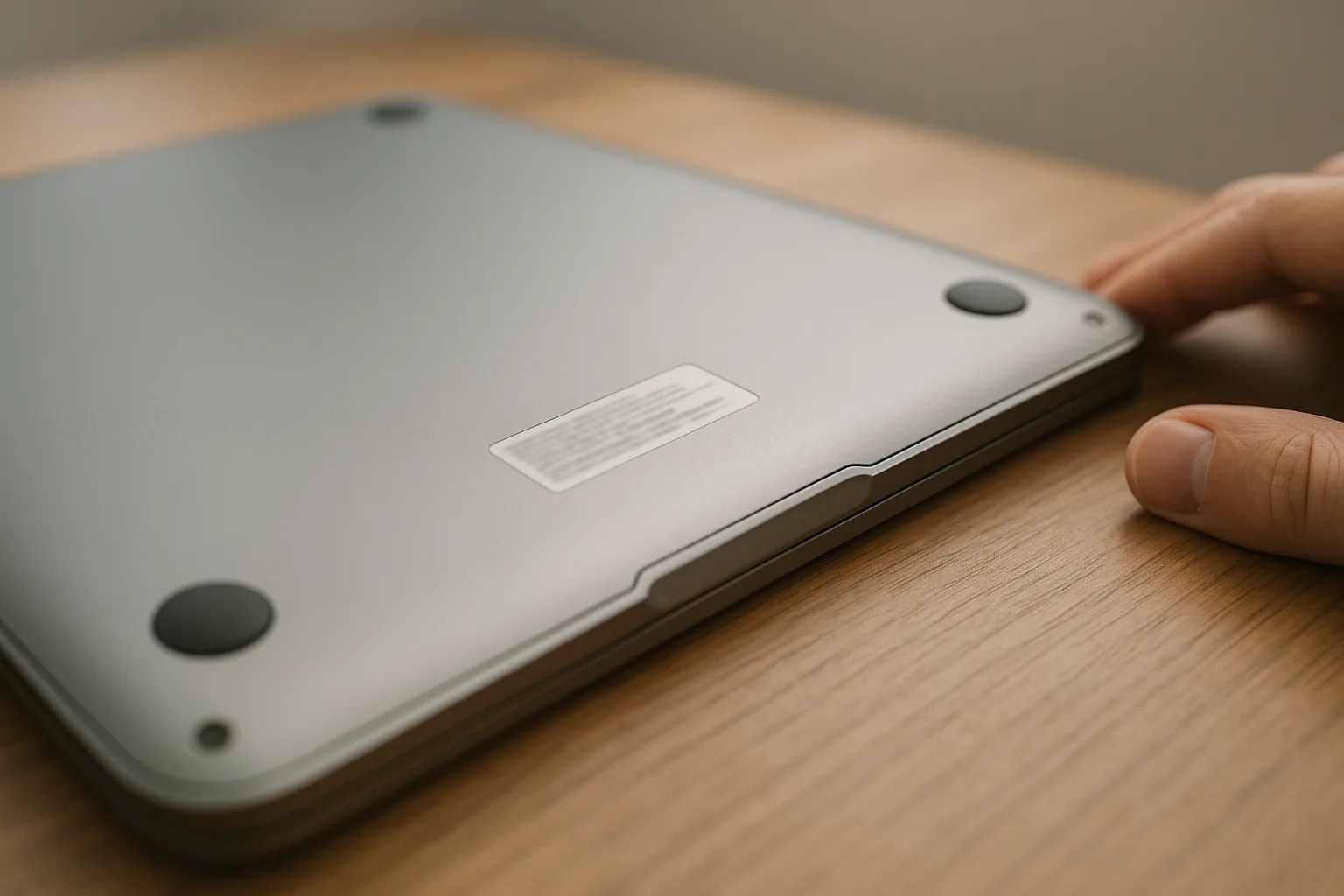
The oldest method is still one of the best, and crucially it works even if the laptop will not turn on, which the software methods cannot. Turn the laptop off, close it, and flip it over. On the base you will find one or more printed or engraved labels showing the model, the serial number (often marked "S/N" or "Serial Number"), and on HP machines a separate product number ("P/N"). Look near the centre, the edges, or by the vents and rubber feet.
On older laptops with a removable battery, the sticker is sometimes hidden inside the battery compartment, so if you cannot see it on the base, power off, remove the battery and look underneath. On many modern machines the text is laser etched in pale grey on a dark case, which is hard to read, so tilt the laptop under a bright light or use your phone's torch and camera zoom to make it out. The labels can fade with handling over the years, so if yours is unreadable, use the software methods above while the laptop still works, and note the details down for the future.
Method 5: The BIOS (when Windows will not load)
If your laptop powers on but will not boot into Windows, you can still find its details in the BIOS or UEFI. Switch the laptop on and immediately tap the setup key repeatedly, usually F2, F10, Esc or Delete depending on the make. On the main BIOS screen you will typically see the model, serial number or service tag listed among the system information. This is a handy middle ground between the software methods, which need Windows, and the sticker, which can be missing or worn. If you are not sure which key your machine uses, our guide on the BIOS and when to update it explains how the firmware screen works and how to get into it safely.
Finding it on HP, Dell, Lenovo, Asus and Acer
Each manufacturer has its own labelling and its own support tools, and most can identify your machine automatically if you visit their support site on the laptop in question. Here is where to look by brand:
- HP: the serial number (S/N) and product number (P/N) are on the same sticker on the base, and HP Support Assistant shows them in Windows. You can also press fn + esc to open the HP System Information window. HP's guide to finding product and serial numbers has the detail. If yours needs work, see our HP laptop repair page.
- Dell: look for the "Service Tag" on the base, a short code Dell uses to identify the exact machine, and the SupportAssist app shows it too. Dell's guide to finding your product model explains it. We also offer Dell laptop repair across Manchester.
- Lenovo: the serial number is on a sticker on the bottom cover (or under the battery on older ThinkPads), and Lenovo Vantage shows it in Windows. Lenovo's guide to finding PC serial numbers covers all the options, and you can read about our Lenovo laptop repair service too.
- Asus: the model and serial are on a label on the base, the MyASUS app shows them on its home screen, and Asus's guide to finding the serial number walks through it. See our Asus laptop repair page for help.
- Acer: the serial number and a separate SNID are on a label on the bottom, and the Acer Care Center or AcerSense app shows them in Windows. Acer's guide to locating your SNID or serial number has the steps, and we cover Acer laptop repair as well.
Whichever brand you have, the System Information and PowerShell methods above work universally, so you do not have to remember brand specific steps unless the laptop will not start.
Finding the model and serial number on a Mac
Apple does things a little differently, but it is arguably the tidiest of the lot because the model name and serial number sit together in one window. Click the Apple menu in the top left corner of the screen and choose About This Mac. The window that opens shows the marketing name (for example "MacBook Air") and the serial number. For the full hardware breakdown, hold the Option key and choose Apple menu, then System Information, and select Hardware in the sidebar to see the serial alongside the chip, memory and storage. Apple's own guide to finding your Mac model name and serial number sets all this out.
There are two more routes worth knowing. If the Mac will not start, the serial number is printed in tiny text on the underside of a MacBook near the regulatory markings, or on the original box. For the technically minded, the Terminal app prints it with ioreg -l | grep IOPlatformSerialNumber. Entering that serial at checkcoverage.apple.com tells you the exact model and warranty or AppleCare status. If your Mac needs attention, we offer MacBook repair and iMac repair in Manchester.
Finding it on a Microsoft Surface
Surface devices hide their serial number in a slightly different spot, so they catch people out. The easiest route is the Surface app: select Start, type "Surface", open the app, and expand Device Information to see the serial number for the Surface itself and for accessories like the Type Cover or pen. You can also go to Settings, then System, then About, and read it under Windows Specifications. Microsoft's guide to finding your Surface serial number lists every option.
If the Surface will not boot, the serial number is printed on the device itself, usually under the kickstand on a Surface Pro, and it is also in the original packaging on the barcode label. It appears either as a 12 digit numeric code or a 14 character mix of letters and numbers, with no spaces or dashes, which is worth knowing so you copy it down correctly.
Finding it on MSI and other gaming laptops
Gaming laptops from MSI, and many others, follow the same principles but are worth a mention because their model names look unusual. On an MSI laptop the model is on a sticker on the base, often printed largest, and you may also see an internal code that starts with "MS-". The serial number sits on the same label marked "S/N", and the MSI Center app shows the device information within Windows. The universal Windows methods (System Information and the PowerShell serial command) work here exactly as on any other brand, so if the sticker is hard to read, use those instead. Whatever the make, if your machine needs work we cover MSI laptop repair and gaming rigs as part of our everyday PC repair service.
How to read your full specifications once you have the model
Often the reason you are hunting for the model is that you want to know what is inside the machine, for an upgrade, a sale, or just to check it is up to a task. Once you have the model, here is how to read the rest of the specification without installing anything:
- Processor and memory: Settings, System, About shows the processor and installed RAM at a glance, and System Information adds the detail.
- Live usage: open Task Manager (Ctrl, Shift, Esc), click the Performance tab, and you can see your CPU, memory, disk and graphics, including how much RAM is fitted and whether your storage is an SSD or an older hard drive.
- Graphics: press the Windows key, type "dxdiag", and the Display tab shows your graphics chip and its memory, which matters for games and video editing.
- The official spec sheet: enter your serial number or product number on the manufacturer's support site to pull up the exact factory specification, which is the most reliable source of all.
Knowing your specification is the first step in deciding whether to upgrade or repair. The two changes that make the biggest difference to an older laptop are fitting an SSD and adding more memory, and both depend on your exact model, because the type of RAM and the drive slots vary from machine to machine. If your laptop has slowed down, our guide on why a laptop runs slow explains what to check first.
Which method should you use? A quick comparison
With so many routes to the same numbers, here is a simple guide to the best one for your situation:
| Your situation | Best method | What you get |
|---|---|---|
| Laptop works, you want the model fast | System Information (msinfo32) | Manufacturer and model in seconds |
| You need the serial number | PowerShell (or wmic on older builds), or the base sticker | Serial straight from the firmware |
| You prefer a simple, friendly screen | Settings, System, About | Model and basic specs, sometimes the serial |
| The laptop will not turn on | The sticker on the base or under the battery | Model, serial and product number |
| It powers on but Windows will not load | The BIOS or UEFI setup screen | Model and serial or service tag |
| You have a Mac | Apple menu, About This Mac | Model name and serial together |
| You want the exact factory specification | Brand support site, using the serial | Full specification and warranty status |
If one method draws a blank, simply move to the next. Between the software tools, the sticker and the BIOS, there is almost always a way to get the numbers.
Common mistakes when identifying your laptop
We see the same avoidable slip ups again and again when people try to identify a machine themselves. A little care here saves a wrong part and a return:
- Confusing the model name with the model number. "HP Pavilion 15" is a family, not a single product. The product number or full model variant is what actually pins down the right parts.
- Reading the wrong sticker. The base often carries several labels, including regulatory, Windows licence and Wi-Fi module stickers. The one you want is marked with the brand and an "S/N" or "Serial Number".
- Mistyping the serial. A zero and the letter O, or a 1 and a lower case L, are easy to mix up. Copy from a software method where you can, and double check anything hand typed.
- Ordering a part on looks alone. Two screens or batteries can look identical yet differ in connector, resolution or capacity. The model and product number settle it.
- Assuming all variants are the same. Touch and non touch screens, different graphics, and different keyboard layouts all sit under one model name, so the variant detail matters.
- Leaving it too late. If the laptop is failing, read off the numbers and note them down now, while the software methods still work and before a faulty screen or board makes them harder to reach.
Model number, serial number and product number: what is the difference?
These terms get used interchangeably, but they are not the same thing, and knowing the difference saves confusion when ordering parts:
- The model number or name identifies the general product line, for example "HP Pavilion 15" or "Dell XPS 13". On its own it is often not specific enough for parts, because one model name can cover several variations.
- The product number (mainly an HP term, the P/N) pins down the exact configuration, which is what you usually need for the correct battery or screen.
- The serial number (S/N), or Dell's Service Tag, is unique to your individual machine. It is what manufacturers use for warranty and support lookups.
For ordering a part, the exact model plus the product number (or the precise model variant) matters most. For warranty and support, the serial number is the key. As a rule of thumb, if a number is unique to your one laptop it is the serial; if it is shared by every laptop of that exact build it is the model or product number. When in doubt, note down all of them and we can work out exactly what your machine is.
Keep your serial number safe
One last point that is easy to overlook. Your serial number is more sensitive than it looks. Because manufacturers use it to verify ownership and warranty, a scammer who has your serial can attempt fraudulent warranty claims, fake "support" calls, or pass off a stolen machine using your details. So while it is perfectly fine to give your serial to a manufacturer, an insurer or a trusted repairer like us, do not post photos of the base of your laptop online, and blank out the serial in any picture you share when selling secondhand. If you are buying used, ask for the serial so you can check it against the manufacturer's warranty lookup and confirm the machine is what the seller says it is.
Let us identify it for you
If you cannot find your model number, the sticker has worn away and the laptop will not start, or you simply want to be sure you are ordering the right part, we are happy to help. Identifying a machine and sourcing the correct components is part of our everyday work, and getting it right first time is exactly what stops a repair dragging on. If you are weighing up the cost, our guide on what it costs to fix a laptop gives you a realistic idea before you commit.
Whether you need a battery, a screen replacement, a charger or a full laptop repair, or you are after compatible upgrades like an SSD or more memory that have to match your model, we can identify your exact machine and get the right parts. We cover Manchester and the surrounding areas with free local collection and return, so get a free, no obligation quote or call us on 0161 820 1992 and we will take it from there.