Key takeaways
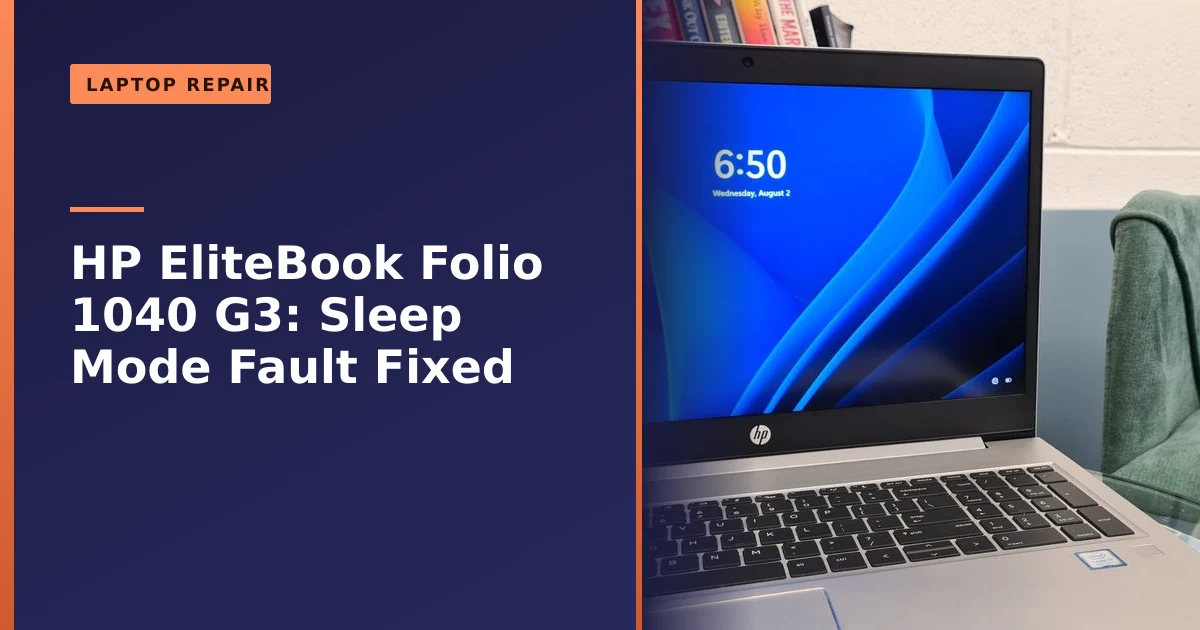
- This HP EliteBook Folio 1040 G3 from Miles Platting would not wake from sleep mode.
- We performed a BIOS reset and a thorough hard reset, and the laptop woke and worked perfectly.
- A laptop that will not wake from sleep is often fixed by a hard reset or BIOS reset, not a costly repair.
- Most causes are software or power-state related (fast startup, drivers, wake timers, modern standby), not a dead machine.
- Rigorous testing afterwards confirmed the fault was resolved, not just temporarily cleared.
Laptop won't wake from sleep? It is often a simple fix. This HP EliteBook Folio 1040 G3 came to us from Miles Platting, Manchester stuck in sleep mode and refusing to wake. A BIOS reset and a thorough hard reset brought it straight back to life. Here is what happened and what you can try yourself.
What came in: a laptop that would not wake
The EliteBook Folio 1040 G3 is a reliable business laptop, but this one had got stuck in sleep mode, the power-saving state a laptop enters when idle, and would not come back out of it. Sleep mode is normally helpful, conserving battery when you are not using the machine, but occasionally it can misbehave and leave a laptop seemingly unresponsive, which is exactly what had happened here.
It is worth understanding what this machine is, because it shapes how you should treat the fault. The Folio 1040 G3 is a slim 14 inch ultrabook from HP's premium business line, built around a 6th generation Intel Core i5 or i7 processor, Intel HD Graphics 520, up to 16GB of memory and an M.2 solid state drive. It uses a sealed internal battery rather than a clip-out one, and it has no maintenance hatch on the base. That single design choice matters a great deal here, because the old trick of yanking the battery to force a power drain is not available without opening the laptop up. When a machine like this freezes in a low-power state, you have to clear that state in other ways, which is exactly the situation we faced.
The symptom itself is one of the most misread faults we see. The screen stays black, the keyboard backlight is off, and pressing keys or tapping the trackpad does nothing. To the owner it looks identical to a laptop that is completely dead, which understandably leads people to fear a failed motherboard or a write-off. In reality, a machine stuck in or refusing to leave sleep is usually still alive and simply trapped in a confused power state. Telling those two situations apart is the first job of any sensible diagnosis, and it is the difference between a five minute fix and an unnecessary repair bill.
How we fixed it
We diagnosed the cause and addressed it carefully. We performed a BIOS reset and gave the laptop a thorough hard reset to clear its power state completely. With that done, the laptop woke up immediately and was ready to work without hesitation. Crucially, we did not stop at the quick fix, we then put the laptop through a series of rigorous tests, checking its behaviour from every angle to make sure the sleep issue was genuinely resolved and not just temporarily cleared. It passed cleanly, confirming it had been a one-off glitch rather than a recurring fault.
It helps to know why those two steps work. A hard reset, sometimes called a power drain, removes every source of power so that the tiny residual charge held in the laptop's capacitors bleeds away. That charge is what keeps the machine clinging to a corrupted sleep state. Once it is gone, the laptop has no choice but to start from a clean slate when you power it back on. A BIOS reset goes a level deeper. The BIOS (the low-level firmware that brings the hardware to life before Windows even loads) holds its own settings and power configuration, and if those become confused the machine can fail to negotiate sleep and wake correctly. Returning the BIOS to a known-good state clears that confusion. On a sealed unit like the Folio, where there is no pop-out battery to pull, this is done through the firmware itself rather than by taking the machine apart. To be clear, it is a firmware and software procedure: we replace faulty parts and whole boards where needed, but we do not carry out board-level or soldering repairs. HP documents the consumer version of both procedures, the hard reset and a safe BIOS reset, for owners who want to try the gentler steps first.
Sleep, hibernate and modern standby: what is actually happening
To fix wake problems with any confidence, it helps to know what your laptop is doing when the screen goes dark, because there is more than one kind of "off". Windows uses several power states, and they behave very differently.
- Sleep (traditional S3): the system saves what you are doing to memory and powers down almost everything else. Memory stays powered, so waking is near instant, but it sips a little battery. This is the classic sleep most people picture.
- Hibernate (S4): the system writes the contents of memory to the drive and then switches off completely, using no battery. Waking is slower because it has to read that file back, but you lose nothing if the battery goes flat.
- Modern standby (S0 low power idle): on newer machines this replaces traditional sleep. The system stays in a very low power state but remains partly awake so it can keep network connections, fetch email and install updates, much like a phone. Microsoft explains the model in its Modern Standby documentation.
Modern standby is convenient when it works, but it is also where a lot of wake and battery trouble now lives. Because the machine is never fully asleep, a misbehaving driver or a background process can keep nudging it awake, drain the battery overnight, or leave it in a half-awake muddle that will not respond to the keyboard. Microsoft provides a built-in tool for investigating exactly this. Running powercfg /sleepstudy from an administrator command prompt produces an HTML report, described in Microsoft's SleepStudy guide, showing how deeply the machine actually slept and which components kept waking it. Running powercfg /a alongside it lists which sleep states your particular laptop supports. These are the same diagnostic steps a good repairer will reach for, and you can run them yourself before deciding anything is broken.
Why won't a laptop wake from sleep, and what you can try
A laptop that will not wake from sleep is a surprisingly common complaint, and the good news is the cause is often minor, a glitch in the power state, a driver issue, or settings, rather than a hardware failure. Before assuming the worst, there are a few things you can safely try yourself:
- A hard reset: disconnect the charger, then hold the power button down for around 30 seconds to clear residual power, and try switching on again. This resolves many stuck-in-sleep situations.
- Check power settings: in Windows, sleep and power settings can sometimes cause wake problems, and updating drivers (especially graphics and chipset) often helps.
- Make sure it is charged: a flat or failing battery can mimic a wake problem.
If a hard reset does not do it, or the problem keeps coming back, it is worth having it looked at, as a deeper fix like a BIOS reset may be needed. Persistent wake or power problems can also relate to the battery, as our guide on improving battery performance touches on. A machine that powers off unexpectedly or behaves erratically can have an overlapping cause, and our notes on random crashes and restarts are worth a read if you see that too.
A safe step-by-step hard reset you can do at home
The hard reset is the single most useful thing you can try, and it is safe: it clears the power state without touching your files or your installed programmes. The exact steps depend on whether your laptop has a removable battery or a sealed one like the EliteBook Folio.
If your laptop has a sealed (built-in) battery:
- Shut the laptop down fully if you can. If it will not respond, carry on regardless.
- Unplug the charger and remove every connected device, USB sticks, external drives, mice, dongles and so on.
- Press and hold the power button for about 15 to 30 seconds. This drains the residual charge held in the internal components.
- Plug the charger back in, then press the power button once to switch on as normal.
If your laptop has a removable battery:
- Shut it down, unplug the charger and remove all connected devices.
- Take the battery out.
- With the battery out and the charger unplugged, hold the power button for about 15 seconds.
- Refit the battery, reconnect the charger and switch on.
HP's official hard reset guidance covers both cases. The principle is the same on almost any make: remove all power, hold the button to bleed away the last of the charge, then start fresh. If the laptop wakes after this, you have very likely solved a power-state glitch and not much else. If it does the same thing again within a day or two, that points to a setting, a driver or a hardware fault that needs proper attention rather than another reset.
Settings and drivers that cause wake failures
When a hard reset works once but the problem keeps returning, the cause is usually sitting in Windows settings, drivers or firmware. These are the usual suspects, roughly in the order we check them.
| Likely cause | Why it stops a wake | What to do |
|---|---|---|
| Fast startup | A hybrid shutdown feature that can leave the machine in a half-saved state, interfering with clean sleep and wake. | Turn it off in Power Options and test for a few days. |
| Hybrid sleep and wake timers | Background timers and a mixed sleep mode can wake or trap the machine at the wrong moment. | Disable hybrid sleep and unwanted wake timers in advanced power settings. |
| Device wake permissions | If the keyboard or trackpad is not allowed to wake the PC, pressing a key does nothing. | In Device Manager, enable "Allow this device to wake the computer" for the keyboard and mouse. |
| Graphics and chipset drivers | Out-of-date or faulty drivers can misreport the sleep state or fail to bring the display back. | Install the manufacturer's latest chipset and graphics drivers, ideally from HP or Intel directly. |
| BIOS or UEFI firmware | A confused or outdated firmware power configuration can break the sleep and wake handshake. | Reset the BIOS to defaults, and update it if the maker has released a newer version. |
| Battery and charging | A worn battery or a charging fault can mimic a wake failure or cause shutdowns from sleep. | Check it charges and holds charge; replace the battery if it is failing. |
A couple of these deserve a closer look. Fast startup is enabled by default on most Windows laptops and is genuinely useful, but it is also one of the most common reasons a machine refuses to wake or shut down cleanly. If you are chasing an intermittent wake fault, turning it off is one of the first things to try. You can reach it through Windows power settings, and Microsoft's own guide to adjusting power and sleep settings walks through where these options live.
Drivers are the other big one. Graphics drivers in particular are responsible for turning the screen back on after sleep, so a bad one can leave you with a running but blank laptop. The safest source is your laptop maker's support site, then the chip maker (Intel in the case of this EliteBook), rather than letting Windows Update guess. Firmware sits underneath all of it, and a BIOS that is out of date or misconfigured can undermine everything above. We cover when and how to do this safely in our guide to updating the motherboard BIOS, which is worth reading before you touch it, because a botched BIOS update can cause far bigger problems than the one you started with.
When it is a deeper fault, and when to call a pro
Most wake problems are minor, but not all of them are. It is worth knowing the signs that point to something more than a glitch, so you do not keep hard-resetting a machine that actually needs a part.
- The battery will not hold charge. If the laptop dies the moment you unplug it, or shows odd charge readings, a worn battery can present as a wake or power fault. Our guide to a battery that will not charge covers this in detail.
- It crashes or freezes after waking. A machine that wakes but then locks up, throws blue screens or restarts at random can have a memory, storage or driver fault rather than a simple sleep glitch.
- The screen stays black but the machine is clearly running. Fans spinning and lights on, but no picture even after a reset, can point to a graphics or display fault.
- It happens straight after a Windows or driver update. Sometimes an update is the trigger, and rolling the driver back is the fix.
- Resets stop working at all. If even a full power drain no longer brings it back, the cause is more likely hardware, the board, the power circuitry or the battery, and it needs hands-on diagnosis.
This is the point where bringing it to someone makes sense. Not because the fix is always expensive, but because correctly telling a 5 minute reset apart from a failing component saves you money in both directions: you do not pay for a repair you do not need, and you do not keep nursing a machine that is quietly heading for data loss. If your files matter and the machine is becoming unreliable, it is also a good moment to think about a backup, and our data recovery team can help if a drive has already started to fail.
Quick fixes versus deeper repairs: what to expect
People often ask how long this kind of thing takes and what it tends to cost. There is no single answer because it depends entirely on the cause, but the rough shape of it is reassuringly modest at the simple end.
| Situation | Typical effort | What it usually involves |
|---|---|---|
| One-off power-state glitch | Minutes | A hard reset, then testing to confirm it holds. |
| Settings or driver fault | Under an hour | Adjusting power settings, updating chipset and graphics drivers, retesting. |
| Firmware fault | A short session | A BIOS reset or update, then verifying sleep and wake behave. |
| Failing battery | A part plus fitting | Testing the battery and replacing it if it is worn. |
| Board or component fault | Proper diagnosis | Bench testing to find the faulty part before quoting. |
The honest takeaway is that the large majority of "my laptop will not wake" jobs land in the top three rows of that table, which are quick and inexpensive. We will always tell you which row you are in before doing anything, and if it turns out a machine is not worth repairing we will say so. Our guide on repair versus replace and our page on what it costs to fix a laptop set out how we think about that decision.
Common mistakes that make wake problems worse
A few well-meaning reactions tend to turn a small wake fault into a bigger headache. Avoiding these will save you time and grief.
- Holding the power button to force a shutdown repeatedly. An occasional forced shutdown to break a freeze is fine, but doing it constantly risks corrupting Windows or the file system. Use it to escape, then find the real cause.
- Installing random "driver updater" tools. These often install the wrong drivers and bundle unwanted software. Get drivers from HP or Intel instead.
- Flashing a BIOS update mid-panic. A BIOS update is the right tool sometimes, but doing it carelessly, or losing power partway through, can leave a laptop that will not start at all. Reset first, update only when it is the indicated fix.
- Assuming a black screen means a dead laptop. As this repair shows, the two look identical and are completely different problems.
- Ignoring a pattern. If it only fails to wake after it has been asleep for hours, or only on battery, note that. The pattern is half the diagnosis.
Not every fault is a big one
It is easy to fear the worst when a laptop seems dead, but as this repair shows, the cause is often a minor glitch that a proper reset resolves, no expensive parts required. The value is in diagnosing it correctly and then testing thoroughly to be sure it is genuinely fixed, exactly how we approach every job.
Why a business EliteBook is worth keeping going
There is a wider point here about machines like this one. The EliteBook Folio sits in HP's business range, and business laptops are built to a different standard from budget consumer models. They use sturdier chassis, better hinges, more serviceable internals and components chosen for longevity rather than the lowest price. On the Folio G3, removing the base cover gives access to the SSD, the wireless module, the CMOS battery and the main battery, which means a competent repairer can service or replace the parts that actually wear out.
That serviceability is exactly why a sleep fault on a machine like this is rarely a reason to give up on it. A well-kept business laptop can stay genuinely useful for many years, especially with a solid state drive and enough memory, and clearing a power-state fault costs a fraction of replacing it. If you run a small business and rely on machines like these, our business computer support keeps fleets of them running, and our broader laptop care guide covers the simple habits that prevent a lot of faults in the first place. If you are weighing up a newer machine anyway, our look at whether to move to Windows 11 is a sensible next read.
Related reading: our guide on repair versus replace helps you decide when to fix, and our tips on improving battery performance keep an older laptop going for longer.
How Manchester PC can help
If your laptop will not wake from sleep, will not power on, or behaves unpredictably, we can help. We diagnose the real cause, fix it at the cheapest effective level, and test thoroughly to confirm it. We offer free local collection and quote up front.
We cover Manchester and the surrounding areas with free local collection and return, fair pricing and honest advice, we will always tell you when a repair is not worth it rather than push one. For an HP laptop repair or any computer repair, get a free, no-obligation quote or call us on 0161 820 1992.