The Definitive Guide to the be quiet! Dark Mount Keyboard
What the Dark Mount is designed to do
If you keep seeing one phrase when researching premium mechanical keyboards “it’s unbelievably quiet” you’ve probably landed on the be quiet! Dark Mount for the same reason most reviewers do. It’s built to deliver the mechanical feel people love, without the noise that normally comes with it.
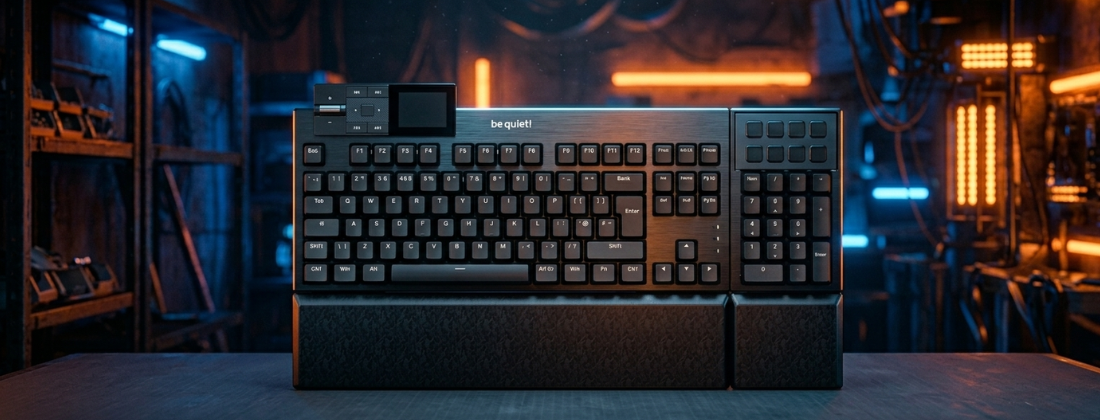
But silence is only part of the story. Dark Mount is also one of the more ambitious modular keyboards available in mainstream retail. You can run it as a compact TKL-style board, attach the numpad on either side, and position a Media Dock module wherever it suits your desk. That flexibility is the other main reason it gets so much attention.
Manchester PC is an authorised be quiet! retailer in the UK, so this guide is written to be genuinely useful the article you read before buying, and the one you come back to when something needs fixing.
Three core priorities
- Quiet without compromise. Multiple dampening layers and carefully tuned switches and stabilisers are part of the core design, not a bolt-on feature.
- Adaptable layout. Numpad left, right, or removed entirely. Media Dock positioned to suit your setup. Designed for desks that do double duty for work and gaming.
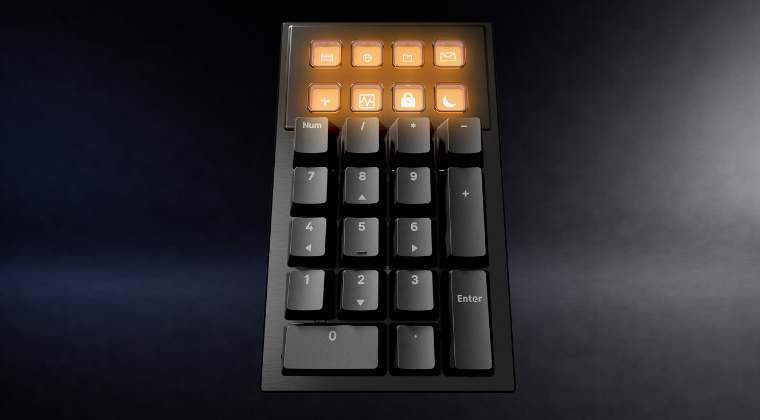
- A proper control surface. Eight Display Keys on the numpad and a dedicated Media Dock make it genuinely useful for productivity, streaming, and media control.
Two switch flavours on UK ISO
Dark Mount is available in two switch options on the UK ISO layout:
- Silent Linear (orange): smooth, consistent actuation with very low noise. Good for gaming and those who prefer a fluid keystroke.
- Silent Tactile (black): a quieter mechanical switch that still has a noticeable bump on actuation. Often preferred by people who type a lot and want physical feedback without the sound.
Build quality and the hardware that earns the praise
Dark Mount’s reputation for feeling premium comes down to three things working together: the materials used, the engineering put into silencing it, and modular connectivity that actually holds up in daily use.
Modularity that reduces desk friction
The numpad attaches on the left or right, or can be left off entirely. The Media Dock mounts in two positions. Even the palm rest is designed around this modular concept. Reviewers consistently describe it as “TKL and full-size in one” you get your mouse space back when gaming, and the full numpad reappears when you need to work.
Premium materials that matter long-term
be quiet! uses an aluminium top plate, double-shot PBT keycaps, and genuine Cherry stabilisers that are screwed in and factory lubed. Multiple independent reviews pick up on the same things: strong build, quality finish, and a keyboard that feels well-made from the moment you unbox it.
Ergonomics done properly
Dark Mount includes magnetic, stackable feet supporting three typing angles (3°, 6°, and 9°), plus a magnetic cushioned two-part palm rest. This is a big reason owners consistently describe it as comfortable for long sessions rather than just impressive on a spec sheet.
Worth knowing: The modular keyboard DNA behind Dark Mount has real history. The Listan Group expanded into peripherals after acquiring MOUNTAIN in 2022, whose Everest Max was already an established modular flagship. Dark Mount didn’t come out of nowhere.
Silence and feel: how Dark Mount actually achieves it
There are plenty of keyboards that claim to be quiet. Dark Mount is different because it treats silence as a system rather than a single feature.
Factory-lubed switches and stabilisers
be quiet! uses factory lubrication on the Silent switches, a PA66 nylon housing for a muted acoustic profile, and a POM stem for smooth travel. Extra attention has been paid to stabilisers and switch contact points to reduce rattle at the source rather than masking it with foam alone.
Triple-layer dampening plus spacebar work
There are three sound-absorbing layers built in: foam between the switches and PCB, foam under the PCB, and silicone in the bottom housing. The spacebar also gets additional dampening, which matters because the spacebar is typically the loudest key on any board.
What reviewers actually measured and heard
This is the part that separates Dark Mount from keyboards that just claim to be quiet:
- PC Gamer answers the obvious question is it actually quiet? with a clear yes, crediting the multiple dampening layers and specifically calling out the spacebar.
- PCGamesN published decibel readings from close range and described them as the lowest their reviewer had recorded in their testing.
- ThinkComputers.org included an audio comparison and described the board as “extremely quiet,” calling it suitable for office use.
- Hardware-Helden says Dark Mount honours the Silent concept and even edges out be quiet!’s other keyboard in perceived sound quality.
- Glitching.net calls it “extremely quiet” even compared to other silent mechanical boards, framing silence as a premium feature rather than a compromise.
- Geeknetic praises the Silent Linear switches for combining smoothness and very low noise, placing it among the quietest mechanical keyboards they’ve tested.
The consistent pattern across reviews is not just “quiet” it’s quiet without feeling dead. Still mechanical, still satisfying to type on. That’s the balance most silent keyboards fail to strike.

Display Keys, Media Dock, and lighting
Dark Mount isn’t only a keyboard. It’s also trying to be a practical command centre for media control, workflow shortcuts, and lighting. Whether that appeals to you depends on how you use your desk, but it’s worth understanding what’s actually there.
The 8 Display Keys
The numpad includes 8 dedicated Display Keys, each with a 140×140 pixel resolution and support for custom images in common formats including JPG and PNG. You can assign app launches, macros, or streaming actions to each one, which is why they earn a lot of goodwill from creators and streamers who’d rather not memorise key bindings.
A practical note from reviews: the Display Keys don’t feel like the main PBT keycaps. They have a more button-like, slightly clicky feel and can be noticeably louder than the rest of the board. That’s not ideal if you expected eight more “normal” keys, but it does mean you’re unlikely to press them accidentally which is arguably useful for macro keys.
The Media Dock
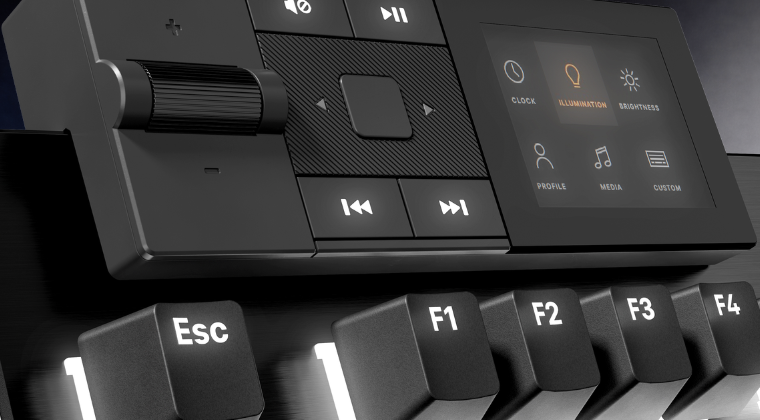
Reviewers consistently describe the Media Dock as more useful than they expected. You get physical media controls and a small screen with navigation for time, date, brightness, and basic profile switching. It’s the kind of feature you stop noticing until you go back to a keyboard that doesn’t have it.
One practical thing to know: the Media Dock clock display is tied to IO Center being active. If IO Center isn’t running, the clock won’t update. Worth bearing in mind if you plan to keep the software closed most of the time.
Per-key RGB and the edge lightbar
Dark Mount offers per-key ARGB plus an ARGB lightbar running around the edges of the board, with a diffuser inside each switch for strong legend glow. The underglow effect is treated as a standout visual feature in at least one major review, not just a background detail.
IO Center: getting the most out of the software
Dark Mount is at its best when your hardware setup and your software setup are aligned. IO Center is where all the deep customisation lives per-key lighting, remaps, macros, profiles, Display Key configuration, and Media Dock setup. There’s also a web-based version if you prefer not to install the desktop app.
be quiet!’s tutorials page is unusually thorough, covering illumination modes, custom per-key layers, Dynamic Lighting interactions, key remapping, FN layer setup, macros, Media Dock setup, and Game Mode.
The most important things to understand before you start
Dynamic Lighting can override IO Center. Dark Mount supports both be quiet! lighting effects and Windows 11 Dynamic Lighting, but Dynamic Lighting can take over and overwrite whatever IO Center has set. This single interaction explains the majority of “my lighting keeps resetting” reports you’ll see in forums. IO Center’s own tutorials explicitly flag this and link to the relevant Windows setting.
Some effects require IO Center to be running. Custom per-key illumination effects may need IO Center active in the background to stay applied. If you close the app, certain lighting profiles won’t persist. For lighting that survives without the app running, stick to onboard or on-the-fly modes via the FN key.
IO Center Web has limitations. Multiple reviews note that the web-based version is more limited than the desktop app, particularly around macros and deeper per-key control. It’s useful for a lighter footprint, but the desktop app is what you need for the full feature set.
Some FN functions cannot be reassigned. be quiet! notes that Reset and Game Mode on the FN layer are fixed and cannot be remapped.
The honest take on IO Center: Once it’s stable on your system and you’ve set up your profiles, it’s genuinely capable software. The learning curve is real, but the payoff is full control over everything the keyboard can do. The troubleshooting section below covers the most common pain points and how to deal with them.
Troubleshooting and fixes for common Dark Mount issues
Most Dark Mount complaints fall into a small number of repeatable patterns, and many have clear practical steps you can take. The fixes below draw on IO Center tutorials, official documentation, and real owner reports from community discussions.
Lighting doesn’t match IO Center or keeps changing
This is almost always Windows 11 Dynamic Lighting overriding IO Center. The fix is to adjust Windows Dynamic Lighting settings so that compatible apps control lighting behaviour correctly. IO Center’s own tutorials cover this and link directly to the relevant Windows settings path. At least one community report confirms this resolved the issue.
Custom lighting disappears when you close IO Center
This is working as designed for certain effect types. If you want lighting that persists without the app running, use onboard or on-the-fly modes via the FN key and keep richer per-key effects for when IO Center is active. Profile persistence can also vary by firmware version, so keeping firmware up to date is worth doing regardless.
IO Center feels slow or heavy
There are community reports of slow start and exit behaviour, and at least one report of RAM leakage over long uptimes on a specific system. The most practical approach is to treat IO Center as a configuration tool rather than a background service:
- Set up your profiles and macros.
- Export or back up profiles when you have a setup you’re happy with.
- Close IO Center afterwards if you don’t need live reactive effects. Use IO Center Web for lighter-touch tasks, noting its feature limitations.
Firmware update issues
Community owners have flagged that firmware updates can behave unpredictably. One owner reported a crash that left the board in flash mode and advised keeping a second keyboard connected during updates as a precaution. Another warned to have all modules attached before updating to avoid version mismatches between the main board, numpad, and Media Dock.
Before any firmware update: Attach all modules (main board, numpad, Media Dock). Use a direct USB port on your PC rather than a hub. Keep IO Center updated and check the IO Center device settings area, where firmware update handling is managed.
Double-typing, key bounce, or missed presses
This is the complaint that matters most, because it directly affects trust in the keyboard. The good news is that Dark Mount supports hot-swappable 5-pin MX-style switches, so diagnosing and fixing the problem is far more straightforward than on a soldered board.
A be quiet! associated account in one community thread described a firmware update that addresses accidental double presses by adjusting debounce timing, with remaining cases resolved by replacing the affected switches.
Practical steps to diagnose the problem:
- Swap the suspect switch to a rarely used key position and see if the fault follows it.
- If the fault follows the switch, replace it. Contact your retailer or be quiet! support if you need replacement switches.
- If the fault stays on the key position rather than the switch, prioritise firmware and IO Center updates, since debounce timing is handled at firmware level.
Media Dock quirks
A small number of owners report Media Dock issues including clock behaviour tied to IO Center being active, pixel degradation over time, and erratic volume wheel behaviour. The Media Dock screen is also noted in at least one review as being easy to scratch.
A sensible approach:
- Start with software and firmware checks, plus a full power cycle (remove and reattach the dock).
- Protect the Media Dock screen with a microfibre cloth and careful cleaning. Treat it like a small display.
- For volume wheel issues that persist after software checks, treat it as a support or warranty case. Internal cleaning has been reported to help in one case, but this risks voiding your warranty.
Numpad connector feels stiff
This comes up in reviews and is actually a positive signal when understood correctly. Stiffness in modular connectors is often the reason a module feels secure rather than wobbly. One reviewer noted the retractable connector felt stiff initially but that the numpad proved sturdier than expected as a result. PCGamesN also lists it as a minor con, which aligns with the “secure but not effortless” feel common in quality modular hardware.
Follow the included manual for module installation rather than forcing alignment. The instructions are there for a reason.
What owners and reviewers consistently say
Across professional reviews and real owner posts, the positive signal is remarkably consistent for a keyboard at this price point and feature level.
- The typing experience is described as satisfying and comfortable, especially for people who need to avoid disturbing others nearby.
- Build quality is a recurring highlight, from the overall construction down to details like finish, stability, and materials.
- The modular design is genuinely useful, not just a talking point. Owners regularly describe switching between work and gaming layouts as a real part of their daily routine.
- The Display Keys and Media Dock are the reason many buyers choose Dark Mount over more conventional high-end boards. For those who value personalisation and workflow control, these features are the headline.
- Dark Mount earned a 9/10 score from ThinkComputers and an Editor’s Choice recognition from Madshrimps.
- Even reviews that raise price concerns generally frame it as understandable given the feature set and build standard.
From real owners in community discussions: “Hardware is amazing,” “best keyboard I’ve ever had,” “super silent,” “ergonomics are good.” Newer owners in the same threads report having no software issues at all. The experience varies, but the hardware quality is not really in dispute.
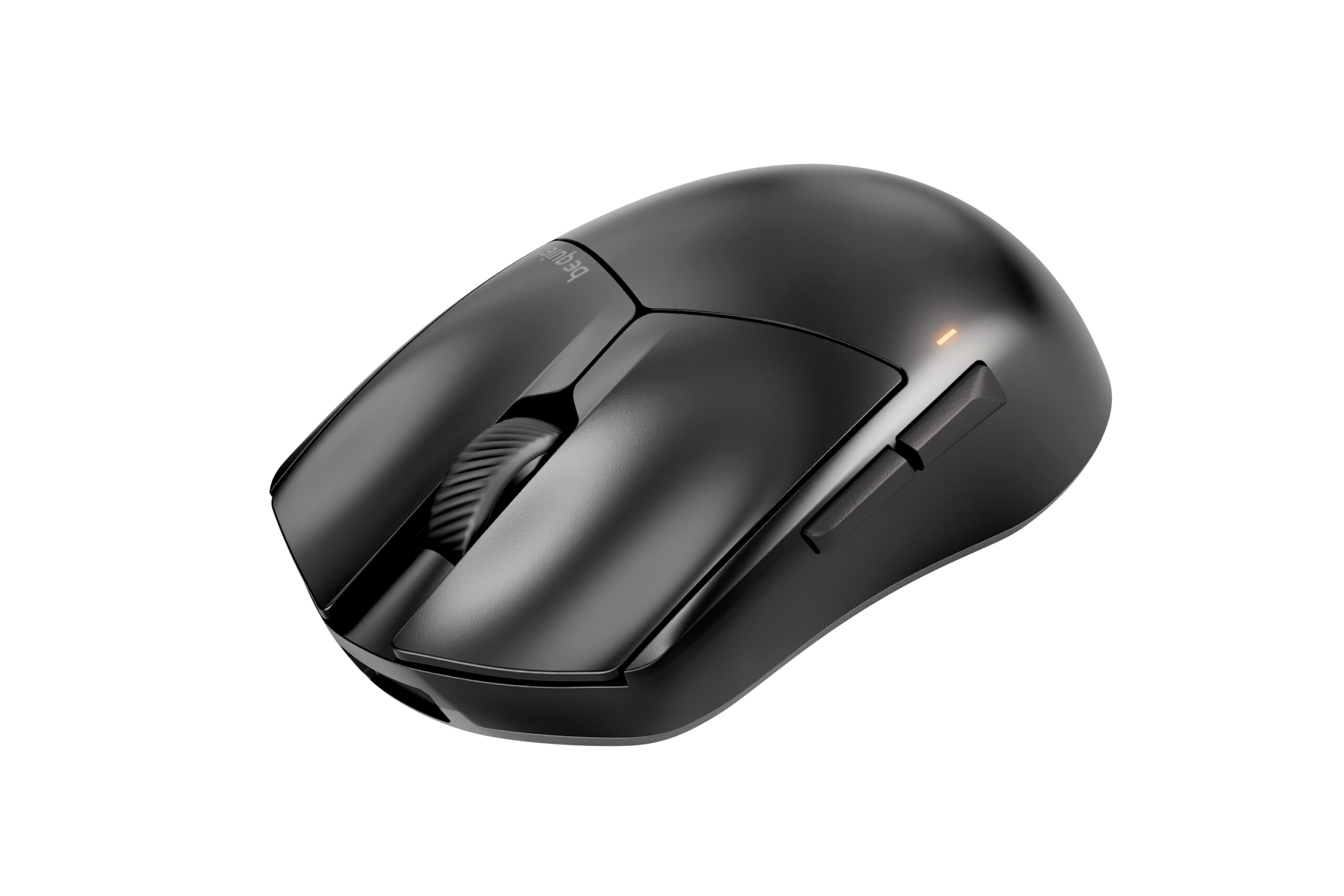
If you’re also looking at be quiet!’s Dark Perk gaming mouse, it’s worth reading up on that too, building out a full be quiet! desk setup is increasingly straightforward with their current peripheral range.
Summary: who should buy the Dark Mount
Dark Mount is a well-built, genuinely quiet mechanical keyboard with modular flexibility that holds up in real use. It’s not the right keyboard for everyone, but it’s the right one for a specific kind of buyer.
Dark Mount is a strong choice if you
- Want a mechanical keyboard that won’t bother people around you, whether that’s in a shared office, a bedroom, or a streaming setup.
- Use your desk for both serious work and gaming and want a layout you can adjust without buying two keyboards.
- Care about having physical media controls and customisable shortcut keys that are genuinely integrated into the keyboard rather than bolted on.
- Value build quality and want something that feels premium in daily use, not just on first impression.
Worth knowing before you buy
- IO Center has a learning curve and some known quirks, particularly around Dynamic Lighting interaction on Windows 11. It’s worth spending time with it upfront rather than assuming everything works perfectly out of the box.
- Firmware updates should be done carefully, with all modules attached and a direct USB connection.
- The Display Keys feel different to the main keycaps and can be slightly louder. That’s not a flaw exactly, but it’s worth knowing if you expected a fully uniform typing experience.
- The Media Dock screen scratches relatively easily. Treat it with the same care you’d give a small device display.
Bottom line: Dark Mount delivers on its core promise. The silence is real, the build quality is real, and the modular design is genuinely practical. The software experience needs a bit of setup, but once it’s dialled in, you get full use of what is a very capable keyboard. For the right buyer, it’s hard to beat at its price point.