Key takeaways
- This HP Pavilion 14-CM was struggling on just 4GB of RAM; we upgraded it to 16GB and transformed its speed.
- The most effective upgrades for these laptops are more RAM and an SSD, both affordable and high-impact.
- Overheating, battery wear, screen damage and software issues are the other common things we fix on them.
- Upgrading an older HP Pavilion is far cheaper than replacing it and gives it years more life.
- Before buying parts, find your exact model number and check what memory and storage your machine actually supports.
- If the laptop still runs Windows 10, the October 2025 end of support is a real reason to act, but rarely a reason to bin a healthy machine.
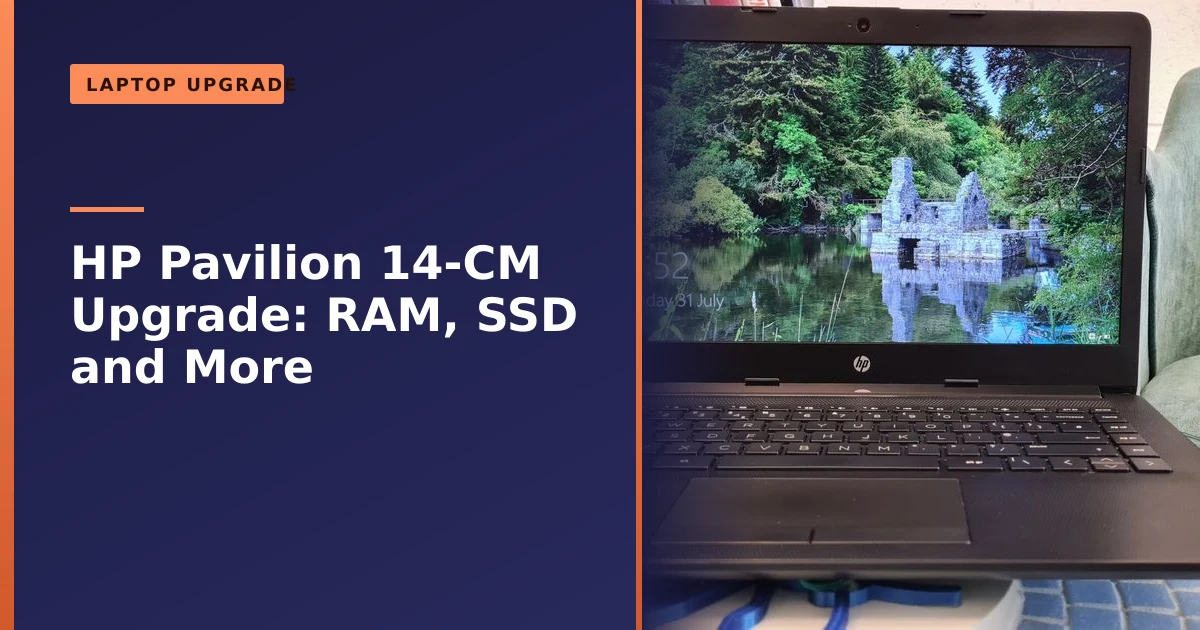
Is your HP Pavilion 14-CM feeling slow? It almost certainly can be revived. We recently upgraded one in Manchester that was crawling on just 4GB of RAM, taking it to 16GB and transforming how it ran. Here is what we did, plus the other upgrades and repairs that keep these popular laptops going strong, and why upgrading beats replacing.
The upgrade: from 4GB to 16GB of RAM
The single biggest issue with the HP Pavilion 14-CM0980na we worked on was memory. It had just 4GB of RAM, which may have been enough years ago but is well short of what today's software, including memory-hungry browsers like Chrome, demands. We carried out a RAM upgrade to a generous 16GB, and the difference was dramatic: far smoother multitasking, the ability to switch between many open apps and tabs without slowdown, and a much more responsive machine overall. For most older laptops that feel sluggish, more memory is the most effective fix, as our guide on whether you need more RAM explains.
It helps to understand why 4GB hits a wall so quickly. RAM is your laptop's short-term working memory, the desk space it uses to keep open programmes, browser tabs and the operating system itself instantly to hand. When that space runs out, Windows does not simply stop. Instead it starts "paging", shuffling data back and forth between RAM and the much slower storage drive to free up room. On a machine with only 4GB, that shuffling happens constantly, and it is the main reason a Pavilion that once felt fine now stutters when you open a second tab or a PDF. Add a video call, a spreadsheet and your antivirus running in the background, and 4GB is overwhelmed before you have really started your day.
Jumping to 16GB removes that ceiling for the vast majority of everyday users. There is finally enough room for Windows, a browser with twenty or more tabs, an office programme, your email and the usual background tasks all at once, with headroom to spare. The independent consensus in 2026 is consistent here: 8GB is now the bare minimum for a usable everyday machine, while 16GB is the sensible sweet spot for office work, study and general home use, the point at which most people stop having to think about memory at all. That is exactly the difference our customer noticed: the laptop simply stopped getting in the way.
How much RAM does an HP Pavilion need, and can yours be upgraded?
For comfortable everyday use in 2026, aim for 16GB. If you only ever use the laptop for web browsing, email and the odd document, 8GB will still cope, but it leaves little headroom and you will feel it the moment you start multitasking. If you edit photos or video, run virtual machines or keep dozens of tabs open all day, 32GB can be worth it where the machine supports it, though that is overkill for most Pavilion owners. For the typical 14-CM user, 16GB is the smart spend.
Before you buy anything, the important question is what your specific laptop can take, because not every Pavilion is upgradeable in the same way. There are three things to establish:
- Memory type and speed. The HP Pavilion 14-CM generation generally uses DDR4 SO-DIMM laptop memory (commonly DDR4-2400). DDR4 is not interchangeable with older DDR3 or newer DDR5, as each has different notches, voltages and pin layouts, so the type has to match exactly. If you want the technical background, the DDR4 SDRAM overview on Wikipedia explains how the standard works.
- Number of slots. Some Pavilion models have two accessible SO-DIMM slots, which makes upgrading straightforward. Others have a portion of memory soldered directly to the motherboard plus a single spare slot, and a few have everything soldered, which means no upgrade is possible. This varies by exact model, so it cannot be assumed.
- Maximum supported capacity. Many of these laptops top out at 16GB, while some variants accept more. Fitting more than the board officially supports can cause it to ignore the extra memory or fail to boot.
The reliable way to check all three at once is to run your model through a manufacturer compatibility tool. The free Crucial Advisor and System Scanner will tell you the memory type, how many slots you have and the maximum capacity for your exact machine, and the same applies to storage. If you would rather not work it out yourself, that is exactly the sort of thing we check for you before quoting, so you never pay for memory your laptop cannot use. Our broader computer upgrade guide covers the same checks for desktops and other brands.
The other upgrade worth making: an SSD
Alongside RAM, the other transformative upgrade for one of these laptops is fitting a solid-state drive. If yours still has a traditional mechanical hard drive, swapping it for an SSD is the single biggest speed improvement you can make, slashing boot times and making apps open almost instantly, with the bonus of being more durable too. Our guide on upgrading to an SSD covers just how much difference it makes. Together, a RAM and SSD upgrade can make an older Pavilion feel brand new for a fraction of the cost of a replacement.
The reason the jump is so dramatic is mechanical. A traditional hard drive stores your data on spinning metal platters and reads it with a moving arm, so every file access waits on physical movement. An SSD has no moving parts and reads data electronically, which is why a laptop that took a minute or more to reach the desktop from an old hard drive will often be ready in well under fifteen seconds on an SSD. Programmes launch almost as fast as you can click them, and the constant disk grinding that plagued older machines disappears. Because there is nothing inside to jolt, an SSD also survives the knocks of daily laptop life far better, and it draws less power, which can give you a little extra battery time too.
You may see two kinds of SSD mentioned, and it is worth knowing the difference so you are not oversold. A SATA SSD uses the same connection as the old hard drive and is the simplest, most cost-effective swap. An NVMe drive plugs into a faster M.2 slot and moves large files several times quicker. For everyday tasks the honest truth is that both feel night-and-day faster than a hard drive, and the gap between them is far smaller than the gap from an HDD to either. If your Pavilion has an M.2 slot, NVMe is a fine choice; if not, a SATA SSD will still completely change how the machine feels. Whichever route suits your laptop, we will always back up your data first, and our guide on why backups matter explains why that step is never optional.
Finding your exact model number so you buy the right parts
One of the most common mistakes people make is ordering memory or an SSD for "an HP Pavilion 14" in general. That broad name covers many different machines, and parts that fit one will not necessarily fit another. The number that matters is the full product number, something like 14-CM0980na, not just the series name on the lid.
There are a few easy ways to find it:
- The label on the base. Turn the laptop over and look for a sticker listing the product name, product number and serial number together. On some machines this is printed in the battery bay.
- The built-in HP shortcut. With the laptop on and in Windows, press Fn and Esc together to open HP System Information, which shows the product number, serial number and BIOS version in one window.
- HP Support Assistant. If it is installed, it displays your model, product number and serial number on its home screen.
The serial number is unique to your individual laptop and is mainly for warranty checks, while the product number is what you use to look up the correct parts and drivers. If you are not sure which is which, our dedicated guide on finding your laptop model number walks through it for all the major brands. Once you have that number, the compatibility tools above (or we) can match the exact memory and storage your machine needs.
What an upgrade actually involves, and what to expect
People are often surprised at how quick a RAM or SSD upgrade is once the right parts are in hand. The work itself is usually the smallest part of the job. The care goes into doing it cleanly and safely, and into the steps around it. A typical upgrade on a Pavilion like this looks roughly like:
- Confirming compatibility. We check the model number, memory type, slots and maximum capacity before ordering anything, so the parts are right first time.
- Backing up your data. Before any storage change, your files are backed up so nothing is at risk.
- Opening up safely. The base panel is removed, which on these laptops means undoing the screws and gently releasing the clips without cracking the casing.
- Fitting the parts. New memory clicks into the SO-DIMM slots; an SSD is fitted and, where you are moving from a hard drive, your Windows installation and files are migrated or freshly installed.
- Testing. We confirm the full amount of RAM is recognised, the drive is healthy, and the laptop is stable and running cool before it goes back to you.
For most customers the laptop is ready quickly, and the cost is a fraction of a new machine of similar standard. We always quote up front so you know the figure before we start, and if we think an upgrade is not worth it for your particular laptop we will tell you plainly rather than take the work. If you want a sense of typical pricing for repairs and upgrades, our page on what it costs to fix a laptop sets out how we approach it.
Common HP Pavilion repairs
Beyond upgrades, these are the repairs we most often carry out on HP Pavilion laptops:
- Overheating: dust-clogged cooling causes slowdowns and shutdowns. A service that cleans the heatsink and fan and applies fresh thermal paste restores normal temperatures.
- Battery wear: if the battery no longer holds charge, a replacement restores all-day use.
- Keyboard and touchpad: spills or wear can be repaired, as our guide on keyboard repair covers.
- Cracked screens: a very common and routine replacement.
- Software issues: operating system glitches and malware that slow a laptop down, which we can clean up.
Each of those deserves a closer look, because knowing the warning signs helps you catch a problem early, before it turns into a bigger one.
Overheating: why Pavilions run hot, and how cleaning fixes it
Overheating is comfortably one of the most common complaints we hear about HP Pavilion laptops, and it is also one of the most fixable. The pattern is familiar: the fan roars constantly, the underside gets uncomfortably hot, the machine slows to a crawl under any load, and in the worst cases it shuts itself down without warning. That sudden shutdown is actually a safety feature, the laptop protecting its processor from heat damage.
The usual culprit is simply dust. Over months and years, dust is pulled in through the vents and builds up across the fan blades and inside the fins of the heatsink, the radiator-like part that sheds heat. Once those fins are clogged, air can no longer carry the heat away, so temperatures climb even though the fan is working flat out. Using the laptop on a bed, sofa or cushion makes it worse, because soft surfaces block the intake vents underneath.
The second culprit, especially on a Pavilion that is a few years old, is tired thermal paste. This is the thin layer of compound between the processor and the heatsink that helps heat flow across to be carried away. Over time it dries out, cracks and loses its grip, and once that happens the heatsink can no longer pull heat away quickly enough even when the airflow is fine. The general guidance is that thermal paste is worth refreshing roughly every two to five years depending on how hard the laptop is worked, but the better rule is symptom-based: if a clean alone does not bring temperatures down, fresh paste is usually the answer.
A proper thermal service, then, means more than blowing a bit of air at the vents. We open the laptop, clean the fan and heatsink thoroughly, remove the old dried paste and apply a fresh layer, and check the fan is spinning freely. If overheating continues after all that, it points to a failing fan or another fault worth investigating rather than ignoring. You can do light maintenance yourself between services by keeping the vents clear and using the laptop on a hard, flat surface, but for an internal clean and repaste it is safer to have it done properly than to risk cracking the casing or damaging the fan.
Battery wear: how to tell when it needs replacing
A laptop battery is a consumable part. It wears out with use no matter how careful you are, and on a Pavilion that is several years old a tired battery is completely normal rather than a sign of a fault. The telltale signs are easy to spot: the charge drains far faster than it used to, the laptop shuts down suddenly even when it claims to have charge left, it only works reliably while plugged in, or, in the case to take seriously, the battery physically swells. A swollen battery should be dealt with promptly and the laptop kept off charge in the meantime.
You do not have to guess at the condition. On Windows you can generate a free, detailed battery report: open Command Prompt and run the command powercfg /batteryreport, which saves a web page showing the battery's original design capacity against its current full-charge capacity, plus its cycle count. Manufacturers typically rate laptop batteries for somewhere around 300 to 500 full charge cycles before capacity drops below about 80 per cent of new, and in everyday terms most batteries give two to four years of good service before they are worth replacing. If your full-charge capacity has fallen well below the design figure, that is your answer.
The good news is that on an HP Pavilion a battery replacement is a routine job that restores all-day use, and it is far cheaper than a new laptop. If the laptop charges erratically or not at all, that can be the battery, the charger or the charging circuit, and our guide on a laptop battery not charging helps narrow it down. For getting the most from a healthy battery, our tips on improving battery performance are worth a read.
Cracked screens and other hardware faults
A cracked or damaged screen is one of the most common HP Pavilion repairs of all, and one of the most worthwhile, because the rest of the laptop is usually perfectly healthy. Whether the panel is cracked, showing lines or dark patches, flickering, or simply not lighting up, a screen replacement is a routine job that brings the machine straight back to life. It is almost always far cheaper than replacing the laptop, and our laptop screen repair service covers exactly this.
Two related faults are worth flagging on Pavilions. The first is hinges and casing working loose over years of opening and closing, which if left can start to pull on the screen cable, so it is best caught early. The second is liquid damage from a spill, where acting quickly makes a real difference to what can be saved. In any of these cases, if the data on the machine matters and the laptop will not behave, our data recovery service can often retrieve your files even when the hardware itself is struggling.
Speeding things up without spending a penny
Not every slow Pavilion needs new parts. Sometimes the hardware is fine and the machine has simply got clogged up with software over the years. Before you spend anything, these free steps are worth trying, and they often make a real difference on top of any hardware upgrade:
- Trim your startup programmes. Open Task Manager (press Ctrl, Shift and Esc together), go to the Startup tab, and disable anything you do not need launching the moment you switch on. Too many startup items is one of the most common causes of a slow boot.
- Clear out the clutter. Use the built-in Disk Cleanup tool to clear temporary files, and uninstall programmes you never use from Settings. Our guide on disk cleanup walks through it.
- Check for malware. Malware is one of the biggest hidden causes of a sluggish laptop, quietly using up processor power and memory in the background. Run a full scan with Windows Security or a trusted tool, and if anything stubborn turns up, our virus removal service can clear it properly.
- Keep Windows updated. Updates fix bugs and close security holes, both of which affect how well the machine runs.
If you have tried all of that and the laptop is still slow, the problem is almost certainly hardware, and that brings us back to RAM and an SSD. Our wider guide on why a laptop runs slow ties the software and hardware causes together.
Upgrade or replace? A simple comparison
A slowing laptop does not mean it is time to buy new. Upgrading the specific things holding it back, usually memory and storage, is far cheaper, tailored to your needs, and keeps a good machine out of landfill, as our guide on repair versus replace sets out. An HP Pavilion is very much worth keeping going. The table below is a rough guide to which way to lean.
| Situation | Usually best to | Why |
|---|---|---|
| Slow, but otherwise healthy, with 4GB or 8GB RAM and a hard drive | Upgrade | A RAM and SSD upgrade transforms it for a fraction of a new machine |
| Cracked screen, worn battery, or overheating, but good specs | Repair | The core machine is fine; the fix costs far less than replacing |
| Repair cost approaching or above half the price of an equivalent new laptop | Consider replacing | At that point the maths starts to favour new |
| Faulty motherboard on an older budget model | Often replace | The most expensive part to fix on a machine with little resale value |
| Memory and storage are both soldered and cannot be upgraded | Depends | Limits how far it can be improved; we will advise honestly |
One genuinely important factor in 2026 is the operating system. Microsoft ended support for Windows 10 on 14 October 2025, which means machines still on Windows 10 no longer receive security updates and become steadily more exposed to malware, as set out on Microsoft's own Windows end of support page. If your Pavilion can run Windows 11, upgrading it (often alongside a RAM and SSD boost) keeps it both fast and secure. If it cannot, that is worth weighing in the upgrade-versus-replace decision, and our guide on whether to upgrade to Windows 11 explains the options. The headline, though, stays the same: a healthy Pavilion held back only by 4GB of RAM and an old hard drive is almost always worth upgrading, not replacing.
How Manchester PC can help
If your HP Pavilion feels slow, has a worn battery, cracked screen or overheating problem, we can upgrade or repair it. A RAM and SSD upgrade in particular can transform an older laptop for far less than a new one. We quote up front.
We cover Manchester and the surrounding areas with free local collection and return, fair pricing and honest advice, we will always tell you when a repair is not worth it rather than push one. For an HP laptop repair or upgrade or any computer repair, get a free, no-obligation quote or call us on 0161 820 1992.