Key takeaways
- There is no single winner. Cloud storage and an external drive each do something the other cannot, and the safest answer is to use both.
- Cloud storage wins for off-site safety, access anywhere and automatic syncing. An external drive wins for speed, one-off cost, large capacity and offline control.
- The professional standard is the 3-2-1 rule: three copies of your data, on two types of media, with one kept off-site. Cloud plus an external drive achieves this neatly.
- Keep at least one backup offline or off-site, because ransomware can only encrypt what it can reach. An unplugged external drive is safe from an online attack.
- External drives wear out and fail, so do not treat a single drive as your only copy. If one fails with your only files on it, recovery is sometimes possible but never guaranteed.
- Cloud plans are an ongoing cost that climbs with capacity, while a drive is a one-off buy, so the cheapest long-term answer is usually a small cloud plan for your essentials plus a larger drive for everything else.
Cloud storage or an external hard drive: which is better for keeping your files safe? The honest answer is that you should not have to choose, because the two are not really rivals. Each protects your data in a way the other cannot, and using both together is what gives you genuine peace of mind. This guide explains the strengths and weaknesses of each, when to lean on one over the other, what they actually cost in 2026, and how to combine them into a backup that actually survives a disaster.
We help people across Manchester recover lost files and set up proper backups all the time, usually after something has already gone wrong, so this is the advice we wish everyone had before that happens. The good news is that getting properly protected is cheaper and simpler than most people expect.
The short answer
If you only remember one thing, remember this: do not keep your only copy of anything important in just one place. Whether that one place is a single laptop, a single external drive or a single cloud account, relying on it alone is how people lose irreplaceable photos and documents. The goal is at least two copies in two different places, and cloud storage plus an external drive is the simplest way for most people to achieve exactly that.
Why two places and not one really good one? Because every storage method has its own failure mode. A laptop can be dropped, stolen or hit by a virus; a drive can wear out or be left in a taxi; a cloud account can be locked out, hacked or closed if you stop paying. None is likely on any given day, but over the years the odds add up, and two copies in two places means a single bad day never becomes a permanent loss. With that in mind, here is what each option does well.
Cloud storage: the strengths and the catches
Cloud storage, such as OneDrive, Google Drive, iCloud or Dropbox, keeps your files on servers run by the provider, accessible over the internet. Its big advantages are convenience and safety from local disasters.
What cloud storage does well: your files are available on any device, anywhere you have an internet connection, and they sync automatically so you are always working on the latest version. Edit a document on your laptop and the change appears on your phone moments later. Crucially, the files are kept off-site, so a fire, flood, burst pipe or burglary at home cannot destroy them. Most services also keep version history, letting you roll back to an earlier copy of a file or undo a mass deletion, which is a genuine lifesaver after a mistake or a malware attack. And because the provider runs the servers, you never have to think about a drive wearing out: that is their problem, not yours.
The catches: it is an ongoing cost, a monthly or annual subscription rather than a one-off purchase, and the price climbs as you need more space. You depend on an internet connection, so uploading or restoring a lot of data can be slow, and an initial backup of a full computer over a typical home broadband upload speed can take days. You are also trusting a third party with your files, so it is worth choosing a reputable provider and turning on two-step verification to protect the account. There is a quieter risk too: if you stop paying, or the free space you relied on fills up, your syncing can quietly stop and files may eventually be removed, so a lapsed subscription can leave you unprotected without you noticing. Independent comparisons like this cloud-versus-drive breakdown go into the trade-offs in detail.
What cloud storage actually costs in 2026
Cost is where cloud storage surprises people, because the headline prices look small but they never stop. Here are the current UK consumer plans from the main providers, so you can see what you would really be paying. These are the public list prices at the time of writing, and they do drift, so treat them as a guide rather than a guarantee.
| Service | Free tier | Smaller paid plan | Larger plan |
|---|---|---|---|
| Apple iCloud+ | 5GB | 50GB at £0.99/mo | 2TB at £8.99/mo |
| Microsoft OneDrive | 5GB | 100GB at £1.99/mo | 1TB plus Office apps at £84.99/yr |
| Google One | 15GB | 100GB at £1.59/mo | 2TB at £7.99/mo |
| Dropbox | 2GB | Plus, 2TB | Professional, 3TB |
A few things stand out. Apple's iCloud+ plans run from £0.99 a month for 50GB up to £54.99 a month for 12TB, billed monthly with no annual discount. Microsoft's OneDrive plans are good value because the £84.99-a-year Microsoft 365 Personal plan bundles 1TB with the full Word, Excel, Outlook and PowerPoint apps, so if you wanted Office anyway the storage is almost free. Google One starts at £1.59 a month for 100GB and gives 2TB for £7.99, with the most generous free tier at 15GB. Dropbox is the odd one out, with a stingy 2GB free allowance, though its syncing is excellent.
Add it up over time and the picture changes. A 2TB cloud plan at roughly £8 a month is around £96 a year, or close to £480 over five years, whereas a 2TB external drive is a one-off purchase that often costs less than a single year of that subscription. That does not make cloud storage bad value, because you are paying for the off-site safety and the automatic syncing, but it does explain why the cheapest sensible setup is usually a small cloud plan for the files that truly matter plus a larger drive for everything else. A different product worth knowing about is dedicated online backup, such as Backblaze, which backs up everything on one computer, including attached drives, for a flat fee of around 99 US dollars a year with no storage cap, and is a tidy way to get a hands-off off-site copy of a whole machine.
External drives: the strengths and the catches
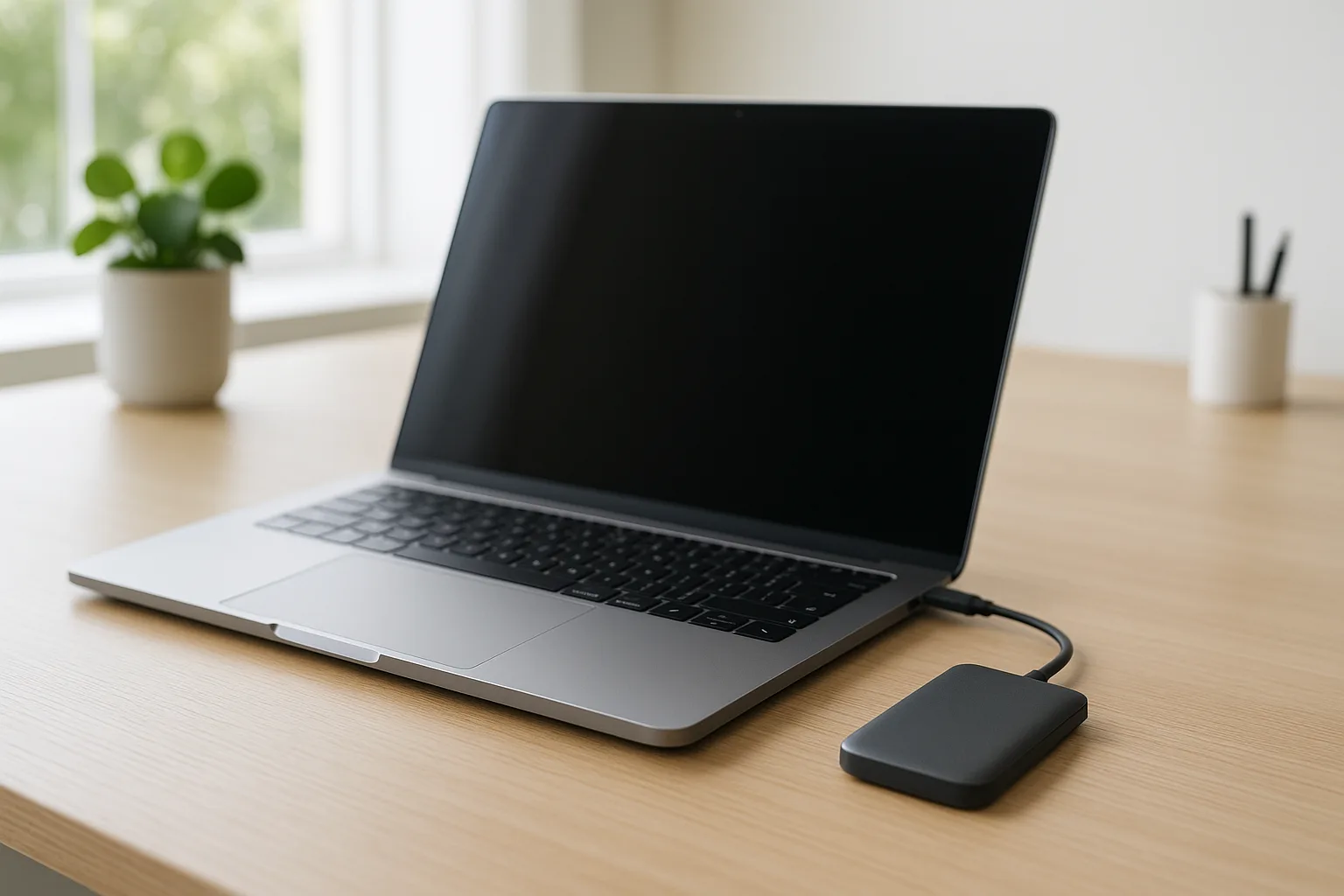
An external hard drive or SSD is a physical device you plug into your computer, usually by USB. Its strengths are speed, control and value.
What external drives do well: they are a one-off cost with no subscription, and large capacities are cheap, so terabytes of space cost far less than the equivalent cloud plan over a few years. Transfers are fast because they happen over USB rather than your internet connection, which matters enormously for big files like video, photo libraries and full system images. Backing up 500GB to a drive might take an hour or two over USB, where the same job to the cloud could run for days. And because the drive is in your hands, you have complete control: unplug it and it is completely safe from any online threat, including ransomware and account breaches. There is no account to be locked out of and no subscription to lapse.
The catches: a drive only protects against data loss if it survives, and external drives do wear out and fail over time, as Backblaze's reliability research shows. It lives in the same building as your computer, so a fire, flood or burglary could take both at once. And if it is lost or stolen, your files are exposed to whoever finds it unless the drive is encrypted. A drive also gives you no version history by default, so if a file becomes corrupted and you copy the corrupted version over your backup, the good copy is gone. In other words, a single external drive is a backup, but not a complete one.
How much external drives cost, and how long they really last
Drives are cheap, but cheap is not the same as permanent. Backblaze publishes the largest public dataset on drive reliability, and its 2025 Drive Stats report, covering 344,196 hard drives, put the annualised failure rate at 1.36 per cent, down from 1.55 per cent the year before. Those are server drives running constantly, not a drive on your shelf, but the lesson holds: drives are reliable, not infallible, and over enough years a failure is not something to gamble your only copy on.
The two types of external drive behave differently. A traditional mechanical hard drive (HDD) stores data on spinning platters and is the cheapest way to get large capacity, but the moving parts make it vulnerable to knocks and drops, and Backblaze's research found that hard drive and SSD failure curves stay similar for the first three to four years, after which the mechanical drives start failing at a higher rate. A solid state drive (SSD) has no moving parts, so it is far more rugged and much faster, and tends to hold an annualised failure rate of around one per cent or less through its first four years.
One surprising point catches people out: an SSD is not the best choice for a drive you back up once and then leave in a drawer for years. SSDs rely on a faint electrical charge to hold data, and storage testing has repeatedly shown that a consumer SSD left completely unpowered can begin to lose data after roughly one to three years. For a backup you plug in regularly that is a non-issue, because connecting it refreshes everything, but for a set-and-forget archive a mechanical hard drive powered up occasionally, or a cloud copy, is safer. The rule is simple: whichever drive you use, plug it in every few weeks, do not write to it once and forget it.
Cloud vs external drive at a glance
| Factor | Cloud storage | External drive |
|---|---|---|
| Cost | Ongoing subscription | One-off purchase |
| Capacity for the money | Pricey at large sizes | Cheap, terabytes for little |
| Access | Anywhere with internet | Only when plugged in |
| Speed | Limited by your connection | Fast over USB |
| Off-site protection | Yes, built in | No, unless stored elsewhere |
| Ransomware resistance | Good (version history) | Excellent when unplugged |
| Version history | Usually included | None unless you set it up |
| You control the data | Trusted to the provider | Entirely yours |
| Main risk | Subscription lapses, account hacked | Drive fails, lost or stolen |
The honest answer: use both (the 3-2-1 rule)
Look down that table and you will see the two columns are almost mirror images: where one is weak, the other is strong. That is exactly why the professional standard is to use both, combined into what is known as the 3-2-1 rule.
The rule is simple: keep at least 3 copies of your important data, on 2 different types of media, with 1 copy kept off-site. In practice for a home user that means your working files on your laptop, a backup on an external drive, and a third copy in the cloud. That way no single failure can wipe you out: if the laptop dies you have the drive, if the drive fails you have the cloud, and if your home is burgled or flooded the cloud copy is safe off-site.
The UK's National Cyber Security Centre strongly endorses this approach, and adds an important refinement of its own. It points out that the 3-2-1 rule does not by itself guarantee any copy is truly disconnected, and it has seen ransomware encrypt not just the original files but the connected USB drives, network drives and even cloud storage holding the backups. Its advice is therefore to keep at least one backup offline, disconnected from your live system, because ransomware can only encrypt what it can reach. An external drive that you plug in, back up to, and then unplug ticks that box perfectly, where a drive left permanently connected does not. Our guide on why backing up your data is critical walks through setting this up step by step, and our computer backup service can put the whole thing in place for you if you would rather not.
How to set up a simple 3-2-1 backup this weekend
This sounds technical, but for a typical home user it is genuinely an afternoon's work. Here is a straightforward way to get from no real backup to a proper 3-2-1 setup.
- Step 1: take stock of what matters. Photos, documents, financial records, anything irreplaceable. Programmes can be reinstalled, so concentrate on the files you could never get back.
- Step 2: turn on cloud sync for your essentials. On Windows, OneDrive is built in and can sync your Desktop, Documents and Pictures folders automatically. On a Mac, iCloud Drive does the same. The free tier may be enough for documents alone; a small paid plan covers most households.
- Step 3: buy an external drive at least as large as the data you want to protect. An external SSD is ideal for speed and durability; a mechanical drive is fine if you want maximum capacity for the money. Aim for roughly twice the size of the data you are backing up so you have room to grow.
- Step 4: set up an automatic local backup to the drive. Windows has File History, and macOS has Time Machine, both of which back up automatically and keep version history once the drive is connected.
- Step 5: turn on two-step verification on your cloud account, so a stolen password alone cannot expose your files.
- Step 6: unplug the drive between backups, and ideally keep it somewhere other than right next to the computer. That single habit gives you the offline, off-site protection the NCSC recommends.
Do that once and your data is in three places on two types of media with one copy off-site, which is exactly the standard professionals use. From then on it largely looks after itself.
Which should you choose for your situation?
If you genuinely have to start with just one, here is how to decide based on what you do:
- Lots of photos and documents you would be heartbroken to lose: start with cloud storage for the off-site safety and version history, then add an external drive later.
- Huge files like video, or limited internet: start with an external drive (ideally an SSD) for speed and cheap capacity, then add a cloud copy of the most important files.
- A small business handling client data: use both from the outset, and make sure the cloud service and any drives are encrypted. Our notes on working securely from home and our business computer support cover the wider picture.
- You just want it to look after itself: cloud storage with automatic backup turned on is the most hands-off option, since it runs quietly in the background.
- You work across several devices: cloud syncing is hard to beat, and our look at apps that sync across multiple devices shows how to keep everything in step.
Whatever you choose first, plan to add the second type before long, because the real protection comes from having both.
Photos, documents and full backups: matching the tool to the job
Not all data has the same needs. Photos and videos are the files people most regret losing, and they are bulky, with a modern phone library easily running to hundreds of gigabytes. A good pattern is automatic cloud backup for recent photos plus a yearly copy of the whole library onto a drive, rather than paying for an ever-growing cloud plan forever. Documents (letters, spreadsheets, scans, tax records) are small, change often, and benefit hugely from version history, which is cloud storage's sweet spot, with the free or entry-level tiers often plenty. Full system backups are a complete image of your computer, so that after a disaster you can restore everything, settings and all; these are large and best handled by an external drive using Windows File History or macOS Time Machine. If your machine is feeling sluggish, our guide to disk cleanup is worth a look before you image it, so you are not backing up junk.
What about a NAS? The third option
Once people get serious about backups, a third option often comes up: a NAS, or network attached storage. A NAS is a small box containing one or more drives that connects to your home or office network, so every device in the house can back up to it and reach the files over wi-fi rather than by plugging in a cable. It sits somewhere between an external drive and the cloud.
Its strengths are real. A NAS with two or more drives can use RAID, which keeps a duplicate so that if one drive fails the data survives on the other and you simply swap in a replacement. It is fast on the local network, has no recurring fees once bought, gives you complete control of your data, and serves the whole household at once.
The catches matter just as much. A NAS is a meaningful upfront cost, often several hundred pounds once you include drives, and it needs a little setting up and occasional maintenance. Most importantly, it does not on its own satisfy the 3-2-1 rule, because it lives in your home: a fire, flood or burglary takes it along with everything else, and RAID protects against a drive dying, not against accidental deletion, corruption or ransomware. A NAS is a brilliant local hub, but it still needs an off-site copy, usually in the cloud, to be complete. For most households a plain external drive plus cloud is simpler and cheaper; a NAS earns its place when you have a lot of data, several people or devices, or media you want to stream.
Security and privacy: who can actually see your files
Wherever your data lives, it is worth thinking about who else could reach it, because the answer differs sharply between the two options. With an external drive, the security question is physical. Anyone who picks up an unencrypted drive can read everything on it, so if it holds anything sensitive you should turn on encryption. Windows offers BitLocker on supported editions, and macOS can encrypt an external drive through Disk Utility, both of which lock the contents to a password so a lost or stolen drive is just an expensive paperweight to anyone else.
With the cloud, the security question is about your account and the provider. Reputable providers encrypt your data in transit and on their servers, and store it in large, well-guarded data centres with their own redundancy, which is genuinely safer than most homes. The weak point is usually your password, which is why two-step verification matters so much: it means a leaked or guessed password alone is not enough to get in. It is also worth knowing that, with most mainstream services, the provider holds the keys and can technically access your files, so for anything highly sensitive a service offering end-to-end encryption, or an encrypted drive you control, gives you more privacy. If a strange email ever pushes you to log in urgently, slow down: account takeovers often start with phishing, and our notes on virus and malware removal cover what to do if you suspect something has slipped through.
A word on speed: choose an SSD for your external drive
If you go for an external drive, it is worth choosing an external SSD rather than an old-style mechanical hard drive where you can. An external SSD is far faster for backing up and restoring large amounts of data, more rugged because it has no moving parts to damage if it is knocked, and increasingly affordable. The difference is not subtle: restoring a large backup from an SSD can be several times quicker than from a mechanical drive, which matters a great deal on the day you actually need your files back. The same reasons an SSD beats a hard drive inside your laptop, which we cover in our guide to upgrading to an SSD, apply to external storage too. For a backup you plug in and carry around, the durability alone is worth it. The one exception, as covered above, is a long-term archive you intend to leave unpowered for years, where a mechanical drive holds its data more dependably while sitting idle.
Common backup mistakes we see in Manchester
Because we deal with the aftermath, we see the same avoidable mistakes over and over. Steering clear of these handful of traps puts you ahead of most people.
- Treating one external drive as a backup. If the only copy of a file is on the drive, that is not a backup, it is just storage, and storage fails. A backup means the file exists somewhere else as well.
- Leaving the backup drive permanently plugged in. A drive that is always connected can be encrypted by ransomware or wiped by the same fault that hits your computer. Unplug it between backups.
- Assuming sync is the same as backup. If you delete or corrupt a file and it syncs, the change can propagate everywhere. Version history helps, but it is limited in how far back it goes, so a separate backup still matters.
- Never testing a restore. A backup you have never tried to recover from is a hope, not a plan. Once in a while, open the backup and check you can actually open the files.
- Letting a cloud plan lapse or fill up. When the free space runs out or the card on file expires, syncing can stop silently. Check now and then that it is still running.
- Forgetting the off-site copy. A laptop and a drive in the same bag, or the same room, share the same fate in a fire or theft. The cloud copy, or a drive kept elsewhere, is what saves you then.
When a drive fails with your only copy on it
This is the situation we see most often, and the reason this whole article matters: someone kept everything on a single external drive, and one day it stopped working. When a drive fails, recovery is sometimes possible, but it is never guaranteed and can be expensive, which is precisely why a second copy is so important.
If you do find yourself with a failed drive and no other copy, do not keep powering it on and off, as that can make things worse, especially with a mechanical drive where a physical fault gets worse with every spin-up. Stop using it, leave it switched off, and get advice. Our data recovery service can often retrieve files from a failed hard drive or SSD, but the honest truth is that prevention, a proper 3-2-1 backup, is far cheaper and more reliable than any recovery. Set up the backup before you need it, not after. If you are also wondering what happens to your files when a machine comes in for work, our guide on whether to wipe your computer before a repair is worth a read.
How Manchester PC can help
If all this sounds sensible but you are not sure where to start, we can set the whole thing up for you: the right external drive, a sensible cloud arrangement, and automatic backups so it all happens without you having to remember. We will make sure you have that crucial off-site copy and that your backups are protected against ransomware, encrypt your drives if your files are sensitive, and we can recover data from a failing drive if you have left it late.
We cover Manchester and the surrounding areas with free local collection and return, and we will give you honest advice tailored to how you actually use your computer, with no jargon and no upselling. Whether it is a backup setup, a computer repair or data recovery, get a free, no-obligation quote or call us on 0161 820 1992.