Key takeaways
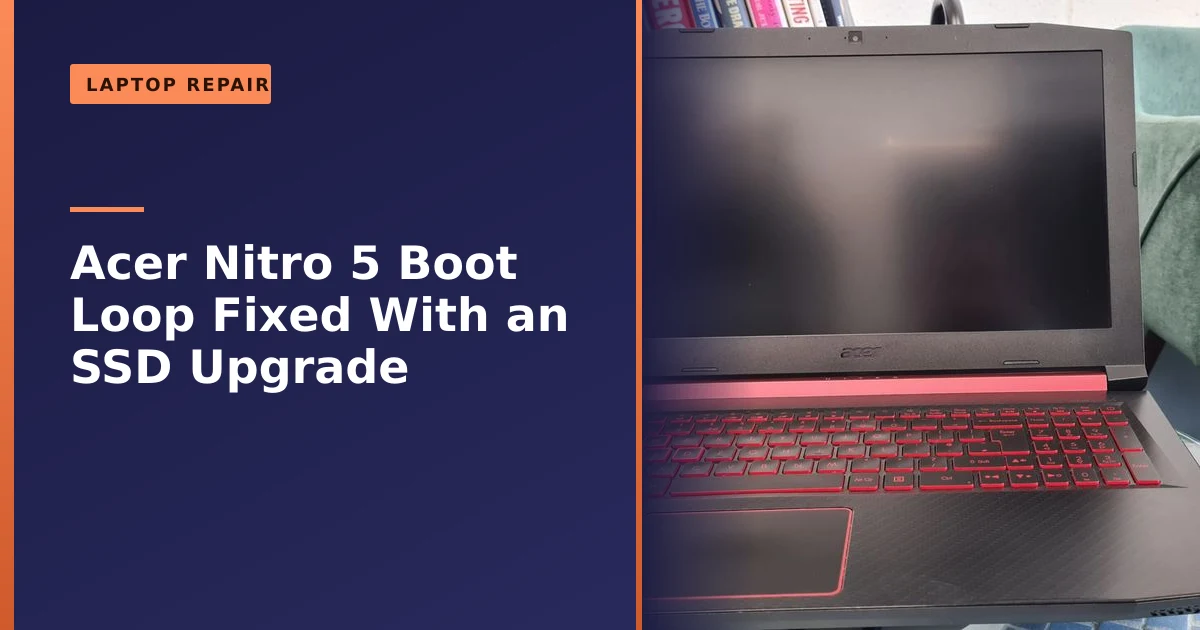
- This Acer Nitro 5 gaming laptop from Wythenshawe was stuck in a boot loop because its 128GB SSD was completely full.
- We upgraded the storage from 128GB to 500GB, keeping all the data intact, which cured the boot loop and sped it up.
- A drive with no free space can cause boot loops and crashes; keeping some space free is essential.
- A storage upgrade is an affordable fix that also boosts performance and capacity.
- As a rule of thumb, keep at least 10 to 15 percent of your drive free so Windows always has room for updates, temporary files and general housekeeping.
- A 128GB drive is simply too small for a gaming laptop in 2026, when a single modern game can swallow 100GB or more, so 500GB to 1TB is a far more sensible size.
Laptop stuck in a boot loop, restarting over and over? On this Acer Nitro 5 gaming laptop from Wythenshawe, Manchester, the surprising cause was a completely full SSD, with no room left for the updates the system needed. We upgraded the storage from 128GB to 500GB, kept all the data, and the boot loop was gone. Here is what was happening and why a full drive causes such trouble.
What came in: a gaming laptop stuck restarting
The Acer Nitro 5 AN515 had fallen into the dreaded boot loop, repeatedly trying to start and failing, never reaching the desktop. It is an alarming symptom that looks like a serious fault, but the cause here was more mundane: the laptop's modest 128GB SSD was completely full, leaving no space for crucial Windows updates to install, which left the system unable to complete its boot.
The owner had done nothing wrong. They had simply used the laptop the way gaming laptops are meant to be used, installing a handful of games, saving screenshots and clips, and letting Windows do its thing in the background. The trouble is that 128GB is a very small drive by modern standards, and once you take out the space Windows itself needs, there is precious little left for everything else. Over months of normal use the free space quietly dwindled to nothing, and then one day an update tried to install, ran out of room halfway through, and the machine could no longer start cleanly.
What made this a textbook case was how cleanly the symptoms pointed to storage rather than a deeper hardware fault. There was no clicking, no burning smell, no blue screen with a memory error code, just a laptop that kept circling back to the Acer logo and the spinning dots, never quite making it to the login screen. When a machine behaves like that and the drive turns out to be 100 percent full, the diagnosis writes itself.
How we fixed it
Recognising the cause, the fix was a storage upgrade, with care taken to protect the client's data. We replaced the cramped 128GB SSD with a far roomier 500GB drive, giving plenty of space for updates, software and files. Throughout, we made sure all of the client's valuable data was preserved and transferred safely, data handling is something we take great care over. With the larger SSD in place, the boot loop was resolved, and the bigger, faster drive also improved boot times and made the laptop more responsive overall. We finished with a full check-up before returning it to its owner.
In practice the job ran through a few clear stages. First we confirmed the diagnosis by reading the drive outside the laptop, which let us see straight away that it was full to the brim and, just as importantly, that the drive itself was healthy rather than failing. Next we copied the data across to the new 500GB SSD so that the owner's files, programmes and settings all carried over exactly as they were. Once the larger drive was fitted, we let Windows finish the updates that had been stuck, ran the outstanding maintenance, and tested the machine through several full restarts to make sure the loop was truly gone. The last step is one we never skip: a proper check-up of temperatures, battery health and general performance, so the laptop goes home in genuinely good shape rather than just limping along.
Boot loops explained: what is actually happening
A boot loop is exactly what it sounds like. The laptop powers on, begins to load Windows, hits a problem it cannot get past, and restarts to try again. Then it repeats, sometimes flashing a brief error, sometimes just looping silently at the manufacturer logo. To the owner it feels like the machine is fighting to come back to life, and it is genuinely stressful, especially when there are photos, coursework or work files you have not backed up.
Underneath, a computer starts up in a careful sequence. The firmware (the BIOS or UEFI) wakes the hardware and hands over to the bootloader, which loads the core of Windows, which in turn loads drivers and starts services until you reach the login screen. If any link in that chain cannot complete, the system often gives up and reboots rather than sitting frozen. When the same blockage is still there on the next attempt, you get the loop. The cause can sit anywhere along that chain, which is why a careful diagnosis matters rather than guesswork.
Why a full drive causes boot loops and crashes
It surprises people, but a hard drive or SSD with no free space can cause serious problems, including boot loops, freezes and crashes. The operating system needs a chunk of free space to work in, for temporary files, updates and general housekeeping, and when the drive is completely full, essential processes like Windows updates cannot complete, which can leave the system unable to start properly.
Here is the part most people never realise: Windows does not just store files on your drive, it actively uses spare space as a sort of scratchpad while it runs. It writes temporary files, swaps data in and out of a paging file when memory gets tight, builds restore points, and unpacks updates into a working area before installing them. If there is no room for any of that, things start to fail in ways that look nothing like a storage problem. You might get freezes, sudden crashes, a blue screen, or an update that rolls back again and again. In the worst case, as happened here, an update gets caught half finished and the machine can no longer boot at all.
Windows updates are a particularly common trigger because they need temporary working space to download, unpack and install, and then more space again to keep a copy of the old files in case the update needs to be undone. Start that process on a drive that is already full and there is simply nowhere for the update to go. The install fails partway, the system tries to recover, fails again, and the loop sets in. The laptop is not broken in any deep sense, it has just been asked to do something impossible with no elbow room.
The lesson is to keep some breathing room on your drive, ideally at least 10 to 15 percent free. If your laptop is getting full, our guide on disk cleanup shows how to free up space, and if it is constantly running out, a larger SSD is the real answer. A 128GB drive fills up fast with modern games and updates, so for a gaming laptop especially, more storage makes a big difference. A full or failing drive is also a common cause of general slowness, as our guide on why laptops run slow explains.
How much free space should you keep?
As a rule of thumb, keep at least 10 to 15 percent of your drive free at all times, and never let it run right down to the last gigabyte or two. That headroom gives Windows room to install updates, manage temporary files and shuffle data around without tripping over itself. The old advice used to be 20 to 25 percent, and on a traditional hard drive that was sensible, but modern SSDs already set aside a hidden slice of their capacity (commonly around 7 to 15 percent, known as over provisioning) for the drive's own internal housekeeping, so for everyday use 10 to 15 percent of visible free space is a reasonable target.
There is also a performance reason, not just a stability one. SSDs rely on having empty blocks ready to write into, and a process called garbage collection to keep those blocks tidy. When the drive gets very full, the controller has less room to work and write speeds can drop noticeably, which is part of why a nearly full laptop often feels sluggish as well as unstable. The table below gives a quick sense of what different amounts of free space mean in real terms.
| Free space remaining | What it means in practice |
|---|---|
| Below 5 percent | Danger zone. Updates may fail, crashes and freezes become likely, and on a small drive a boot loop is a real risk. |
| 5 to 10 percent | Tight. Usually works but leaves little margin for a big update or game, and the drive may feel slow. |
| 10 to 15 percent | A sensible minimum for most laptops, enough headroom for updates and day to day use. |
| 20 percent or more | Comfortable, with plenty of room for updates, temporary files and future games or software. |
If your laptop is regularly bumping along below 10 percent free, that is not something to ignore, and it is usually a sign the drive is simply too small for how you use it rather than anything you are doing wrong.
Other common causes of boot loops
A full drive is one cause, but it is far from the only one, which is exactly why a proper diagnosis matters before anyone starts replacing parts. A boot loop is a symptom, not a diagnosis, and the right fix depends entirely on what is actually behind it. Here are the causes we see most often and what each one usually needs.
| Common cause | Typical fix |
|---|---|
| A completely full drive (as in this case) | Free up space or upgrade to a larger SSD so updates can complete. |
| A failed or buggy Windows update | Uninstall the problem update from the recovery environment, then reapply once fixed. |
| Corrupted system files | Startup Repair, or repair commands run from the recovery tools. |
| A failing or dying drive | Recover the data, then replace the drive. |
| Faulty RAM | Test the memory and reseat or replace the affected stick. |
| A bad driver, often graphics | Boot into Safe Mode, roll back or update the driver. |
| Corrupted BIOS or UEFI settings | Reset firmware settings to default, or update the BIOS carefully. |
It is worth knowing that buggy updates really do cause this in the real world, not just in theory. Over the years Microsoft has occasionally shipped updates that put some machines into restart loops until a fix was released, so if a loop starts right after an update on an otherwise healthy laptop, that is a genuine lead worth checking. A boot loop can also overlap with the kind of random restarts and crashes we cover in our guide on random PC crashes and restarts, and if memory turns out to be the culprit our guide on whether you need more memory is a useful read.
How to free up space on your laptop yourself
If your laptop still boots but is running low on space, there is a fair bit you can do yourself before it ever reaches crisis point, and it is genuinely worth doing as routine maintenance. The two built in Windows tools below are free, safe and a good place to start.
- Turn on Storage Sense. This is Windows' own automatic cleanup feature. When switched on it clears out temporary files and empties the Recycle Bin on a schedule, and it can run automatically when the drive is getting low. You will find it under Settings, then System, then Storage. Microsoft's own walkthrough is here: manage drive space with Storage Sense.
- Run Disk Cleanup or Cleanup recommendations. This clears temporary files, old update files, thumbnails and other clutter that builds up over time. On Windows 11 look under Settings, then System, then Storage, then Cleanup recommendations; on Windows 10 search for Disk Cleanup. Microsoft's guide covers the full range of options: free up drive space in Windows.
- Uninstall games and apps you no longer play. On a gaming laptop this is usually where the easy wins are, since a single uninstalled title can hand you back 50GB or more in one go.
- Move large files off the laptop. Videos, photos and recorded clips can go to an external drive or cloud storage, which frees up the system drive and gives you a backup at the same time.
- Empty the Recycle Bin and Downloads folder. These two quietly hoard space and are easy to forget.
These steps will buy you breathing room, but be honest with yourself about the pattern. If you free up space and the drive is full again a few weeks later, cleanup is only treating the symptom. At that point the real answer is a bigger drive.
Signs you need a bigger SSD
So how do you tell the difference between a laptop that just needs a tidy up and one that has genuinely outgrown its drive? These are the signs that point to a storage upgrade rather than another round of housekeeping:
- You get the low disk space warning regularly, no matter how often you clear things out.
- Windows updates fail to install, or keep rolling back, because there is no room for them.
- You cannot install a new game or programme without first uninstalling something else.
- The laptop has become noticeably slower and crashes or freezes more than it used to.
- You are constantly juggling files, deleting one thing to make space for another.
- Your drive is small to begin with, 128GB or 256GB, and you actually use the laptop for games or creative work.
If two or three of those sound familiar, you are not really getting the use you should out of the machine, and a larger SSD will transform the experience. An upgrade is one of the best value improvements you can make to an older laptop, both for capacity and for speed, and our guide on why you should upgrade to an SSD explains why.
How much storage does a gaming laptop really need in 2026?
This is the heart of why the Acer ended up in a loop. Modern games are huge, and they keep growing. Many current titles land somewhere between 40GB and 160GB each, and some of the biggest, with all their updates and high resolution textures, push well past 150GB on their own. Put one or two of those on a 128GB drive, before you have even counted Windows itself, and there is simply nowhere left to go.
Windows alone, once it is updated and settled in, comfortably uses a good chunk of a small drive, and you then need your 10 to 15 percent free space on top. The maths is unforgiving on a 128GB laptop. Here is a realistic picture of what different drive sizes mean for a gamer in 2026.
| Drive size | What it realistically holds | Best for |
|---|---|---|
| 128GB | Windows plus one large game, with little left over. Fills up almost immediately. | Too small for gaming in 2026, fine only for very light, browser based use. |
| 256GB | Windows plus two or three games if you are disciplined about it. | Light gamers who play one or two titles at a time. |
| 500GB | Windows plus a healthy library of several modern games, with room to spare. | Most gamers, a sensible sweet spot and the size we fitted here. |
| 1TB | A large game library, recordings and creative work without constant pruning. | Keen gamers, streamers and anyone who records or edits. |
| 2TB or more | A big multi game library with plenty of headroom for years. | Serious gamers who keep many AAA titles installed at once. |
For most people a gaming laptop in 2026 wants 500GB as a minimum and 1TB if the budget stretches to it. That is exactly why moving this Acer from 128GB to 500GB made such a difference: it went from a drive that was permanently full to one with comfortable room for games, updates and files. If you are weighing up your options more broadly, our rundown of the best cheap gaming laptops in the UK is worth a look.
SSD upgrades and cloning: how your data is preserved
One of the biggest worries people have about a storage upgrade is losing everything in the process, and it is a fair concern, but a good upgrade is designed precisely to avoid that. The usual approach is cloning, where the entire contents of the old drive, Windows, your programmes, your settings and all your files, are copied across to the new, larger drive so it boots and behaves exactly as before, just with far more room. Done properly, you turn the laptop back on after the swap and everything is where you left it.
In a workshop the job involves connecting both drives, copying the data across, fitting the new SSD and confirming the laptop starts cleanly from it. The Acer Nitro 5 makes this reasonably straightforward, as the AN515 range has accessible storage slots, typically an M.2 slot for a fast NVMe or SATA SSD plus, on many models, a separate bay for a 2.5 inch drive. The exact options depend on the specific model variant, which is one reason we always check the precise model before recommending parts, since the wrong type of SSD simply will not work.
Throughout the job we made sure all of the client's data was preserved and transferred safely. That said, we always give the same honest advice to everyone: keep your own backup as well. An upgrade is not a substitute for a backup, and a separate copy of your important files protects you against everything from accidental deletion to theft. Our guides on why backing up your data is critical and our computer backup service cover the simple habits that save people a great deal of grief. If a drive has already failed and you cannot get to your files, that becomes a job for data recovery instead, which is a different and more delicate process.
Common mistakes, and when to call a pro
If your laptop is in a boot loop, there are a few things worth knowing before you reach for a drastic fix. The single most common mistake we see is people jumping straight to a full Windows reinstall or a factory reset, which wipes everything, when the underlying cause was something simple like a full drive or a bad update. A reinstall might get the machine booting again, but if you have not backed up first you can lose years of photos and documents in the process, and the real fault may not even have needed it.
A few sensible principles to keep in mind:
- Do not panic and reset. A boot loop rarely means the laptop is beyond saving, and resetting before backing up is how people lose data they cannot replace.
- Diagnose before you replace. Swapping parts at random is expensive and often misses the real cause. Find out what is actually wrong first.
- Stop early if the drive might be failing. If a drive is on its way out, the safest thing is to power down and seek help, because repeated boot attempts can make recovering your files harder.
- Match the right SSD to your laptop. The wrong form factor or interface will not fit or work, so check your exact model before buying.
If you are comfortable with the basics, freeing up space and running the built in cleanup tools is well within reach for most people. But once a machine is stuck in a loop, will not boot, or you suspect the drive itself, that is the point to bring it to someone who can diagnose it properly and protect your data while they do. It is also worth weighing up the cost against the value of the laptop, and our guide on how much it costs to fix a laptop helps set expectations there.
A simple, affordable fix
What looked like a serious fault was cured with an affordable storage upgrade that also left the laptop faster and far roomier. It is a good example of why it pays to have a problem diagnosed rather than panicking, the cause is often simpler and cheaper to fix than it first appears, and an SSD upgrade is one of the best-value improvements you can make, as our guide on SSD upgrades explains. The owner got their Acer Nitro 5 back not just working, but genuinely better than before, with five times the storage and noticeably quicker to start.
How Manchester PC can help
If your laptop is stuck in a boot loop, running out of space, or just feeling slow, we can diagnose it and fix it, often with an affordable SSD upgrade that protects your data and boosts performance. We quote first and handle your data with care.
We cover Manchester and the surrounding areas with free local collection and return, fair pricing and honest advice, we will always tell you when a repair is not worth it rather than push one. For an Acer laptop repair or upgrade or any computer repair, get a free, no-obligation quote or call us on 0161 820 1992.